Shared Drives? Basics
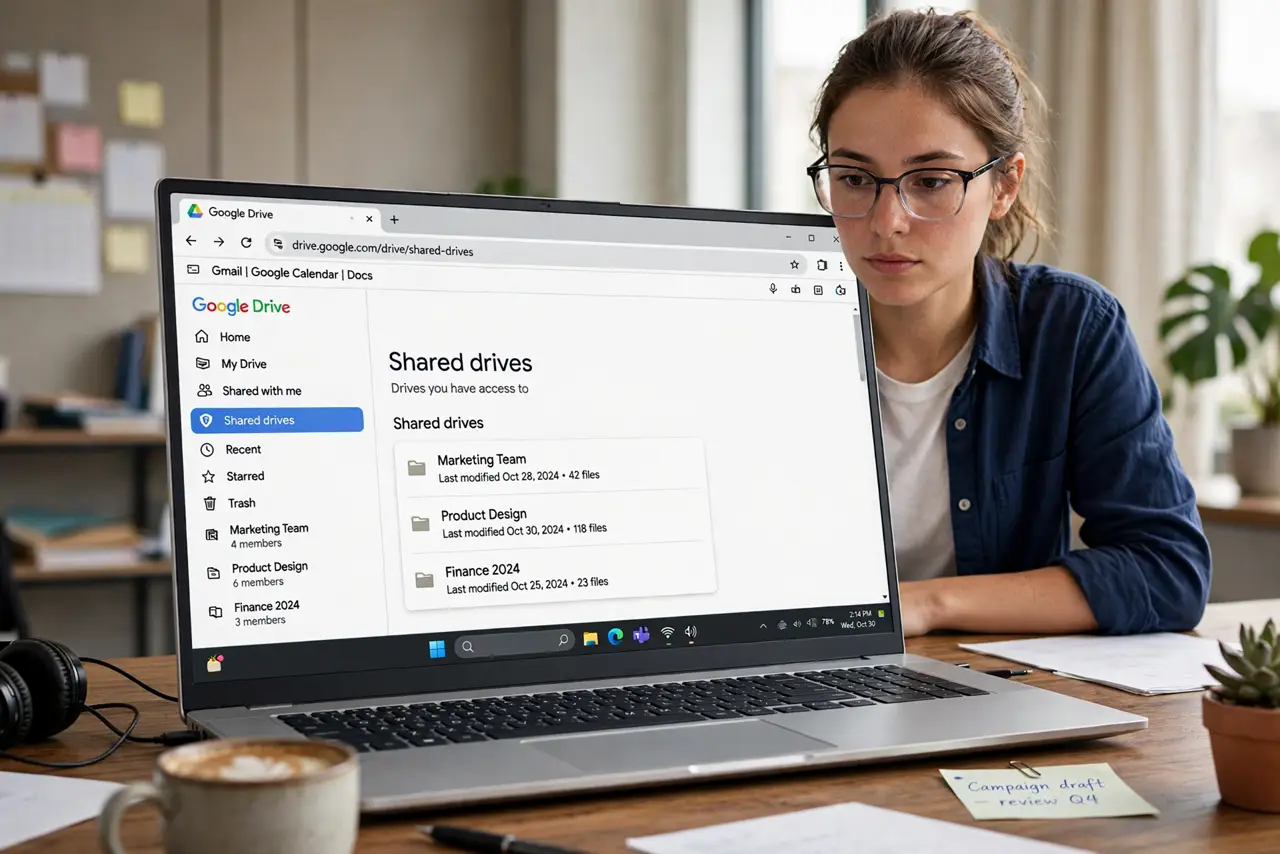
Shared Drives (formerly Team Drives) are Google Drive folders owned by a team instead of a person — files stay put even when someone leaves the company. They behave like regular Drive folders but with different rules about who can delete and move things. This guide covers the basics: what they are, when to use one, and the quirks that surprise newcomers.
TL;DR / Quick Fix
Quick fix: Shared Drives are team-owned folders in Google Drive — files survive when members leave. Only Managers can delete files permanently or move them out. Use one for anything the team must keep long-term. Personal files belong in My Drive, where you stay the owner.
Follow these steps
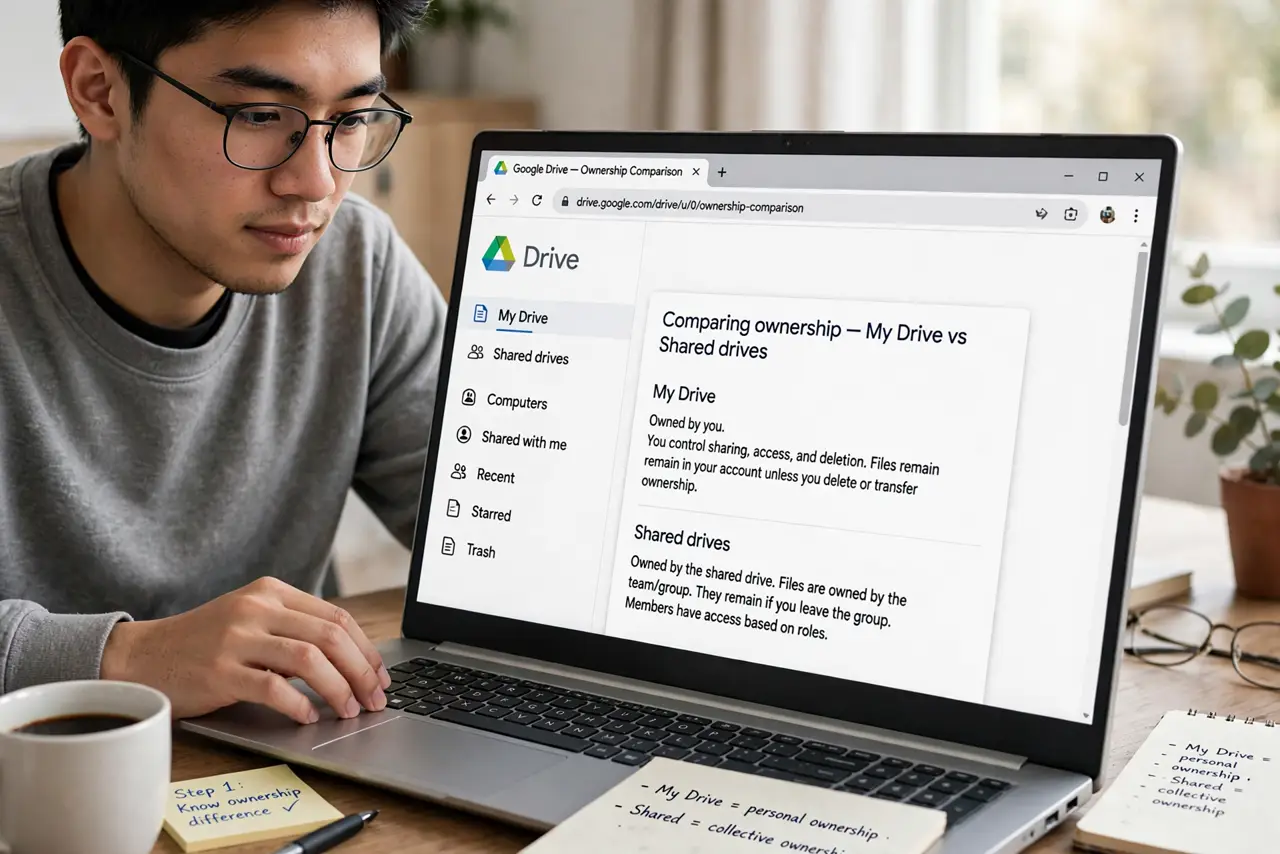
- Know the ownership difference. In My Drive, you own your files. In a Shared Drive, the team owns them — if you leave, everything stays. That is the entire reason they exist.
- Get the right role. Shared Drives have roles: Manager, Content Manager, Contributor, Commenter, Viewer. Only Managers can delete files permanently or change membership — ask your admin if you need more access.
- Move team files into one. Drag important shared files from My Drive into the Shared Drive. Ownership transfers to the team, which protects the files if the original owner departs.
- Learn the deletion rules. Deleting in a Shared Drive works differently: Content Managers and up can trash files, but only Managers empty the trash for good. Moved or deleted files can also cause surprising link expirations for people who had the old link.
- Do not store personal files there. Admins can see and manage everything in a Shared Drive. Keep personal documents in My Drive, where they are truly yours.
- Star what matters. Shared Drives can sprawl. Use starred files to pin the handful you open daily — see starring important files for the quick method.
What NOT to do
- Do not assume deleting removes a file for everyone instantly. Trash in a Shared Drive lingers until a Manager empties it — and members may still see it meanwhile.
- Do not move files out casually. Moving a file out of a Shared Drive changes its ownership and can break links others rely on.
- Do not give everyone Manager role. One accidental mass-delete by a well-meaning Manager is the classic Shared Drive disaster — grant the minimum role people need.
- Do not use a Shared Drive as personal backup. Admins can audit and remove content; it is a team space, not a private vault.
Frequently asked questions
What is the difference between Shared Drives and shared folders?
A shared folder in My Drive is still owned by one person — if they leave, access breaks. A Shared Drive is owned by the team, so files survive turnover.
Who can see files in a Shared Drive?
All members of the drive, according to their role. Your organization's admins can also access them — do not store anything private there.
Can I use Shared Drives on a free Google account?
No — Shared Drives require Google Workspace (a business or school account). Free personal accounts get shared folders in My Drive instead.