Star Important Files?
Google Drive buries the file you open every day under a mountain of everything else. Starring pins your most-used files to a dedicated Starred view — one click from the sidebar, on web and mobile. It is personal, instant, and reversible. This guide shows how to star, organize, and unstar without touching anyone else's view.
TL;DR / Quick Fix
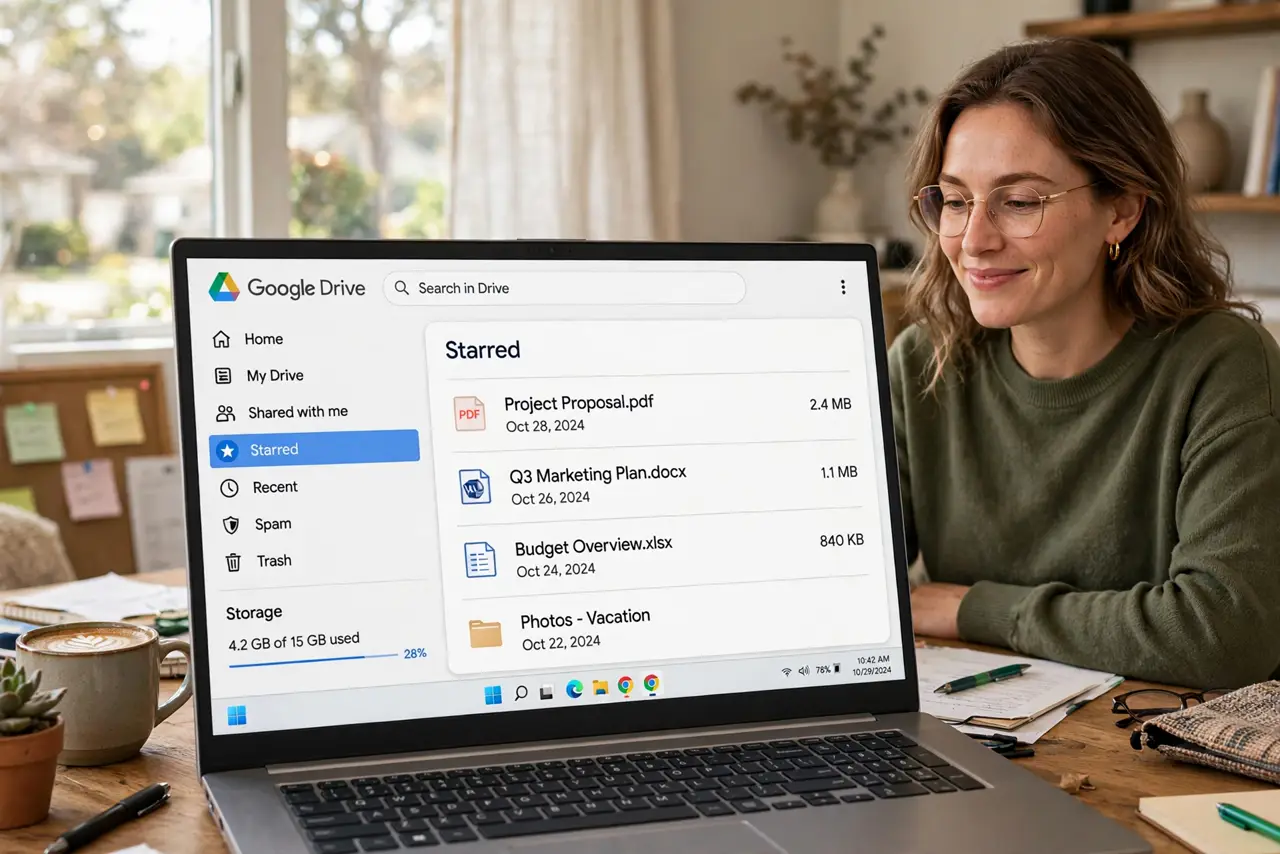
Quick fix: starring a file in Google Drive pins it to your Starred view for one-click access. Star from the right-click menu or the mobile app. It is personal — others do not see your stars. Unstar the same way. Use it for the five files you open every day.
Follow these steps
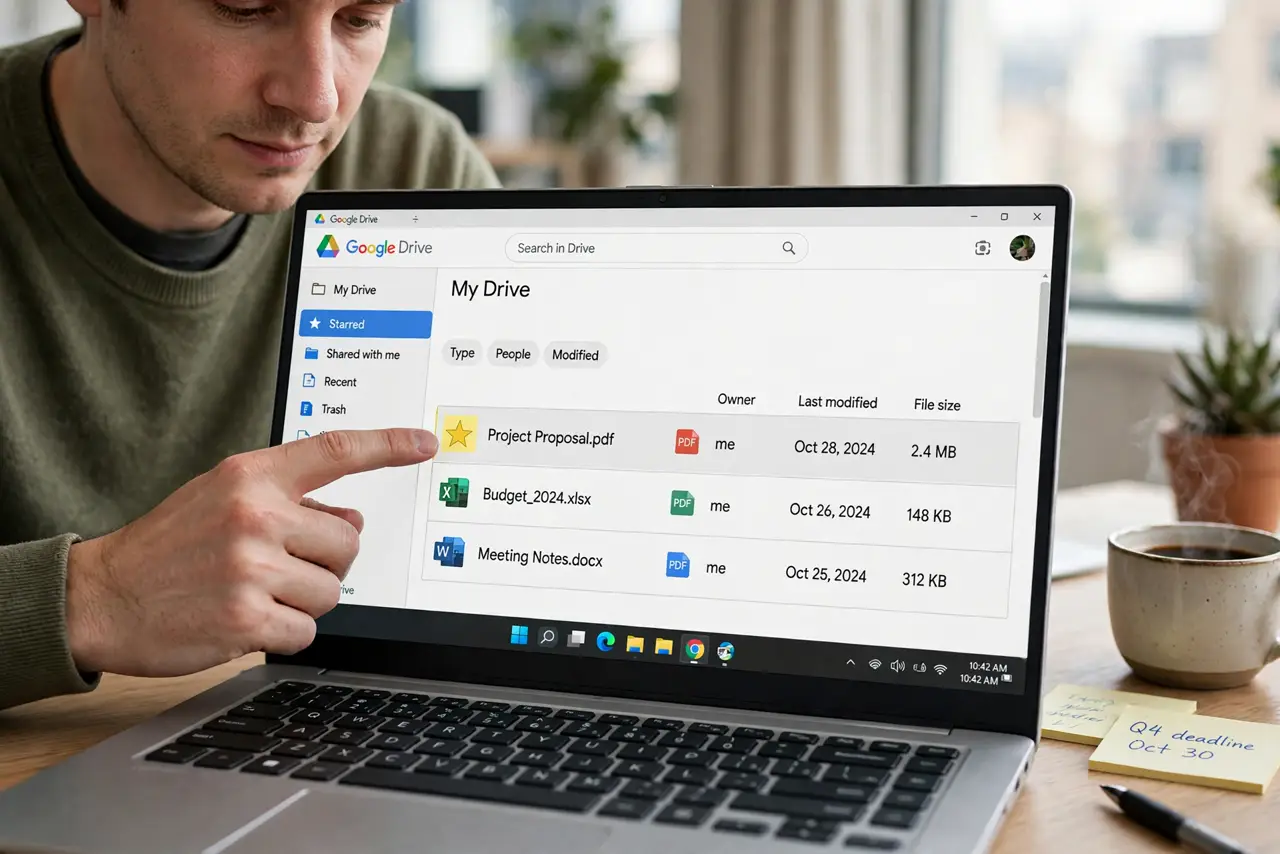
- Star from the web. Right-click any file or folder in Google Drive and choose 'Add star' (or 'Organize' then 'Add star' in the newer layout). A small star appears on the item instantly.
- Star from the phone app. Tap the three dots next to a file in the Drive app and choose 'Add star.' Mobile starring syncs to the web immediately — same stars everywhere.
- Find them in the Starred view. Click Starred in the left sidebar. Everything you starred, across My Drive and Shared Drives, lands in this one flat list — no folder digging.
- Star folders, not just files. Starring a folder pins the whole project at once. For sprawling work, one starred folder beats twenty starred files scattered in the list.
- Unstar the same way. Right-click and choose 'Remove star' (or the three-dot menu on mobile). Unstarring never deletes the file — it just leaves the Starred view.
- Keep the list short. Stars work because the list is small. If everything is starred, nothing is — prune monthly down to the handful you truly open daily.
What NOT to do
- Do not star everything. A Starred view with two hundred items is just a second Drive — the power is in keeping it under a dozen.
- Do not expect others to see your stars. Starring is per-account and private; your teammates' Starred views are their own.
- Do not confuse starring with sharing. A star is a bookmark, not a permission — it changes nothing about who can open the file.
- Do not use stars as your only organization. Folders still matter for structure; stars are shortcuts to the few things you touch constantly.
Frequently asked questions
Do starred files use extra storage?
No. A star is just a pointer — the file exists once, in its folder. Starring costs zero storage.
Can I star files others shared with me?
Yes. Anything you can open, you can star — including Shared Drive files. Your stars stay private to you.
Why did my star disappear?
The file was likely deleted or your access was revoked. Check Trash and 'Shared with me' — unstarring never happens on its own.