Use Two Internet Connections
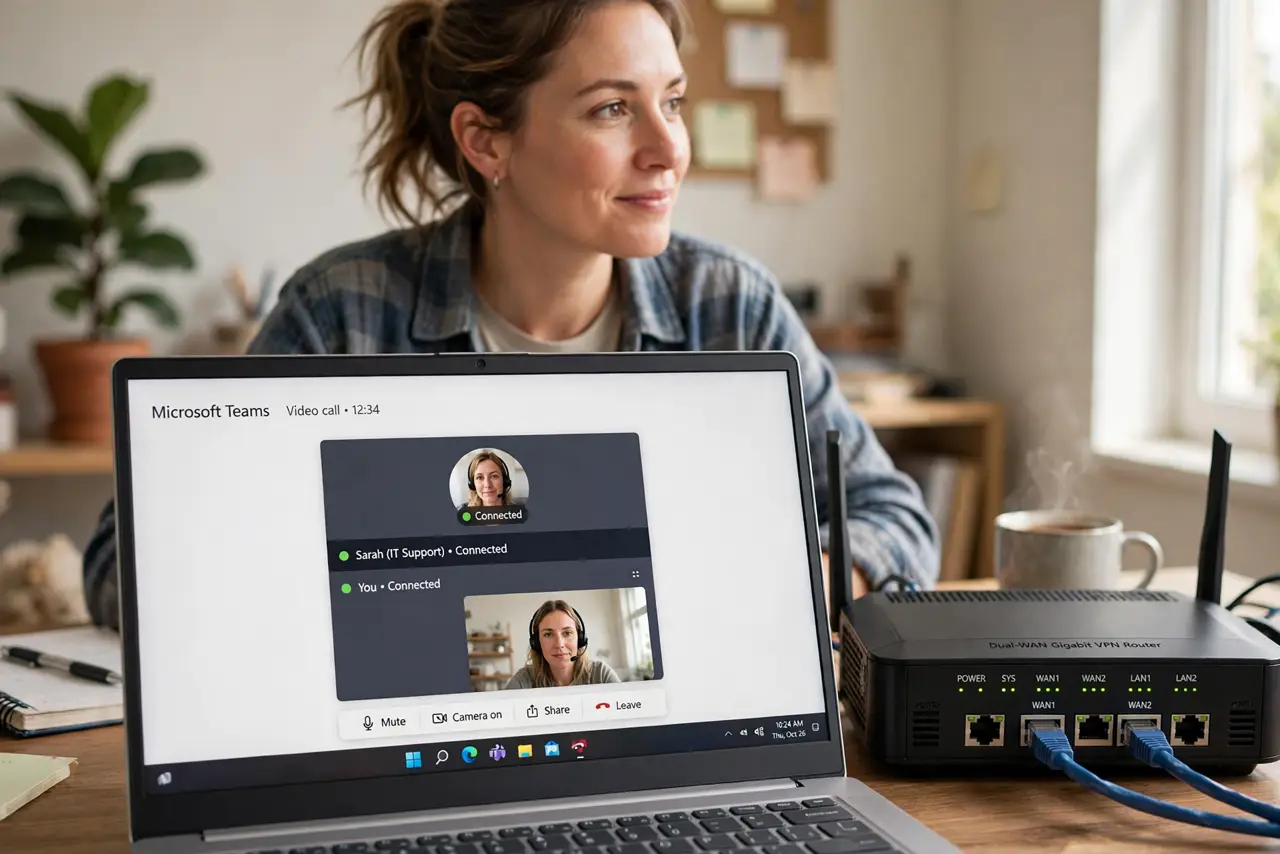
The internet dies at 10 AM on a workday, and your hotspot crawls while the whole house fights over it. If outages cost you real money or real stress, one connection is a single point of failure. A dual-WAN router holds two internet lines and switches to the backup automatically — the professional answer to 'the internet is down again.'
TL;DR / Quick Fix
Quick fix: a dual-WAN router holds two internet lines and fails over when the main dies. It is the fix for outages that kill workdays. You need a router with two WAN ports (or USB failover) and a second line. Overkill for casual use; essential if downtime costs money.
Follow these steps
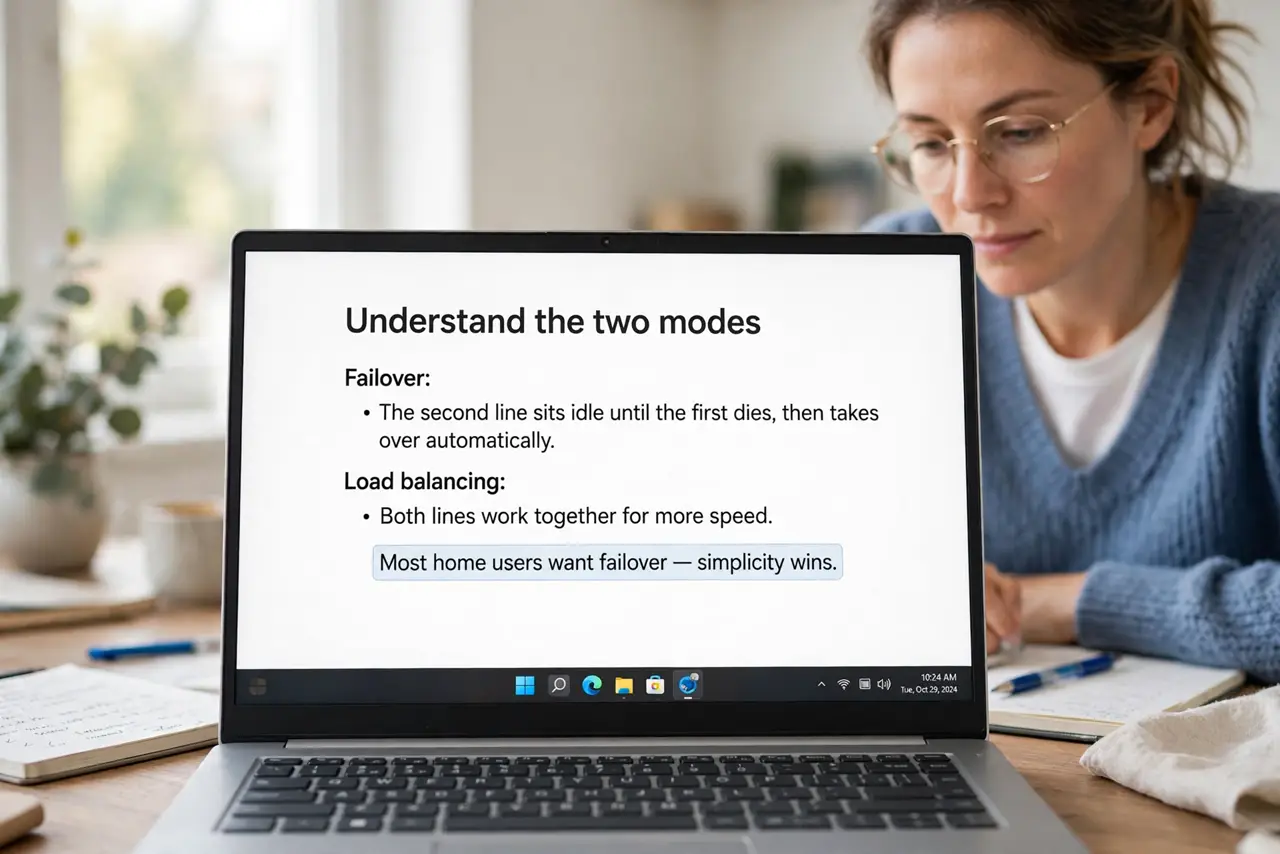
- Understand the two modes. Failover: the second line sits idle until the first dies, then takes over automatically. Load balancing: both lines work together for more speed. Most home users want failover — simplicity wins.
- Get a dual-WAN capable router. You need two WAN ports, or one WAN plus USB for a cellular modem. Check the spec sheet explicitly — dual-WAN must be printed there, not assumed.
- Choose a genuinely different second line. Two lines from the same provider on the same street often die together. Cable + 5G (or fiber + DSL) from different providers is real redundancy; same-provider backup is theater.
- Configure failover in the router. Plug each line into its WAN port, then set the failover order in the router's WAN settings. Test it by unplugging the main line — devices should stay online after a brief hiccup.
- Mind the data caps. A 5G backup with a 50 GB cap burns through fast when it is carrying the whole house. Set the router to prefer the unlimited line and alert you on failover — surprise overage bills are the classic gotcha.
- Test quarterly. Unplug the main line for ten minutes every few months. Configurations drift, passwords change, modems get swapped — an untested backup is a hope, not a plan.
What NOT to do
- Do not buy two lines from the same provider for redundancy. A neighborhood outage or a provider issue takes both — different providers, different technologies.
- Do not forget the backup line needs power too. A modem on a different circuit (or a UPS) keeps the failover alive when the power blips — otherwise the backup dies with the main.
- Do not assume failover is instant. Expect 30–60 seconds of dropped calls and frozen video while the router switches — it is continuity, not magic.
- Do not leave the second line unmonitored. An expired SIM or an unpaid backup bill discovered during an outage is a special kind of pain — check it quarterly.
Frequently asked questions
Can I just use my phone's hotspot as backup?
Manually, yes — it is the poor man's failover. A dual-WAN router with a USB modem automates it; the hotspot requires you to notice the outage and act.
Does dual-WAN double my speed?
Only in load-balancing mode, and only for multiple simultaneous uses — one big download still uses one line. Failover mode adds zero speed, just reliability.
Is this overkill for a normal home?
For casual browsing, yes. For remote work where an outage means lost income, it is cheap insurance — one saved workday pays for the hardware.