Set Up VPN on Your Router
Your smart TV, game console, and guests' phones cannot run VPN apps — but they all go through your router. Installing the VPN on the router itself protects every device on your network with a single setup. It is the most powerful home-VPN configuration, and the fiddliest. Here is the honest walkthrough, including when not to bother.
TL;DR / Quick Fix
Quick fix: a VPN on your router protects every device on the network with one setup. You need a router with VPN client support and a subscription allowing router installs. Expect some speed loss and trickier streaming. Powerful but fiddly; per-device apps are simpler for most people.
Follow these steps
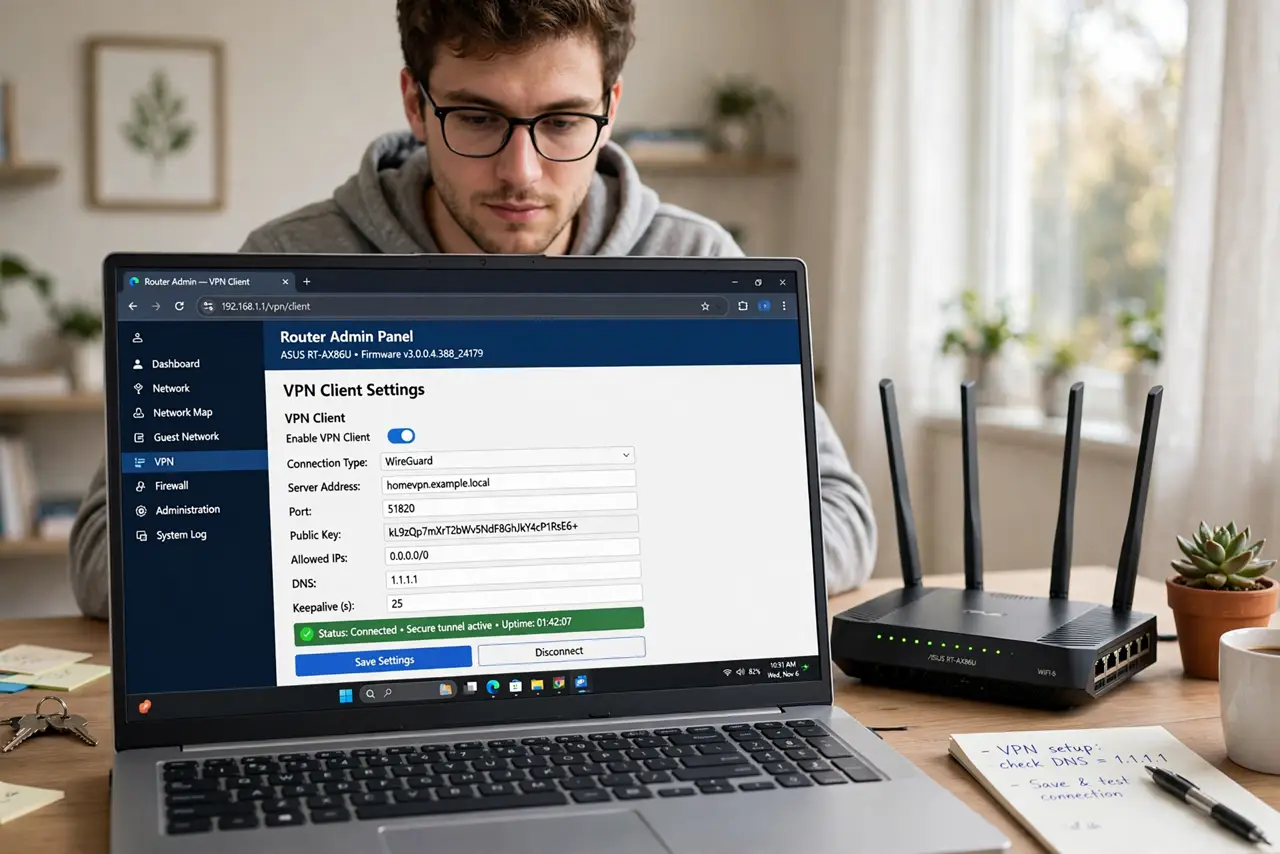
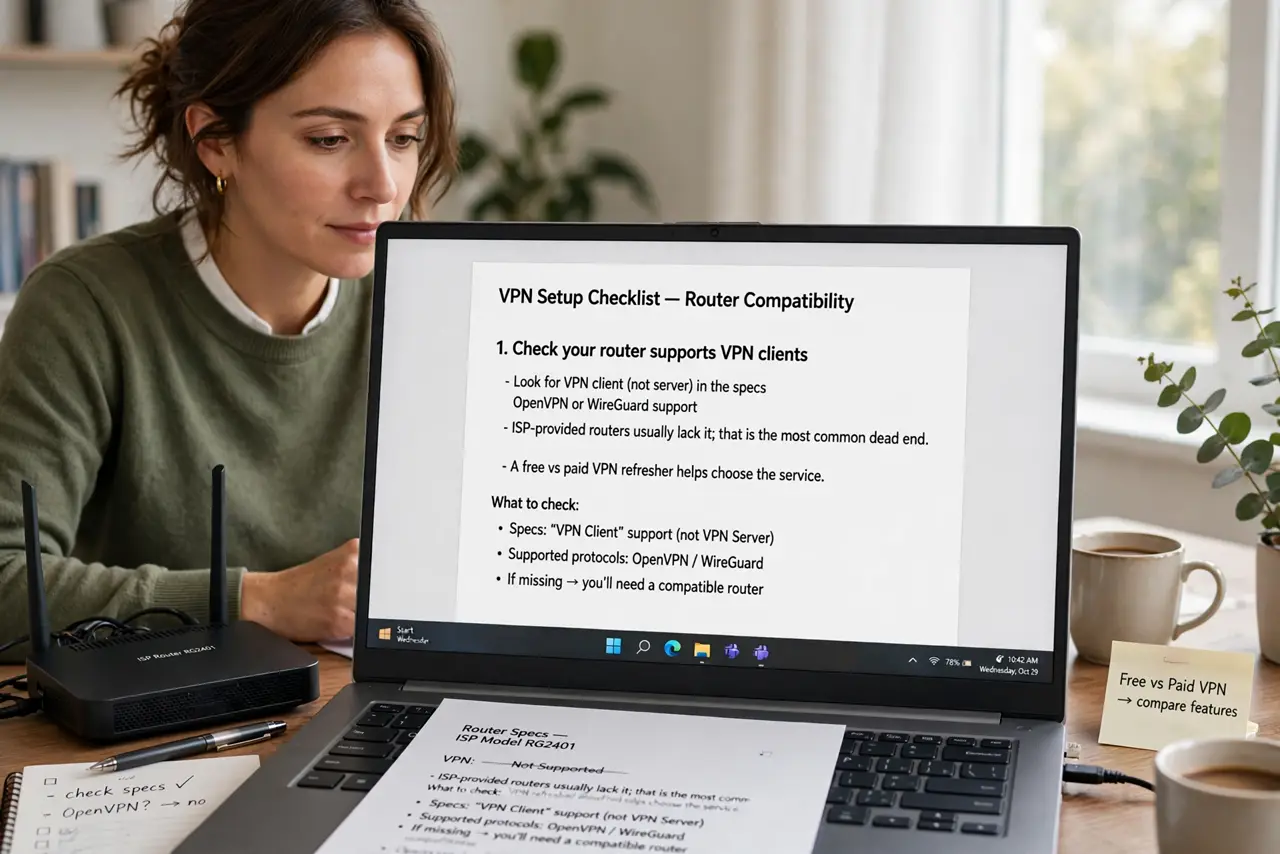
- Check your router supports VPN clients. Look for VPN client (not server) in the specs — OpenVPN or WireGuard support. ISP-provided routers usually lack it; that is the most common dead end. A free vs paid VPN refresher helps choose the service.
- Pick a VPN that allows router installs. Not all do — some forbid it in their terms or make config files hard to get. Confirm before subscribing; the good ones publish router setup guides.
- Download the config files. Your VPN provider offers .ovpn or WireGuard config files, often with a server picker. Download the one for your preferred location — closer servers mean less speed loss.
- Enter them in the router. In the router's VPN client section, upload the config and enter your VPN username/password. Save, connect, and verify the router shows a connected status.
- Verify the whole network. Check your public IP from a phone and a laptop — both should show the VPN location. If only some devices do, the config is not applying network-wide.
- Set up the kill switch and policy rules. Enable the VPN kill switch so a dropped VPN does not silently expose traffic. Many routers also let you exclude devices (like the work laptop) from the VPN.
What NOT to do
- Do not use a free VPN on your router. Free VPNs monetize your traffic — routing your entire household through one is the worst place to cheap out. See free VPN risks.
- Do not expect streaming to just work. Streaming services aggressively block VPN IPs — you will be switching servers or excluding the TV from the VPN.
- Do not forget the router's CPU limits. Encryption is heavy work; a weak router CPU caps your VPN speed far below your line speed — check benchmarks for your model.
- Do not skip the kill switch. Without it, a 3 AM VPN dropout silently routes everything unprotected until you notice — the kill switch makes failures loud.
Frequently asked questions
Will a router VPN slow everything down?
Somewhat — expect 10–30% on a decent router, more on weak hardware. WireGuard is faster than OpenVPN; server choice matters too.
Can I still use the VPN on my phone outside home?
Yes — keep the phone's VPN app for travel. The router covers home; the app covers everywhere else. They do not conflict.
Do I still need VPN apps on devices?
Not for protection at home — the router covers them. Keep one app for travel, and for the rare device you exclude from the router VPN.