Hide My Email Aliases
You want the signup but not the spam, and plus-addressing still shows your real address to anyone who looks. Apple's Hide My Email generates random @icloud.com addresses that forward to your inbox — the site never learns your real email at all. Here is how to create, manage, and retire them.
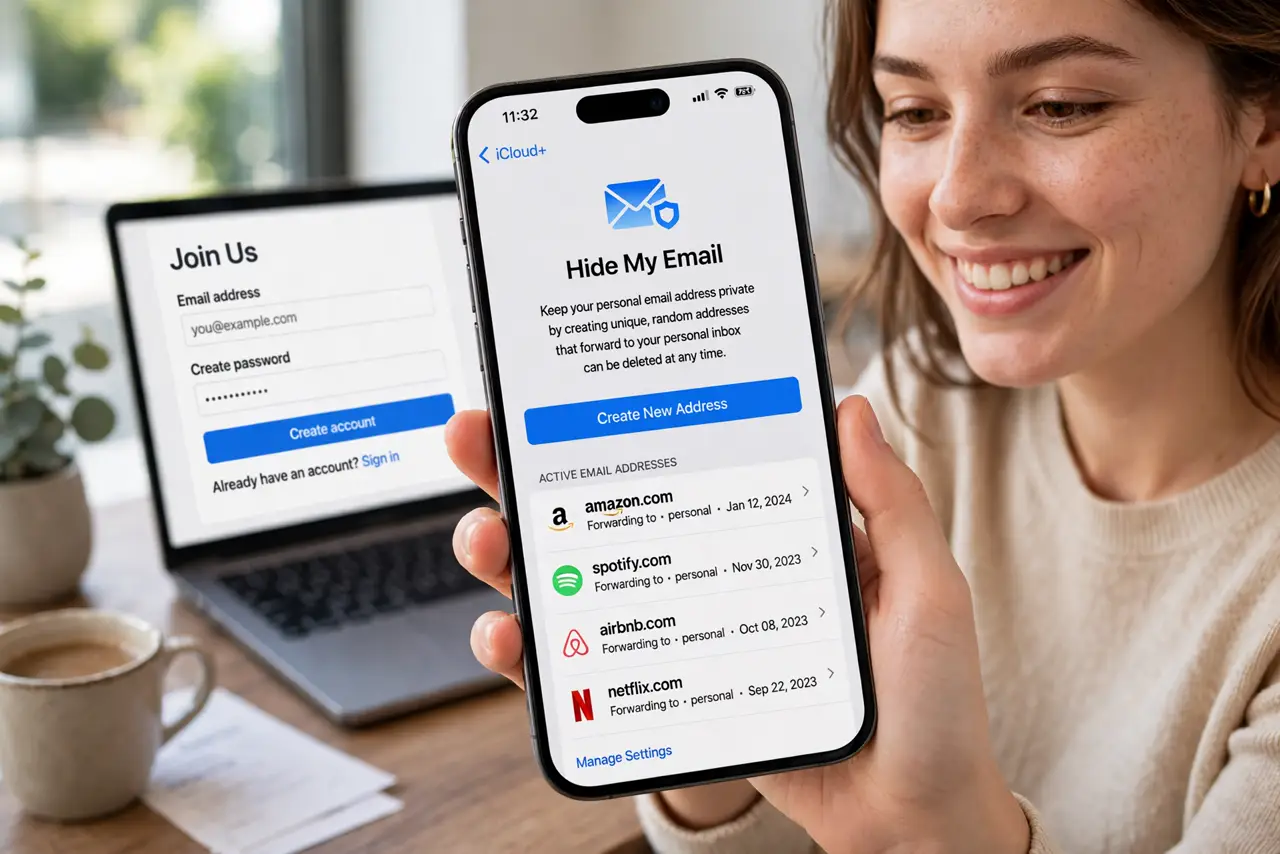
TL;DR / Quick Fix
Quick fix: on iPhone, open Settings, your name, iCloud, Hide My Email, and create a new address. Label it with the site name and use it at signup. Mail forwards to your inbox. If a burner gets spammed, deactivate it — the alias dies and your real email stays hidden.
Follow these steps
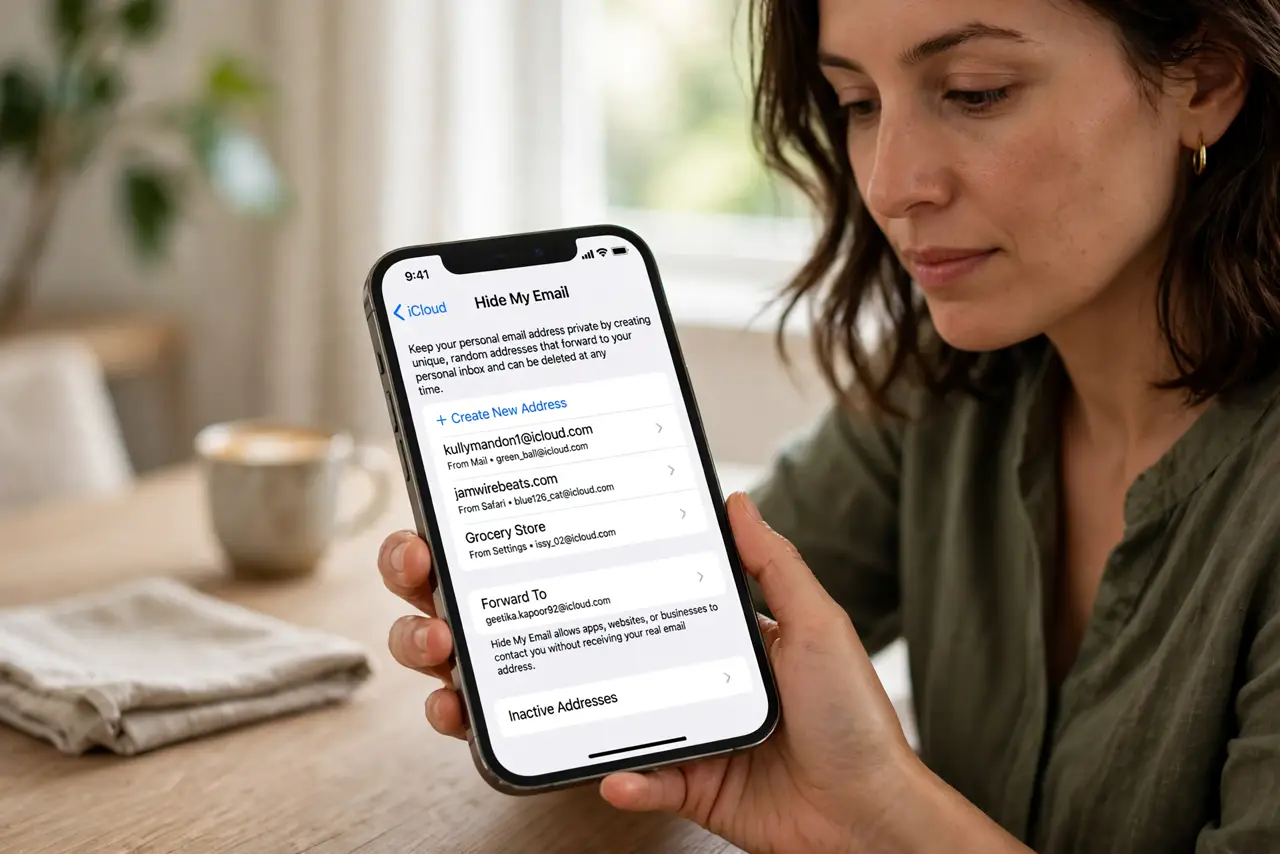
- Open Hide My Email. On iPhone go to Settings, your name, iCloud, Hide My Email. On Mac it lives in System Settings under your Apple ID — same list everywhere.
- Create a new address. Tap Create New Address. Apple generates a random @icloud.com address — you cannot pick a cute one, and that randomness is the point.
- Label it with the site name. Give it a label like Bookstore signup and a note if you like. Labels are how you will identify the address months later.
- Use it at signup. Copy the address into the site's signup form. Confirmation emails and receipts forward to your real inbox seamlessly.
- Manage addresses centrally. The Hide My Email screen lists every burner with its label. See which ones get mail and which sit silent — silent ones are candidates for cleanup.
- Deactivate abused burners. Spam on a burner? Tap it and choose Deactivate Email Address. The address stops working immediately. For the simpler plus-address trick, that guide covers the lighter-weight option.
What NOT to do
- Do not use burners for accounts you must recover. If you deactivate the address, password-reset emails bounce — keep burners active for important logins.
- Do not create burners without labels. A list of twenty random addresses with no labels is unmanageable — label at creation.
- Do not assume burners hide you from Apple. Apple forwards the mail, so Apple knows — this hides you from the site, not from Apple.
- Do not confuse this with general alias strategy. Hide My Email is one tool; a full alias plan covers non-Apple signups too.
Frequently asked questions
Is Hide My Email free?
It requires iCloud+, which comes with any paid iCloud storage plan. The free 5GB tier does not include it.
Can I reply from a burner address?
Yes — replies from Mail can use the burner as the sender, keeping your real address hidden in both directions.
What happens if I deactivate an address?
It stops receiving immediately. Any account tied to it cannot email you — reactivate or update the account first.