A Follow-Up Reminder Never Arrives for Email
You sent an important email and expected a nudge if nobody replied, but the reminder never came. The nudge feature may be off, the email may not qualify, or the reminder went somewhere you did not look.
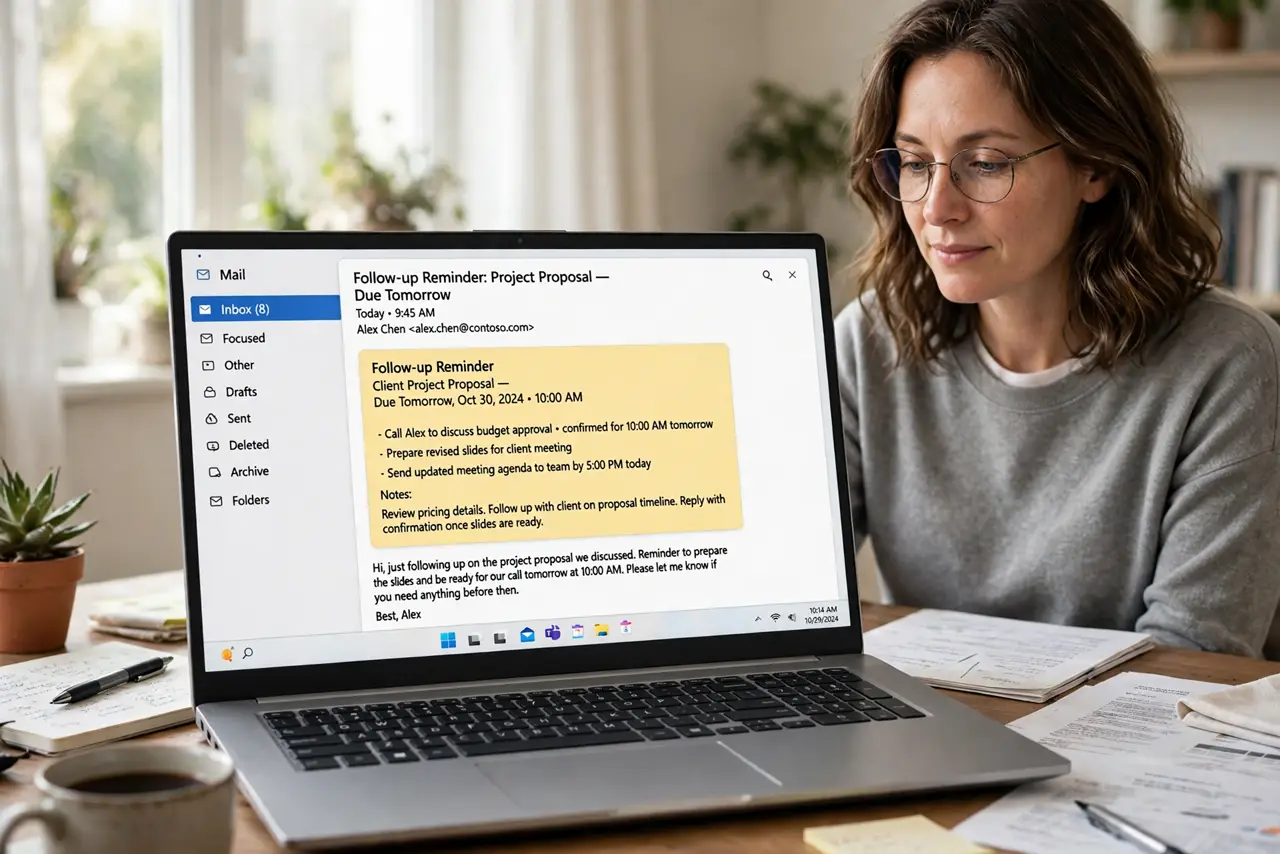
TL;DR / Quick Fix
Quick fix: open your email settings and confirm follow-up or nudge suggestions are turned on. Then check your inbox top and your reminders folder, since nudges often appear as a small card rather than a new email instead of relying on chance.
Follow these steps
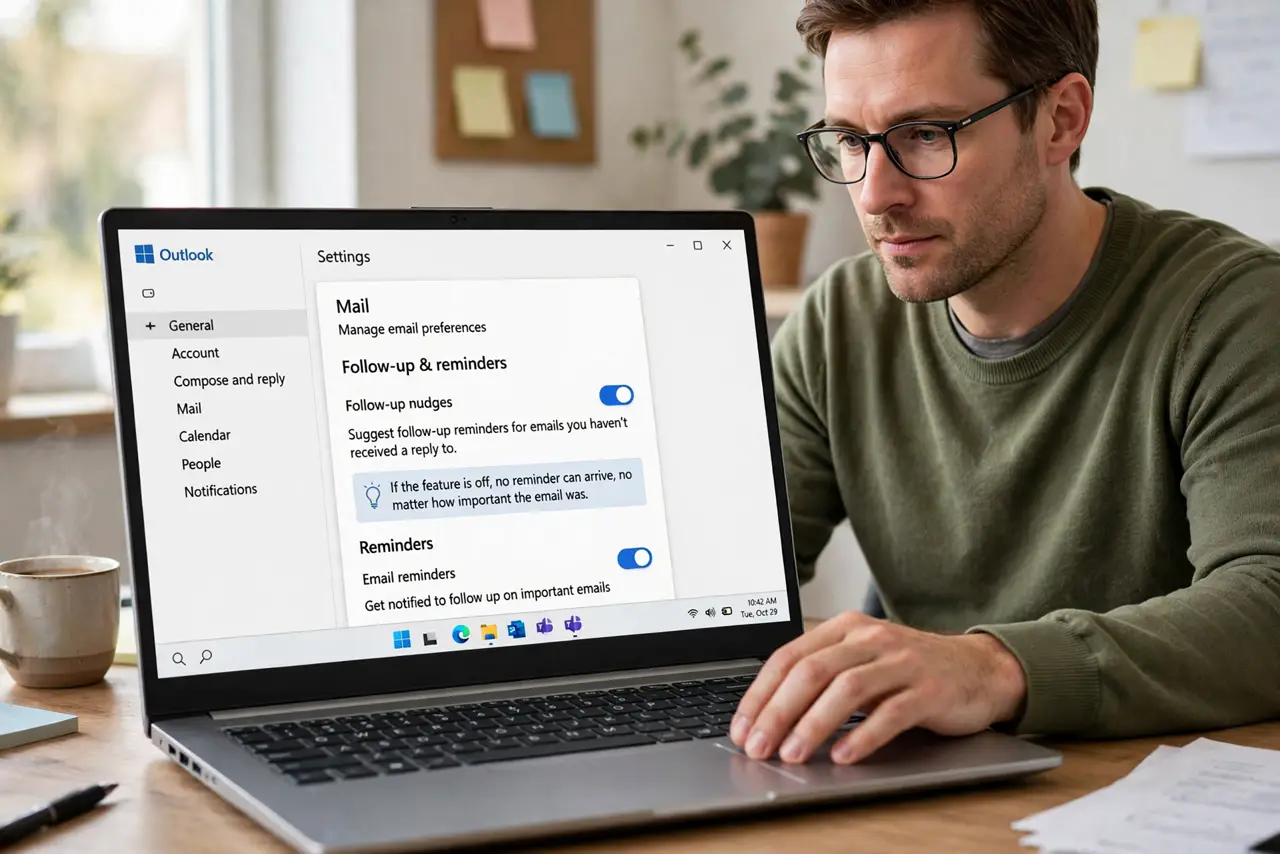
- Turn on follow-up nudges. Open your email settings and look for nudges, follow-ups, or reminders. If the feature is off, no reminder can arrive, no matter how important the email was.
- Check where nudges appear. Look at the top of your inbox and in any reminders or snoozed folder. Nudges often show as a small card on the original email, not as a new message.
- Confirm the email qualifies. Many nudge features only watch sent emails with no reply after a few days. A very recent email, or one that already got a reply, may not qualify for a nudge.
- Check notification permissions. Confirm your email app can show notifications on your phone or computer. A nudge that the app generates silently helps nobody if notifications are blocked.
- Set your own reminder instead. For truly important emails, snooze the sent email to return in a few days. Your own snooze is a guaranteed reminder, while automatic nudges are only a suggestion.
- Search before declaring it missing. Search your inbox for the subject or sender. A nudge you scrolled past counts as arrived, and finding it teaches you where to look next time.
What NOT to do
- Do not rely only on automatic nudges for critical emails. Set your own snooze or calendar reminder, since automatic features can miss edge cases.
- Do not assume the feature watches every email. Most nudges cover only sent emails awaiting replies, not every message in your inbox.
- Do not turn the feature off over one missed nudge. Check the settings and qualifying rules first, since one miss rarely means it is broken.
- Do not confuse a nudge with a reply. A nudge reminds you to follow up, while the actual follow-up email still needs you to write it.
Frequently asked questions
Why did I get no follow-up reminder?
Because the nudge feature may be off, the email may not qualify, or the reminder appeared somewhere you did not look.
What emails get nudges?
Usually sent emails with no reply after a few days, though the exact rules differ by email app.
What is a guaranteed reminder instead?
Snooze the sent email to return on a date you choose, so you get reminded no matter what.