Email Forwarding Creates Endless Duplicates
Every email arrives twice, or the same message loops back again and again. Two forwarding rules that point at each other — or one rule feeding itself — usually create the loop.
TL;DR / Quick Fix
Quick fix: open your email forwarding settings and look for two rules that send mail to each other, or one rule that forwards to the same address it reads. Turn off one side of the loop, then watch for a day to confirm the duplicates stop.
Follow these steps
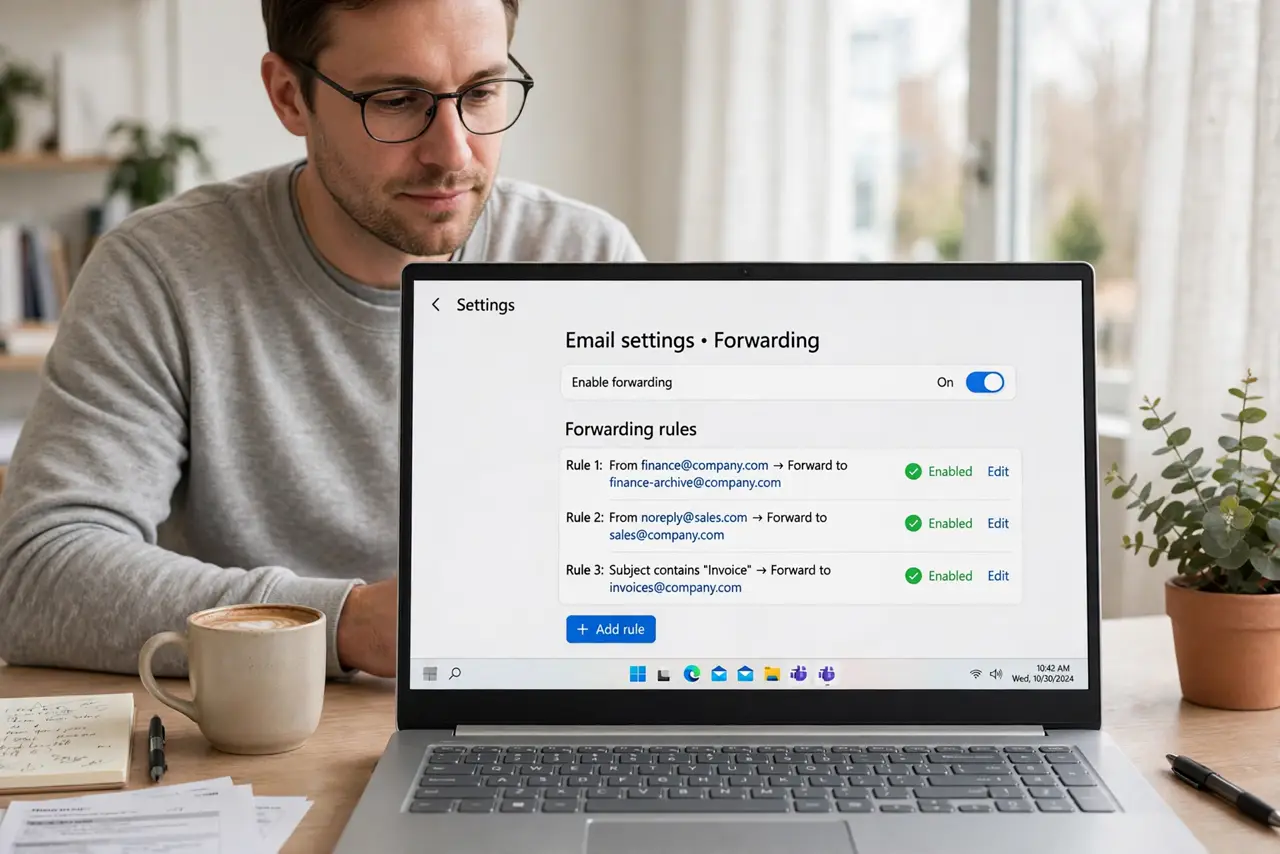
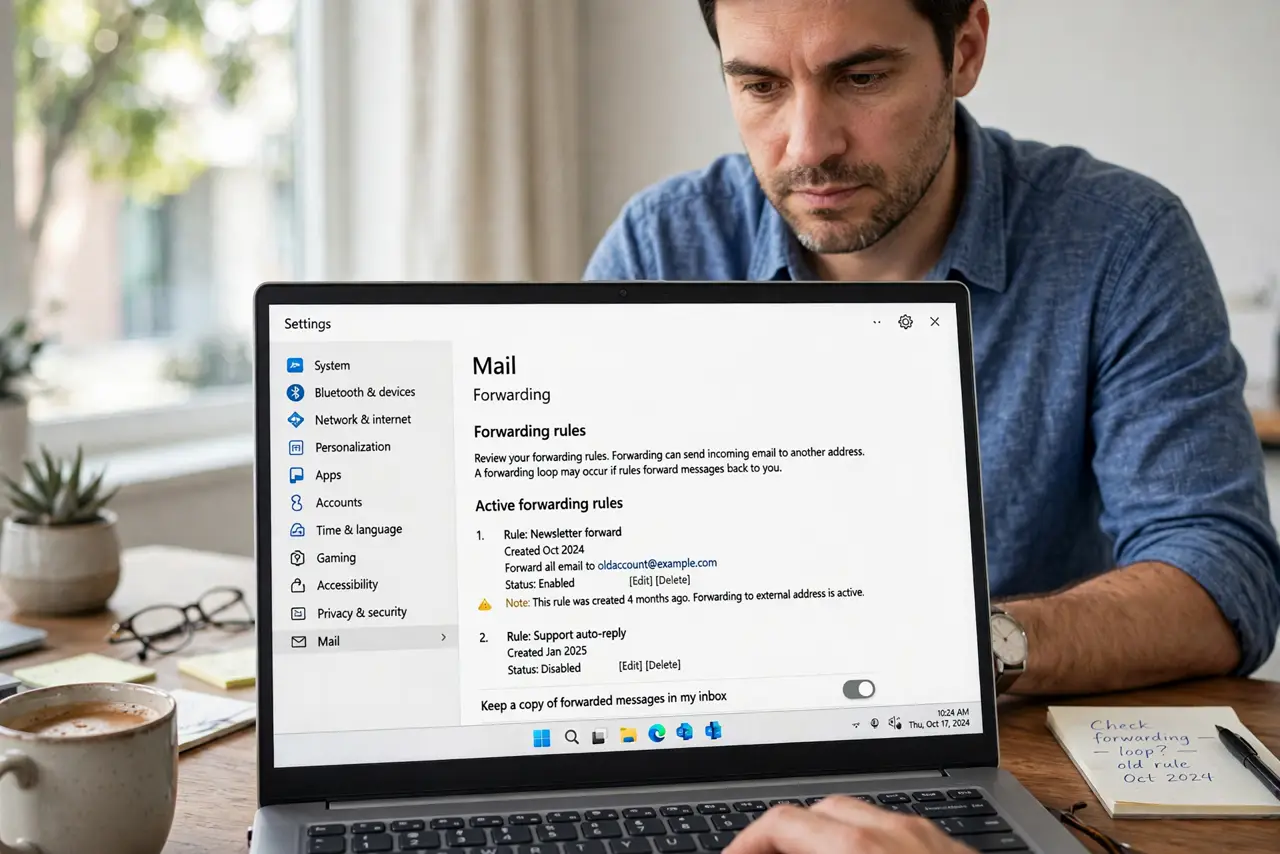
- Open your forwarding rules. Open your email settings and find the forwarding section. Read every rule, because the loop hides in a rule you forgot you created months ago.
- Look for rules that point at each other. If address A forwards to B and B forwards to A, every message circles forever. Turn off one of the two rules to break the circle.
- Check for a rule that feeds itself. A rule that forwards mail to the same mailbox it reads from creates a loop of copies. Change its destination or turn it off.
- Check filters that also forward. Some inboxes let filters forward copies of matching mail. A filter plus a forwarding rule can duplicate the same message, so review filters as well as forwarding.
- Turn off forwarding and test for a day. Disable forwarding entirely, then send yourself a test email. One copy means the loop came from forwarding, and you can rebuild the rule correctly.
- Rebuild one simple rule. If you need forwarding, create a single clear rule to one destination. One rule does the job, while stacked rules invite another loop.
What NOT to do
- Do not create a second rule to fight the duplicates. More rules make the loop worse, so remove rules until one clean rule remains.
- Do not delete the duplicates one by one forever. Fixing the rule stops new duplicates, while deleting old ones only treats the symptom.
- Do not assume duplicates mean you were hacked. A forwarding loop looks alarming, but it is almost always your own rules, not an intruder.
- Do not forward to two addresses at once through two rules. Use one rule with both destinations if you need two copies, so they stay in sync.
Frequently asked questions
Why does every email arrive twice?
Because a forwarding rule sends a copy onward while the original also arrives, or two rules forward mail back and forth.
How do I find the looping rule?
Open forwarding settings and read every rule, looking for two rules that point at each other or one rule feeding itself.
Can a filter cause duplicates too?
Yes. A filter that forwards copies plus a forwarding rule can duplicate the same message.