Out of Office Reply Looping? Stop It
An out of office loop happens when two automatic replies keep answering each other, or when a reply fires for every message including newsletters. Limiting who gets a reply, and setting an end date, stops the loop.
TL;DR / Quick Fix
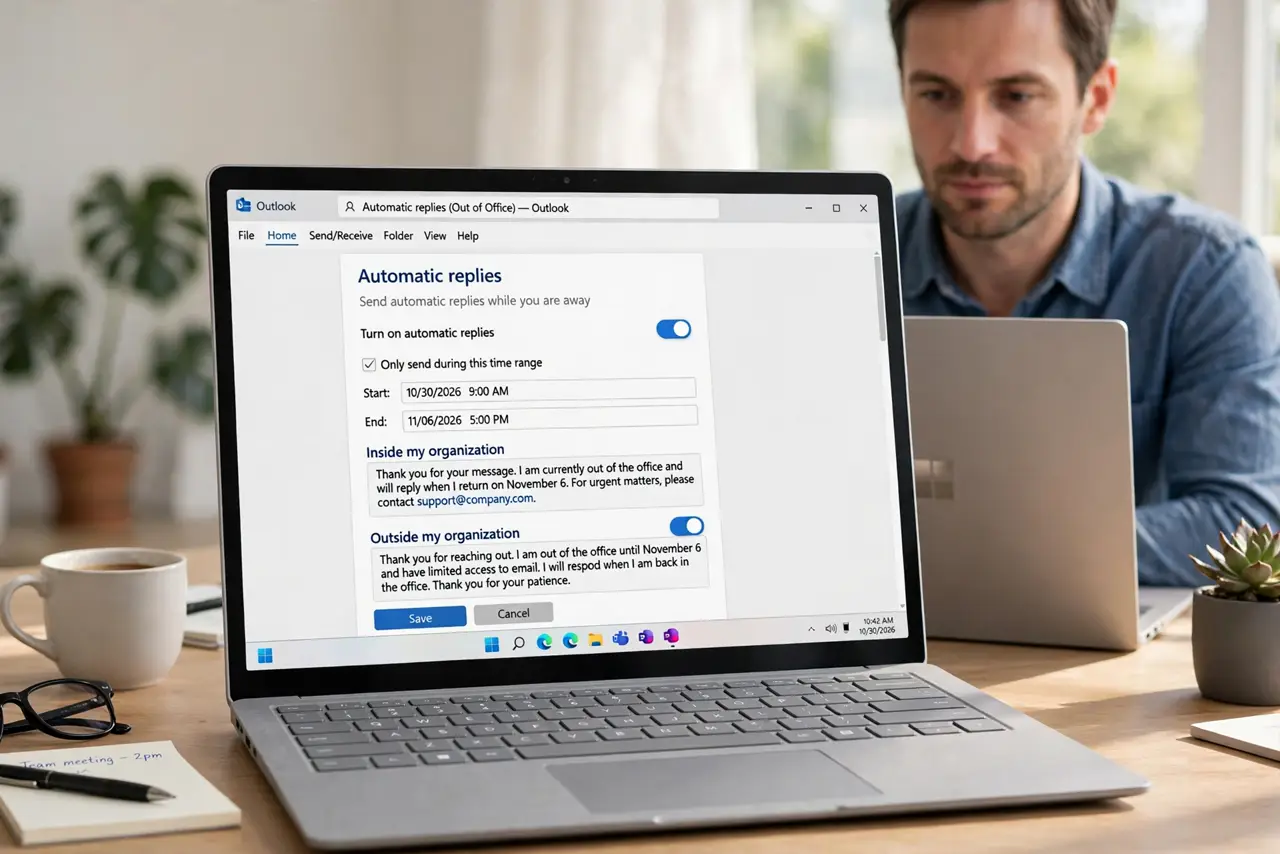
Quick fix: turn off the out of office reply, then set it again with an end date and replies to known senders only. Exclude newsletters and automated mail, and turn the reply off the day you return. Last, turn it off on the day you return to confirm it.
Follow these steps
- Turn off the out of office reply now. Open mail settings and turn the automatic reply off immediately. Stopping the loop first prevents more automatic messages while you fix the settings.
- Set a clear start and end date. Set the reply again with a start date and an end date. An end date guarantees the reply stops, even if you forget to turn it off on return.
- Limit replies to known senders. Set the reply to answer only people in your organization or contacts, if that option exists. Strangers and mailing lists do not need an automatic reply.
- Exclude newsletters and automated mail. Check the option to skip automatic replies to newsletters, notifications, and mailing lists. Those senders trigger loops most often.
- Send only one reply per sender. Confirm the setting sends one reply per sender during the absence, not one reply per message. One reply per sender prevents a flood when someone writes twice.
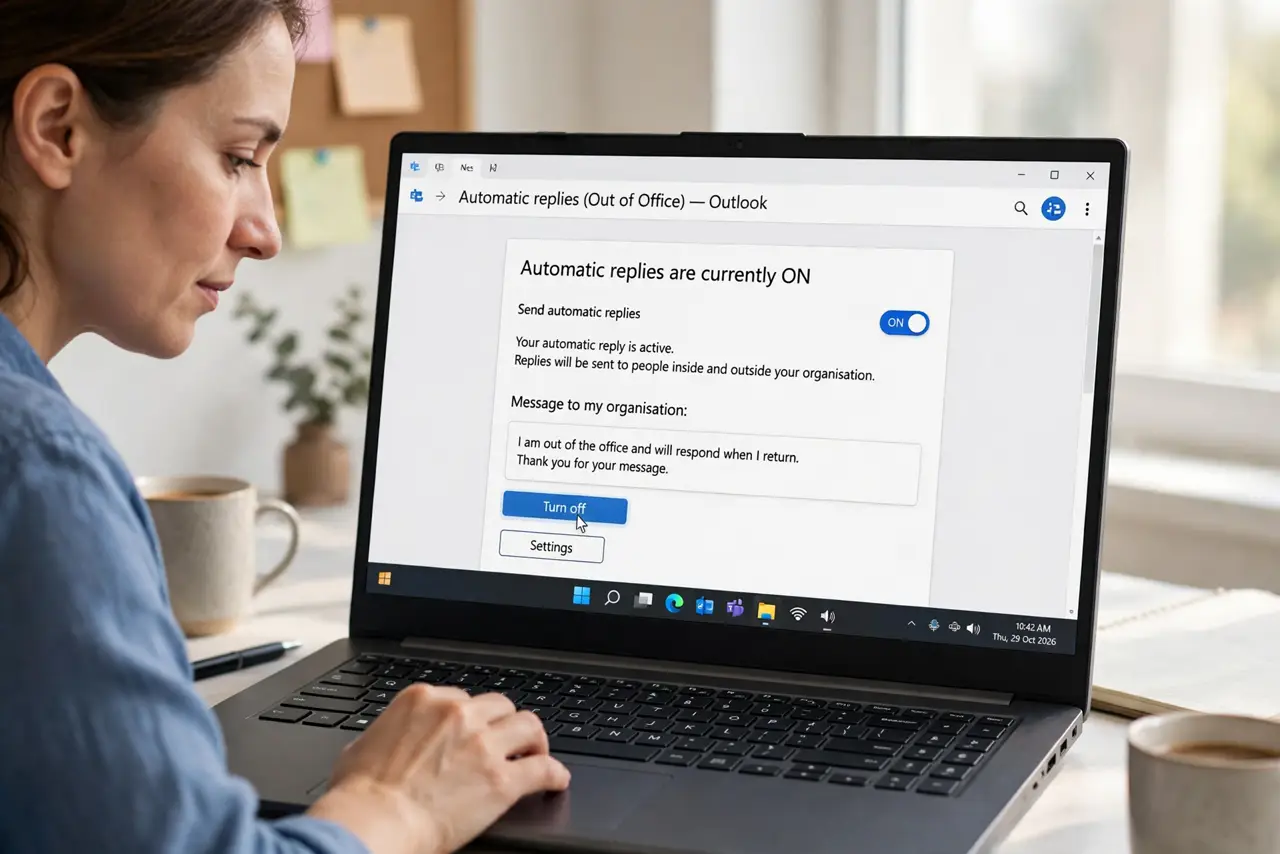
- Turn it off on the day you return. On your first day back, open mail settings and confirm the reply is off. A reply left on after return confuses people who write to you.
What NOT to do
- Do not leave an out of office reply without an end date. A forgotten reply can run for months.
- Do not set the reply to answer every message. Mailing lists and automated senders will loop or flood.
- Do not include sensitive details in the reply. A return date and a backup contact are enough; travel plans are not.
- Do not set two automatic replies at once, such as one in mail and one in a second app. Two replies can answer each other.
Frequently asked questions
Why do out of office replies loop?
Two automatic systems can answer each other, or a reply fires for every message from a mailing list, creating a flood.
Should out of office replies go to everyone?
No. Known senders and your organization are enough. Strangers and lists do not need one.
What should the reply say?
Your return date and a backup contact for urgent matters. Keep it short and professional.