Email Signature Broken on Phone? Fix It
A signature that looks fine on a computer often breaks on a phone because the phone screen is narrow and the mail app handles tables and images differently. A simpler signature survives both screens.
TL;DR / Quick Fix
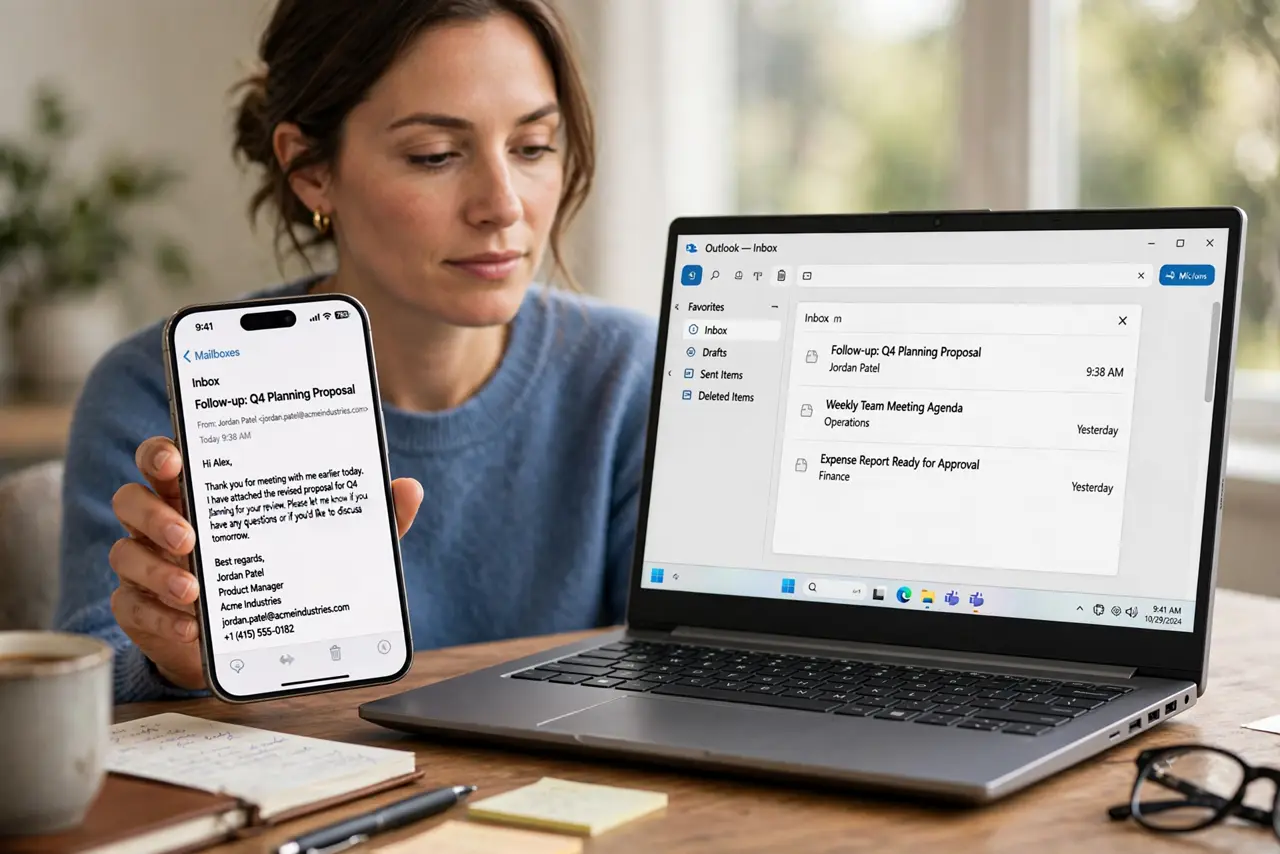
Quick fix: simplify the signature to stacked text lines with one small image, remove wide tables and side-by-side columns, and send a test message to your phone. Check it in portrait mode before using it again. Last, test again on phone and computer to confirm it.
Follow these steps
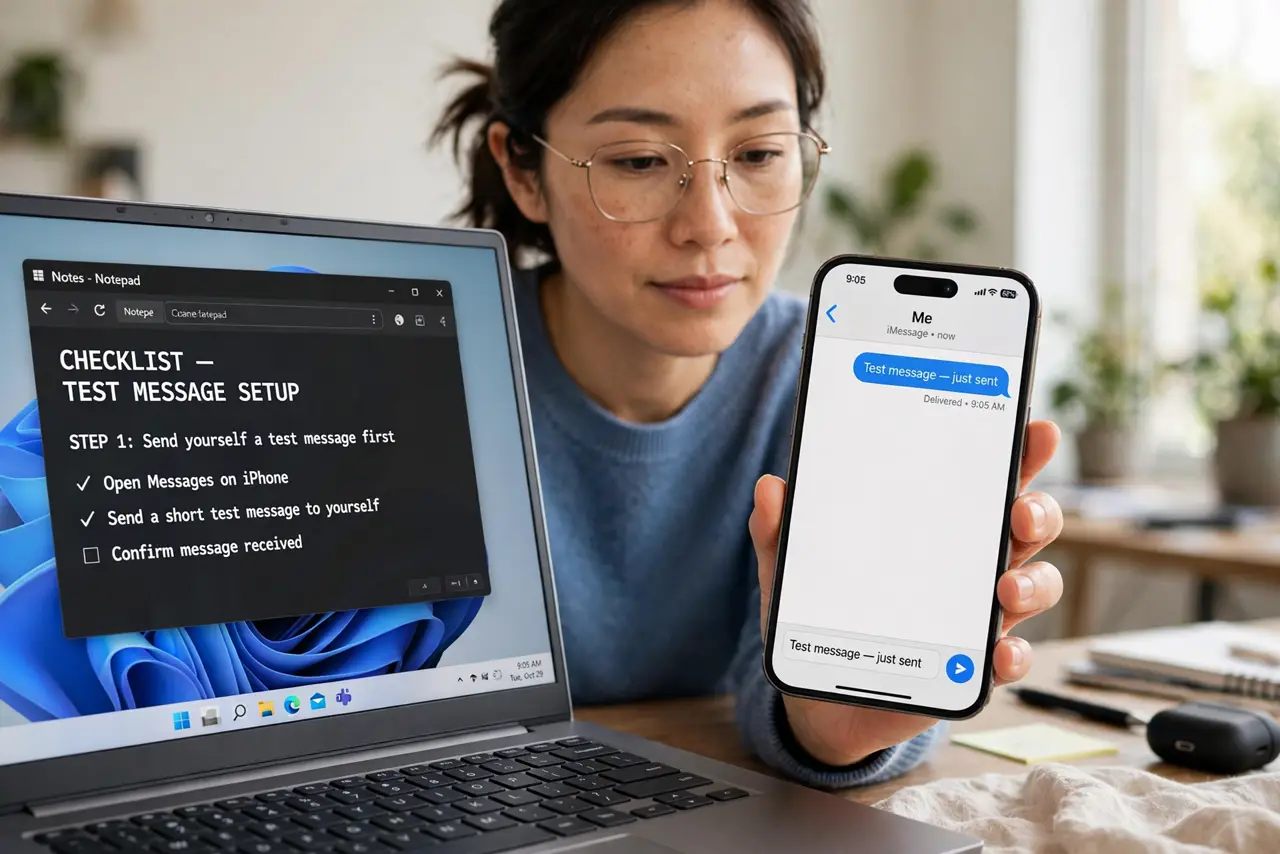
- Send yourself a test message first. Send a message with the signature to yourself, and open it on your phone in portrait mode. Seeing the break yourself shows whether it is layout, image size, or spacing.
- Replace columns with stacked lines. Rewrite the signature as stacked lines: name, role, phone, then website, one per line. Stacked lines adapt to any screen width, while columns squeeze or overflow.
- Shrink the signature image. Reduce the logo or photo to a small size, and place it above or below the text, not beside it. A small image loads fast and never pushes text off the screen.
- Remove wide tables and fixed widths. Remove tables with fixed widths from the signature. Fixed widths that fit a computer screen overflow a phone screen and break the layout.
- Use plain text for contact details. Keep phone numbers, addresses, and links as plain text. Styled boxes and unusual fonts render differently across mail apps and often break on phones.
- Test again on phone and computer. Send a second test message and check it on both devices. A signature that reads cleanly on both is ready to use.
What NOT to do
- Do not design a signature only on a computer. Most people read mail on phones, so the phone view is the test that matters.
- Do not use a large image banner in a signature. It loads slowly, breaks layouts, and annoys recipients.
- Do not add many links and social icons. Each extra element is another chance for the layout to break on a small screen.
- Do not copy a signature from a word processor. Pasted formatting carries hidden tables and widths that break on phones.
Frequently asked questions
Why does my signature look fine on a computer?
A computer screen is wide enough for columns and tables, while a phone screen forces the same layout into a narrow space.
Will a text-only signature work everywhere?
Yes. Plain stacked text is the most reliable signature format across devices and mail apps.
Do I need a different signature for phone?
Usually not. One simple stacked signature works on both, which is easier to maintain than two versions.