Enable XMP for Full RAM Speed
You bought 3600 MHz RAM and it runs at 2133 MHz — did you get scammed? No: DDR memory defaults to safe baseline speeds, and the advertised speed hides behind a one-click BIOS profile called XMP (or EXPO on AMD). Your RAM is fine; it is just waiting for you to flip the switch.
TL;DR / Quick Fix
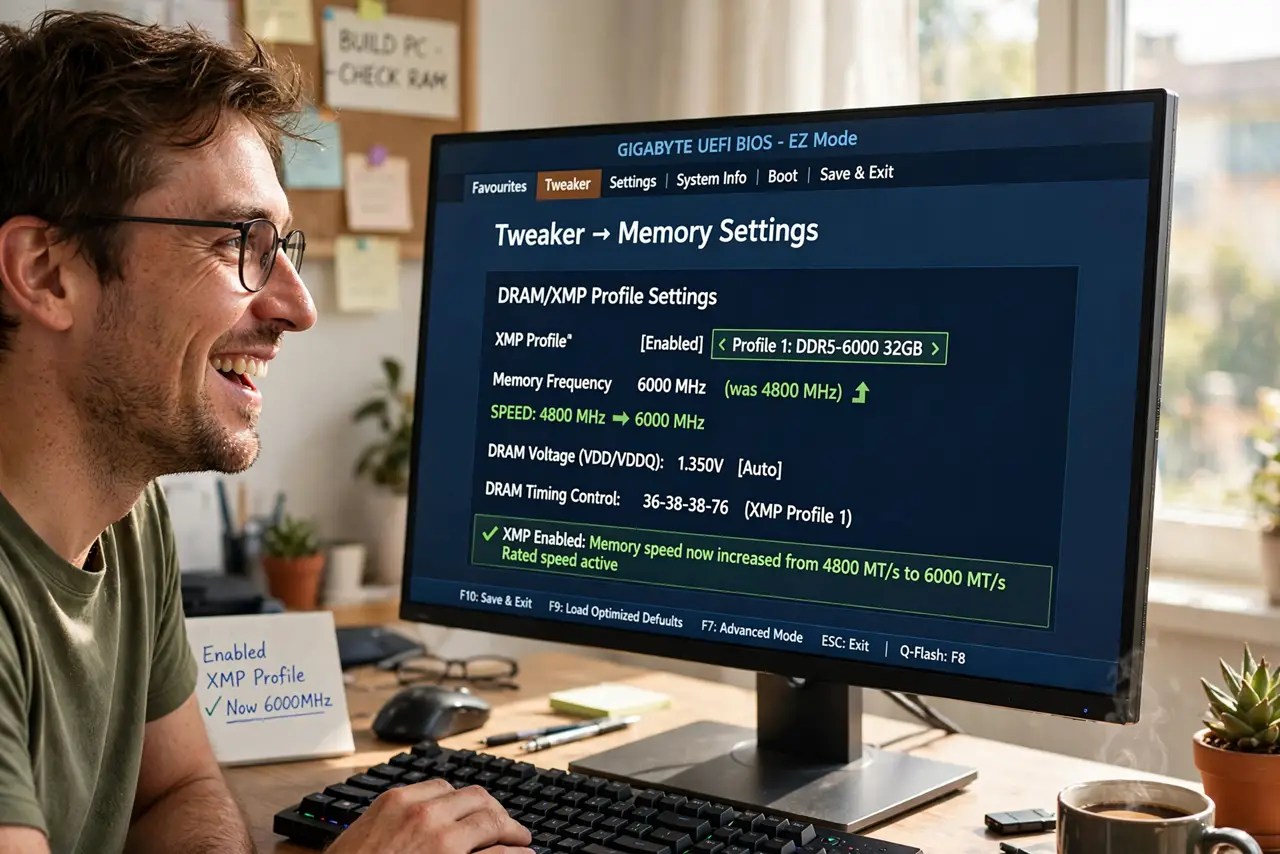
Quick fix: restart into the BIOS, find the XMP or EXPO setting — usually on the main overclocking page — and enable Profile 1. Save and exit. Check the speed in Task Manager or system info afterward. One toggle unlocks the speed you paid for.
Follow these steps
- Enter the BIOS. Restart and press Delete or F2 during boot to enter the BIOS/UEFI. The key flashes on screen briefly — tap it repeatedly as the PC starts.
- Find the XMP/EXPO setting. Look on the main overclocking or AI Tweaker page for XMP (Intel) or EXPO (AMD). It is often a simple dropdown near the top — the board makers know everyone looks for it.
- Enable Profile 1. Select Profile 1 from the dropdown. This loads the RAM maker's tested speed, timings, and voltage in one click — no manual tuning needed for the advertised speed.
- Save and exit. Press F10 to save and restart. The PC boots with the new memory settings — this reboot takes a little longer than usual, which is normal.
- Verify the speed. In Windows, open Task Manager, then Performance, then Memory — the speed should now show the rated number. If it does, the job is done.
- Test stability briefly. Run your normal workload for a day. If crashes appear that were not there before, the profile may need a small voltage nudge — or your particular CPU's memory controller simply prefers stock.

What NOT to do
- Do not assume the RAM is defective. Below-rated speed out of the box is normal — XMP off is the default, not a fault.
- Do not enable XMP and forget it. If instability appears later, the memory profile is a prime suspect — remember you changed it.
- Do not mix XMP kits. Two different RAM kits with XMP on is a stability gamble — matched kits exist for a reason.
- Do not confuse XMP with overclocking danger. Profile 1 is the maker's own tested spec — it is the intended speed, not a dare.
Frequently asked questions
What is the difference between XMP and EXPO?
XMP is Intel's branding, EXPO is AMD's — same idea, one-click rated memory speeds. AMD boards use EXPO; Intel boards use XMP.
Will XMP void my warranty?
No — enabling the maker's rated profile is normal use. Manual overclocking beyond the profile is the gray area, not XMP itself.
My board has no XMP option. Now what?
Some budget or prebuilt boards hide it. Check for a BIOS update, or accept the baseline speed — the real-world difference is modest outside heavy workloads.