Encrypted DNS and Privacy?
Every site you visit starts with a DNS lookup — and by default, those lookups fly across the internet in plain text for your provider to log. Encrypted DNS (DoH and DoT) wraps them up. Here is what it changes, what it does not, and how to turn it on.
TL;DR / Quick Fix
DNS lookups travel in plain text for your provider to log; encrypted DNS (DoH or DoT) hides the queries from network snoopers. Turn it on in your browser or at the OS level with a resolver. It hides lookups — not your IP address or traffic patterns, which stay visible.
Follow these steps
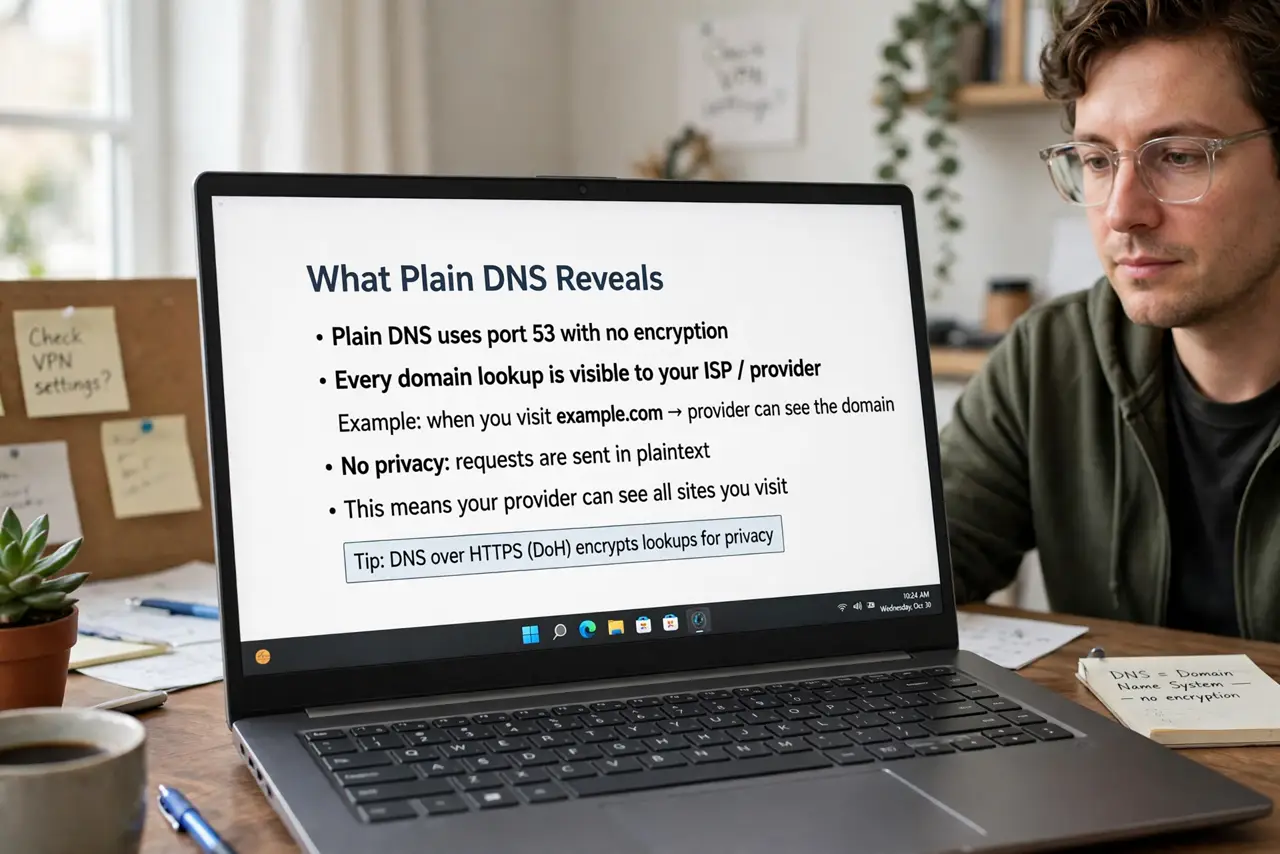
- Understand what plain DNS reveals. Every domain you look up is visible to your provider and anyone on the network path. That list is a detailed diary of your browsing.
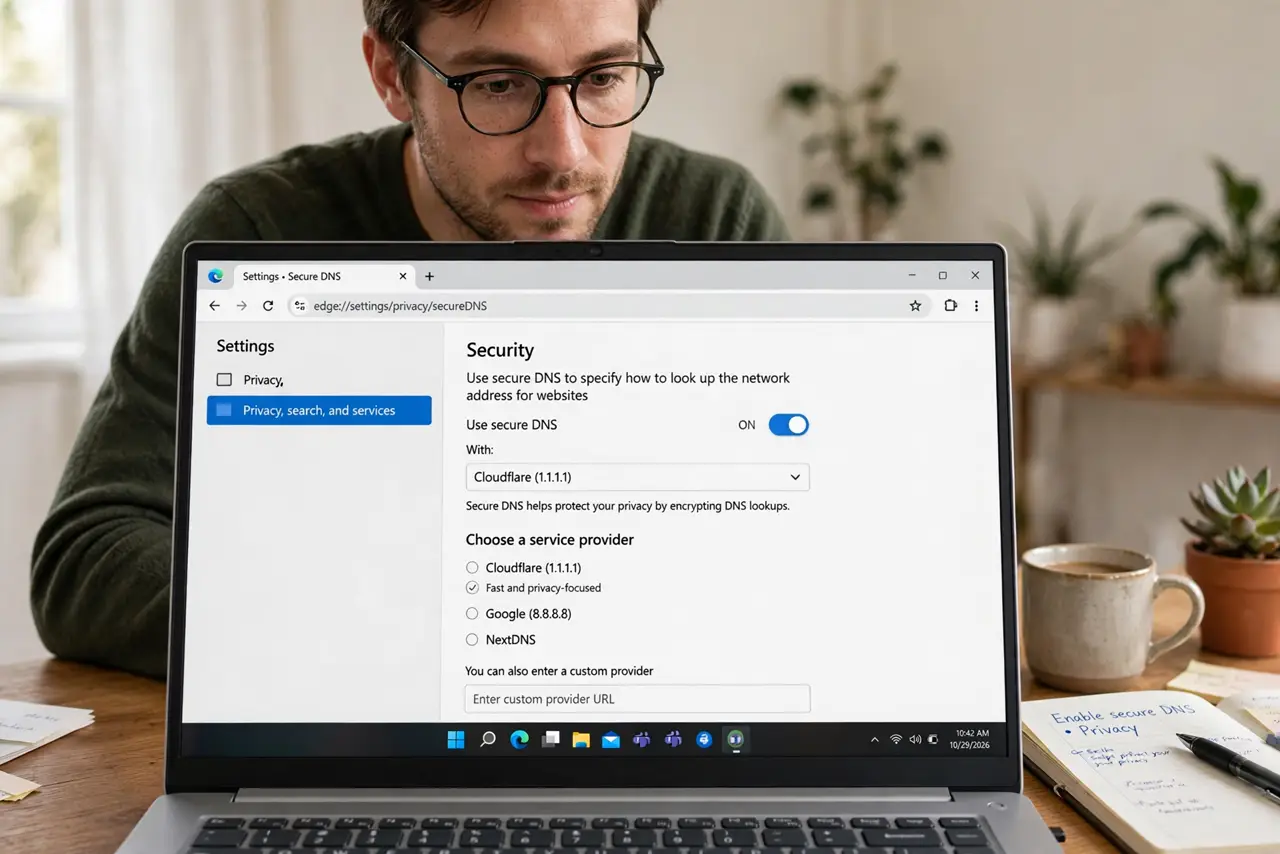
- Turn on secure DNS in your browser. Chrome, Firefox, and Edge all have a secure-DNS toggle in privacy settings. Enable it in two clicks.
- Or set it at the OS level. OS-level encrypted DNS covers every app, not just the browser. On Android this is the Private DNS setting — though it can break captive portals.
- Pick a reputable resolver. Major public resolvers publish privacy policies and undergo audits. See what DNS to use for choosing.
- Know what it does not hide. Your IP address, traffic sizes, and the destination servers remain visible. Encrypted DNS is one layer, not invisibility.
- Watch for breakage. Captive portals on hotel and airport Wi-Fi, plus some parental controls, conflict with encrypted DNS. Toggle it off to sign in, then back on.
What NOT to do
- Do not expect invisibility. Encrypted DNS is one layer of privacy, not a replacement for a VPN.
- Do not enable it in both browser and OS with different providers. Pick one layer to avoid confusing conflicts.
- Do not ignore breakage on public Wi-Fi login pages. The portal needs plain DNS to redirect you — toggle off, sign in, toggle on.
- Do not assume your router's DNS is private. Check what the router forwards upstream; the router setting affects every device.
Frequently asked questions
DoH vs DoT — what is the difference?
Same encryption, different transport. DoH blends with regular web traffic; DoT uses a dedicated port. Either beats plain DNS.
Will it speed up browsing?
Sometimes marginally — privacy is the point, not speed. See whether changing DNS helps speed for the performance angle.
Does my VPN make this redundant?
Largely yes: a good VPN already routes your DNS through its encrypted tunnel.