Evernote? Plain Basics
You have notes scattered across sticky notes, phone apps, and your memory — and you keep losing the important ones. Evernote is a note-taking app built around one idea: capture everything in one searchable place, then find it later in seconds. It has been around for years, and its core strength is still the same — web clips, scanned documents, and notes that sync across your devices. This guide gives you the plain basics so you can start capturing today.
TL;DR / Quick Fix
Quick fix: Evernote is a filing cabinet for notes, web clips, and scanned documents that syncs across your devices. Start by creating a few notebooks for your main areas, capture notes daily, and use search instead of perfect organization. The free plan is enough to learn the system before paying.
Follow these steps
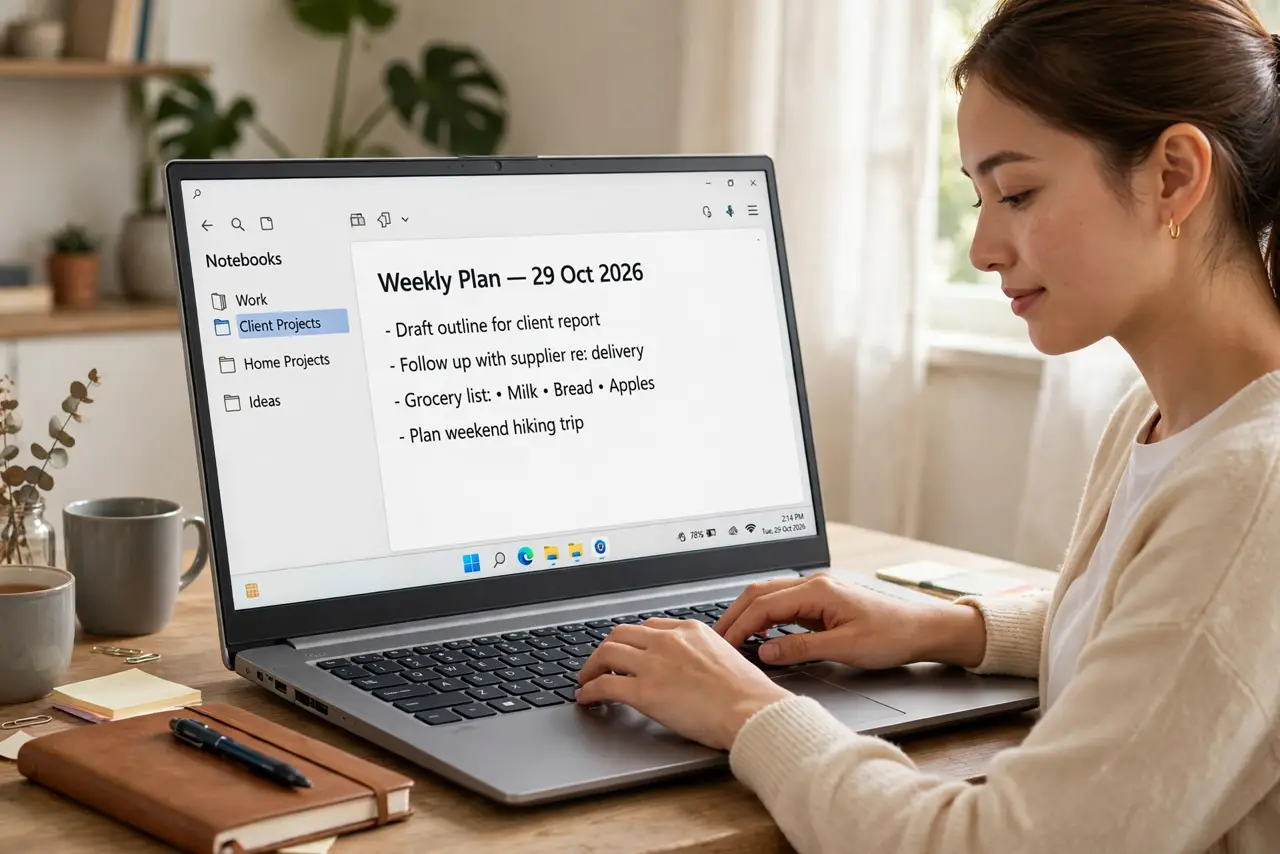
- Create your first notebooks. Think of notebooks as folders — one for work, one for personal, one for ideas. Keep the count small at first; three to five notebooks beat thirty confusing ones. You can always reorganize later, so do not overthink this step.
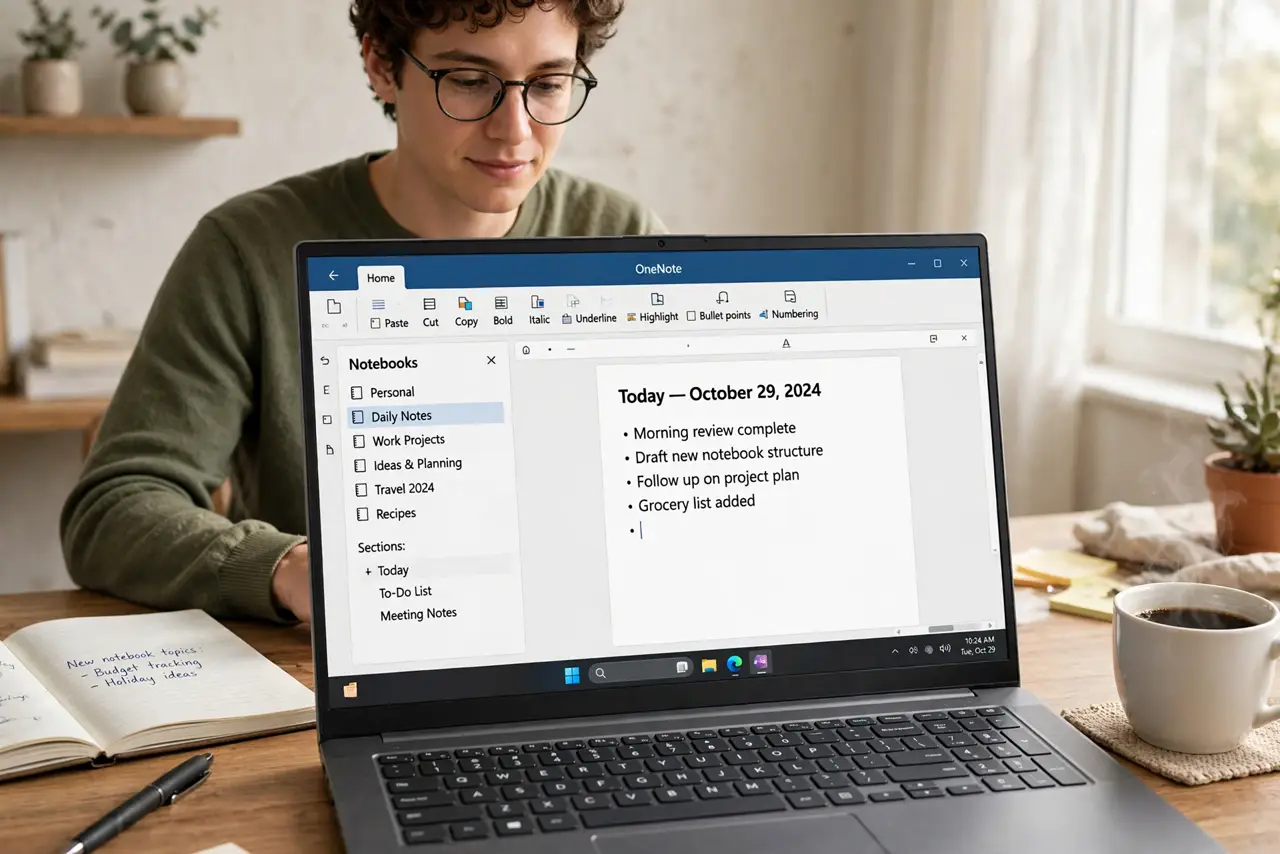
- Capture something today. Make a real note right now — a shopping list, a meeting summary, anything. Learning by doing beats reading about features. Evernote's power only shows once your actual stuff lives inside it.
- Learn the web clipper. The browser extension lets you save articles, receipts, and pages as notes with one click. This is Evernote's signature feature — most people who stick with it do so because of the clipper. Install it in your main browser today.
- Use tags sparingly. Tags are labels that cut across notebooks, like 'receipts' or 'ideas'. A few well-chosen tags beat hundreds of unused ones. Start with five or fewer and add only when searching fails.
- Search before you organize. Evernote searches inside your notes, PDFs, and even images of handwriting. When you cannot find something, search first — it is faster than building an elaborate folder system. Searchable capture matters more than filing.
- Sync and back up. Notes sync across devices automatically when you are signed in. For anything critical, export important notebooks periodically so you have a copy outside the app. Exporting is under the notebook menu, and it takes seconds.
What NOT to do
- Do not build a perfect folder system on day one. Capturing beats organizing — complexity comes later, if ever.
- Do not ignore the free plan's limits. Device limits and upload caps exist; learn them before relying on Evernote for everything.
- Do not store sensitive passwords in plain notes. Evernote is not a password manager — keep credentials in a real one.
- Do not pay for a year before trying the free tier. Use it daily for a few weeks first; the upgrade should solve a problem you actually have.
Frequently asked questions
Is Evernote better than Apple Notes or Google Keep?
Different tools, different jobs. Evernote shines at heavy capture — web clips, scanned documents, long research notes. Simpler note apps like Keep or Apple Notes suit quick lists and light notes. Pick based on how much you actually capture.
Can I use Evernote on multiple devices?
Yes — it syncs across phone, tablet, and computer when signed in. The free plan limits how many devices stay synced, so check the current limit before setting up.
What happens to my notes if I cancel?
They stay in your account on the free tier. You lose premium features, not your data — but export a backup first anyway, because relying on one company is never the whole plan.