Notion? Plain Basics
Notion looks like a notes app, a wiki, and a spreadsheet had a baby — and honestly, that is what it is. It is a flexible workspace where pages can hold text, tables, checklists, and databases all mixed together. Beginners often bounce off it because it starts as a blank canvas with no instructions. This guide gives you the smallest useful setup.
TL;DR / Quick Fix
Quick fix: Notion is a flexible workspace combining notes, tasks, and databases on pages you build yourself. Start with one page for daily notes, learn the slash command for blocks, and resist building a complex system on day one. Simple pages you actually use beat an elaborate setup you abandon.
Follow these steps
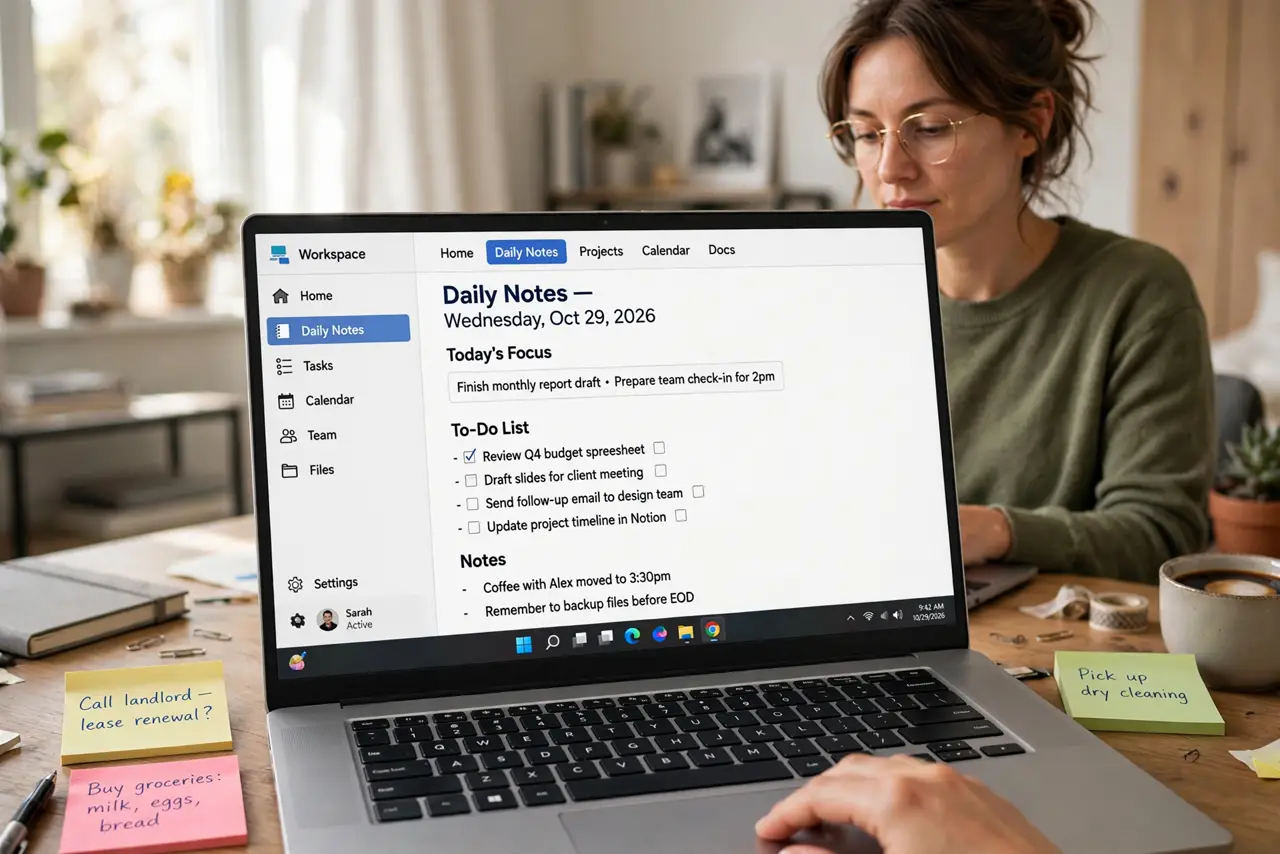
- Make one page and use it daily. Create a single page called 'Daily Notes' and write in it every day. This one habit teaches you 80% of Notion — typing, headings, checklists — without any system design. Everything else can wait.
- Learn the slash command. Type / anywhere to insert blocks: headings, to-do lists, tables, images. The slash menu is Notion's real interface — most beginners never discover it and assume the app does less than it does.
- Understand blocks. Everything in Notion is a block — a paragraph, a checkbox, an image — and blocks can be dragged, nested, and turned into other block types. This is the core idea; once it clicks, the whole app makes sense.
- Try a simple database. A database is a table where each row opens as its own page — great for book lists, project trackers, or habit logs. Start with one table; databases deserve their own guide once you are comfortable.
- Use a template, then simplify. Notion's template gallery gives you starting points for journals, planners, and wikis. Grab one, then delete half of it — templates are built to impress, not to match your life.
- Sync and share carefully. Notion syncs across devices and shares pages with a link. Before sharing anything with personal info, check the share settings — a public link is genuinely public.
What NOT to do
- Do not build a second-brain system on day one. Elaborate setups are the top reason beginners quit — start with one page.
- Do not store passwords in Notion. It is a workspace, not a vault — use a real password manager for credentials.
- Do not share pages publicly by accident. Link sharing defaults matter — check who can see a page before sending the link.
- Do not pay for Plus before hitting free limits. The free plan is generous for individuals; upgrade when a limit actually blocks you.
Frequently asked questions
Is Notion better than Evernote?
For flexible, structured workspaces, yes — databases and linked pages go beyond Evernote's notebook model. For fast capture of web clips and scans, Evernote still has an edge. Many people eventually use both for different jobs.
Can I use Notion offline?
Partially — pages you have opened recently are cached, but Notion is fundamentally a cloud app. If offline access is critical, check that your key pages load before you go offline.
Is my data safe in Notion?
Reasonably — it is a big company with backups. But export important work periodically anyway; no single service should be the only copy of anything that matters.