Find and Replace? Basics
You need to change every instance of an old product name, fix a repeated typo, or update a year across a huge spreadsheet — doing it by hand takes forever and misses some. Find and Replace does it in seconds, but one wrong click can rewrite things you never meant to touch. This guide shows the safe way.
TL;DR / Quick Fix
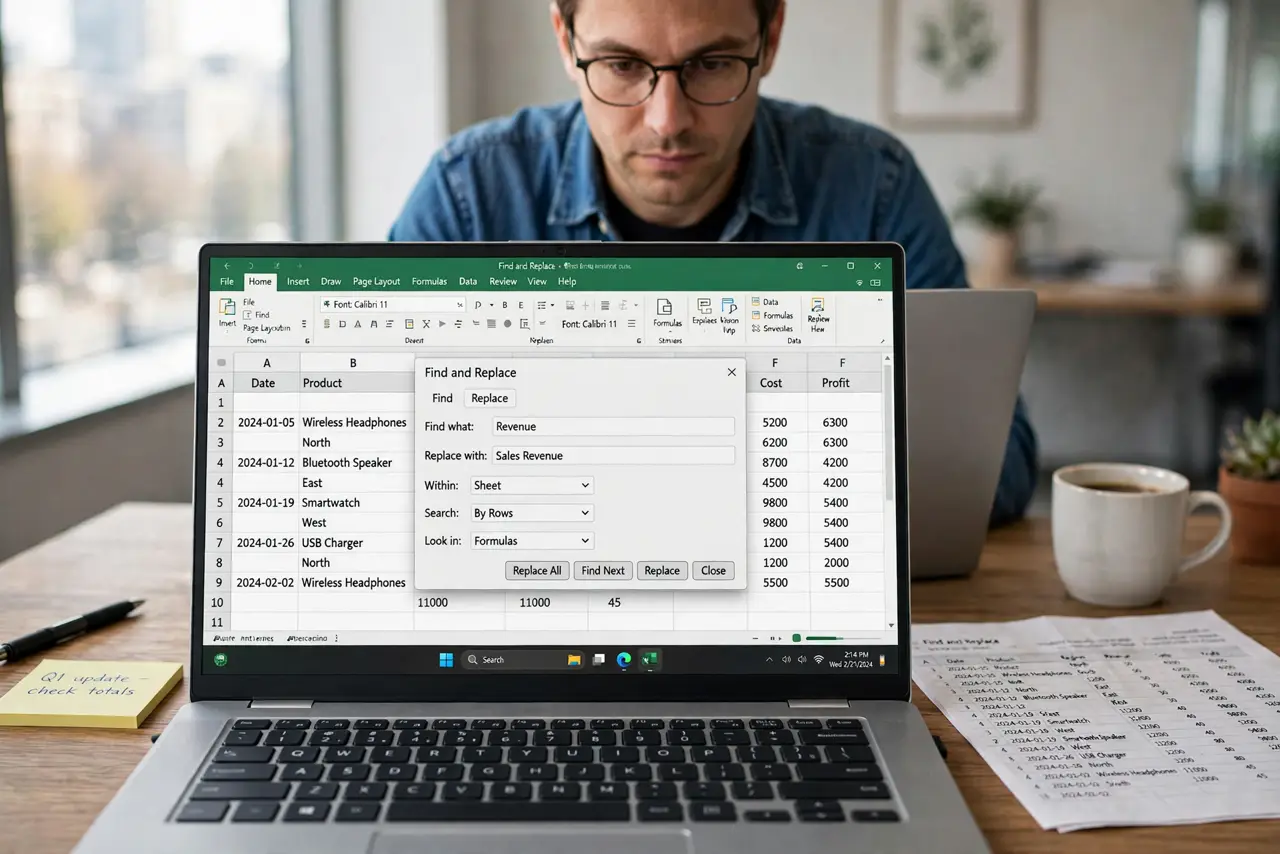
Quick fix: press Ctrl+H to open Find and Replace. Type what to find and what to replace it with, then click Find All first to preview every match. Use Replace All only when the preview looks right. For whole words only, open Options and check Match entire cell contents.
Follow these steps
- Open it with Ctrl+H. The shortcut works in Excel, Word, and most editors. The dialog has two boxes: Find what and Replace with — fill both before touching any buttons.
- Preview with Find All first. Click Find All to list every match with its cell address. Scan the list — this preview catches the matches you did not expect before anything changes.
- Use Replace All carefully. Only click Replace All when the preview is clean. On a critical sheet, save a copy first — Replace All cannot be undone after you save and close.
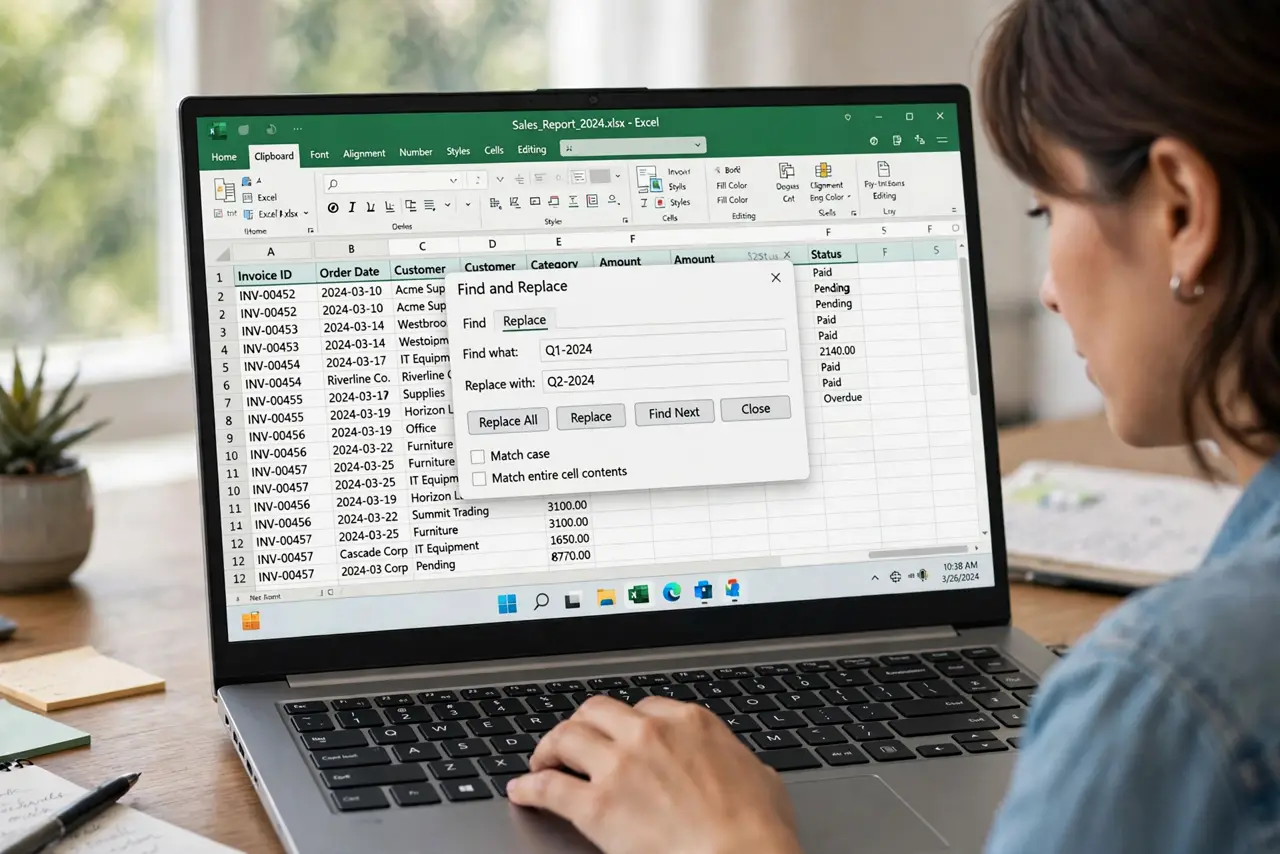
- Match entire cells when needed. Open Options and check Match entire cell contents to replace only exact matches. Without it, replacing 'cat' also rewrites 'catalog' and 'duplicate'.
- Watch out for formatting traps. Numbers stored as text and dates can surprise you — replacing '2024' may hit dates stored oddly. Preview first, always.
- Search within a selection. Select a range first to limit the replace to those cells. This is the safety rail for big sheets — confine the blast radius.
What NOT to do
- Do not click Replace All without previewing. One careless replace can rewrite hundreds of cells you never meant to touch.
- Do not replace partial matches blindly. 'cat' inside 'catalog' is the classic casualty — use Match entire cell contents.
- Do not run Find and Replace on an unsaved critical sheet. Save first so Undo — or the backup copy — can rescue you.
- Do not forget it searches formulas too. Replacing text inside formulas can break calculations — check the Look in option.
Frequently asked questions
Can I undo a Replace All?
Yes with Ctrl+Z, but only before you save and close. On critical sheets, save a backup copy first — cheap insurance.
Why did it change cells I didn't select?
The replace ran on the whole sheet. Select your range first to confine it, or check the Within option.
Does Find and Replace work in Google Sheets?
Yes — Ctrl+H opens it there too, with the same Find All preview habit applying.