Sort and Filter in Excel? Basics
You need your spreadsheet ordered by date or showing only one category, and the Sort button either scrambles the rows or does nothing at all. Sorting and filtering are the two most-used Excel skills, and both break the same way: Excel guesses your data range wrong. This guide shows the reliable way that keeps rows intact.

TL;DR / Quick Fix
Quick fix: click any single cell inside your data, then use Data then Sort or the Filter button. Never select one column before sorting or rows will scramble. For filters, keep headers in the first row. If rows vanish after filtering, check the filter arrows — something is still filtered.
Follow these steps
- Click one cell, not a column. Click any single cell inside your data block, then Data, then Sort. Excel then selects the whole table automatically. Selecting one column first is the classic way to scramble rows — the one-cell click avoids it.
- Sort by the right column and order. In the Sort dialog, pick the column, then values, then A to Z or smallest to largest. Add levels for tie-breakers — sort by date first, then by name within each date.
- Turn on filters with headers in row one. Select your header row, then Data, then Filter. Dropdown arrows appear on each header — click one to show only chosen values. Filters hide rows; they never delete them.
- Recover rows hidden by filters. If rows seem missing, look for the funnel icon on the column headers — a stuck filter is hiding them. Click Data, then Clear to show everything again.
- Sort dates and numbers correctly. If dates sort alphabetically, they are stored as text — convert them first. Numbers stored as text sort 1, 10, 2, which is the giveaway.
- Use tables for growing data. Select your data and press Ctrl+T to make it a real Table. New rows join the sort and filter range automatically, and headers stay put when you scroll.
What NOT to do
- Do not sort a single selected column. This scrambles your data — names detach from their rows and the damage is hard to undo.
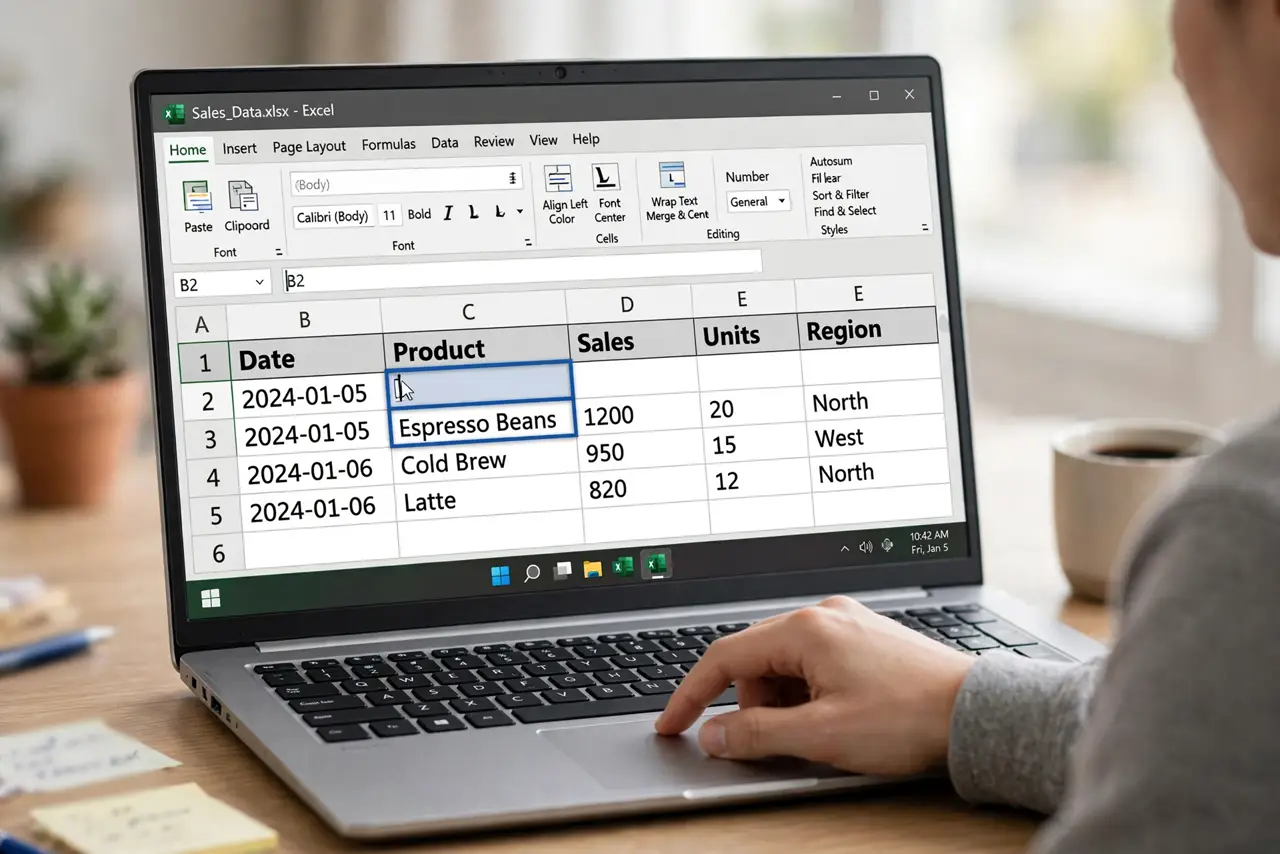
- Do not leave blank rows inside your data. Blank rows stop Excel's auto-detection, so sorts and filters cover only part of the table.
- Do not panic when rows disappear after filtering. They are hidden, not deleted — Clear the filter and they return.
- Do not sort without saving first. One Ctrl+Z usually undoes a bad sort, but a saved copy is the real safety net.
Frequently asked questions
Why did sorting mix up my rows?
You selected one column before sorting. Undo it, click a single cell instead, and sort again — rows stay together.
What is the difference between sort and filter?
Sort reorders all rows; filter hides rows that do not match. Use sort to rank, filter to focus.
Can I filter by color?
Yes — the filter dropdown offers filter by cell color or font color, handy for hand-marked review sheets.