Leading Zeros Disappear in Excel? Fix It
You type 02134 and Excel shows 2134. Numbers do not keep leading zeros because Excel treats the entry as a value, not a code. Zip codes, product SKUs, and phone prefixes need a text treatment. This guide shows how to keep every zero.
TL;DR / Quick Fix
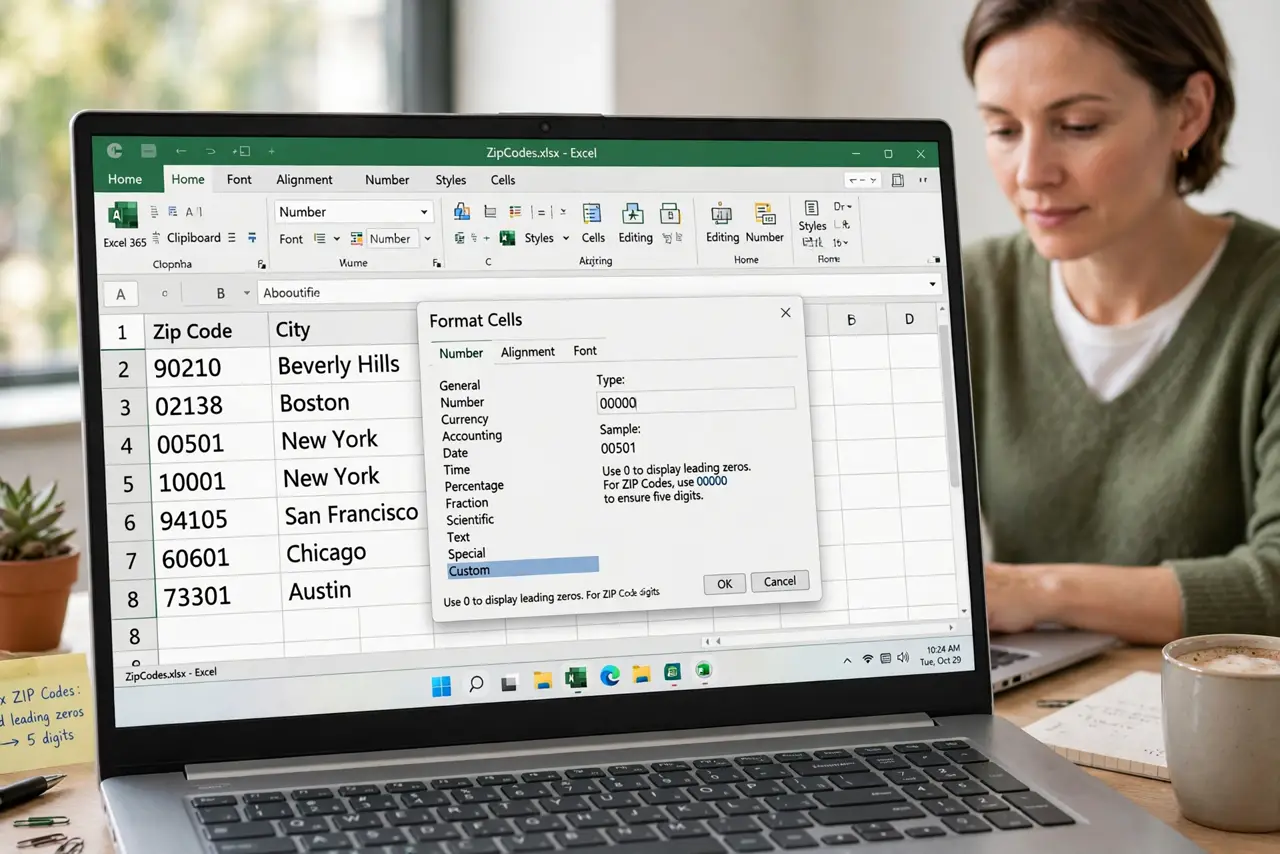
Format the cells as Text before typing, or type an apostrophe before the number. For zip codes, use a custom number format like 00000 to keep five digits. Fix existing entries by reformatting and retyping, since formatting alone will not restore lost zeros.
Follow these steps
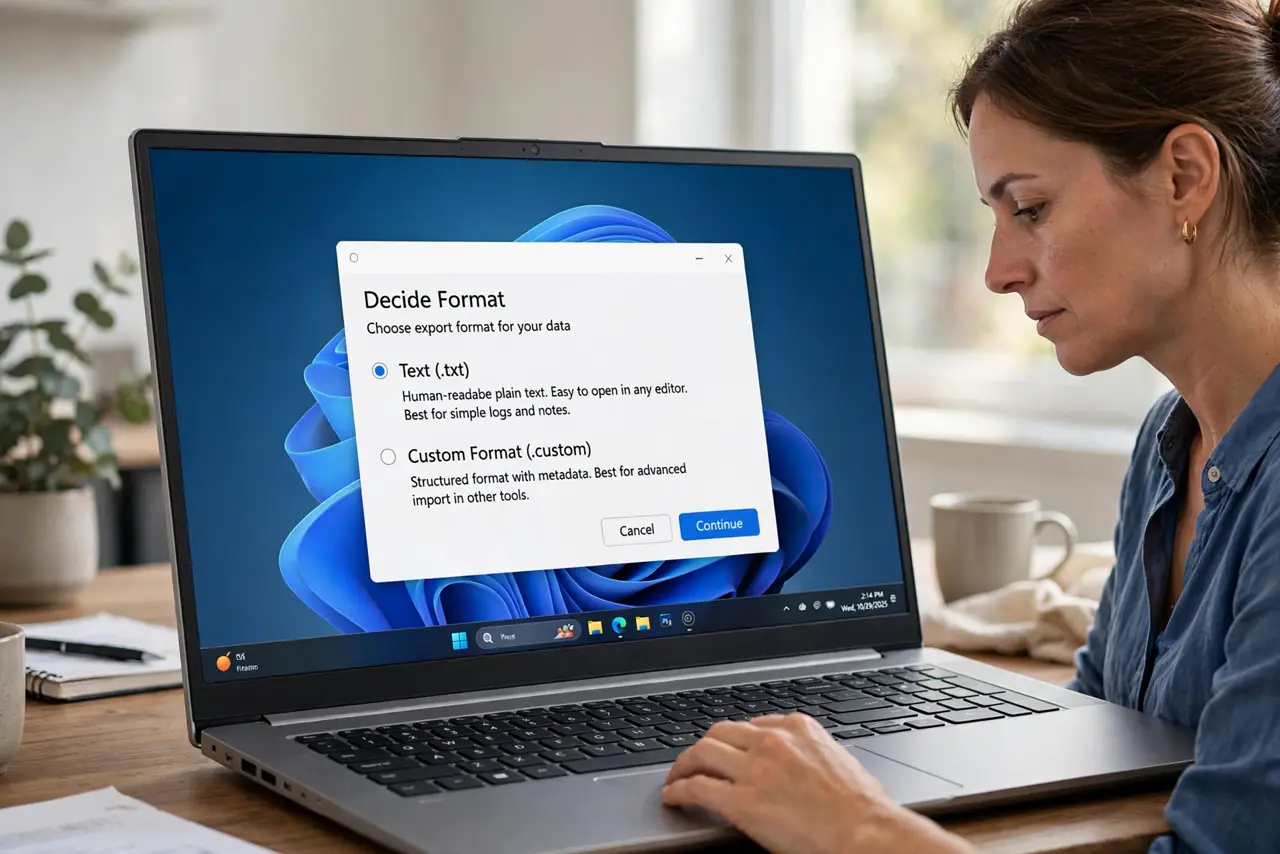
- Decide text or custom format. Use Text format for codes of varying length, and a custom format like 00000 for fixed-length codes such as five-digit zip codes. The custom format keeps the value numeric for sorting.
- Format before you type. Select the column, open Format Cells, and set Text or your custom format before entering anything. Formatting after typing cannot bring back zeros that already vanished — the same timing rule as dates that turn into numbers.
- Use the apostrophe shortcut. Type an apostrophe before the number, like '02134. Excel stores it as text and hides the apostrophe, keeping every zero.
- Fix columns that already lost zeros. Reformat the column as Text, then retype the values or re-import them. Lost zeros are gone for good — no format can reconstruct digits Excel never stored.
- Check CSV imports carefully. CSVs open with General formatting, which strips leading zeros on import. Use the import wizard and set the column to Text during import, not after.
- Test sorting and lookups. After the fix, sort the column and test a lookup. Text codes sort differently from numbers, so confirm your formulas still match.
What NOT to do
- Do not format as Text after typing and expect zeros back. The zeros are already gone; only retyping restores them.
- Do not use Number format with extra decimal places. That adds zeros at the wrong end.
- Do not store phone numbers as plain numbers. Leading zeros and plus signs need text treatment.
- Do not trust a CSV round-trip. Every open-save cycle in Excel can strip the zeros again.
Frequently asked questions
How do I keep leading zeros in Excel?
Format the cells as Text before typing, type an apostrophe first, or use a custom format like 00000 for fixed-length codes.
Why did my zip codes lose their zeros?
Excel treated them as numbers. Numbers have no leading zeros, so the zeros were discarded on entry.
Can I recover zeros that already disappeared?
No. The digits were never stored, so you must retype or re-import the values with the correct format applied first.