Set a Print Area? Basics
You hit Print and Excel spits out five pages of half-empty grid instead of the neat table you wanted. By default Excel prints the whole sheet — every stray cell you ever touched. Setting a print area tells it exactly which range matters, and it is the difference between a clean one-pager and a paper avalanche. This guide sets it in under a minute.
TL;DR / Quick Fix
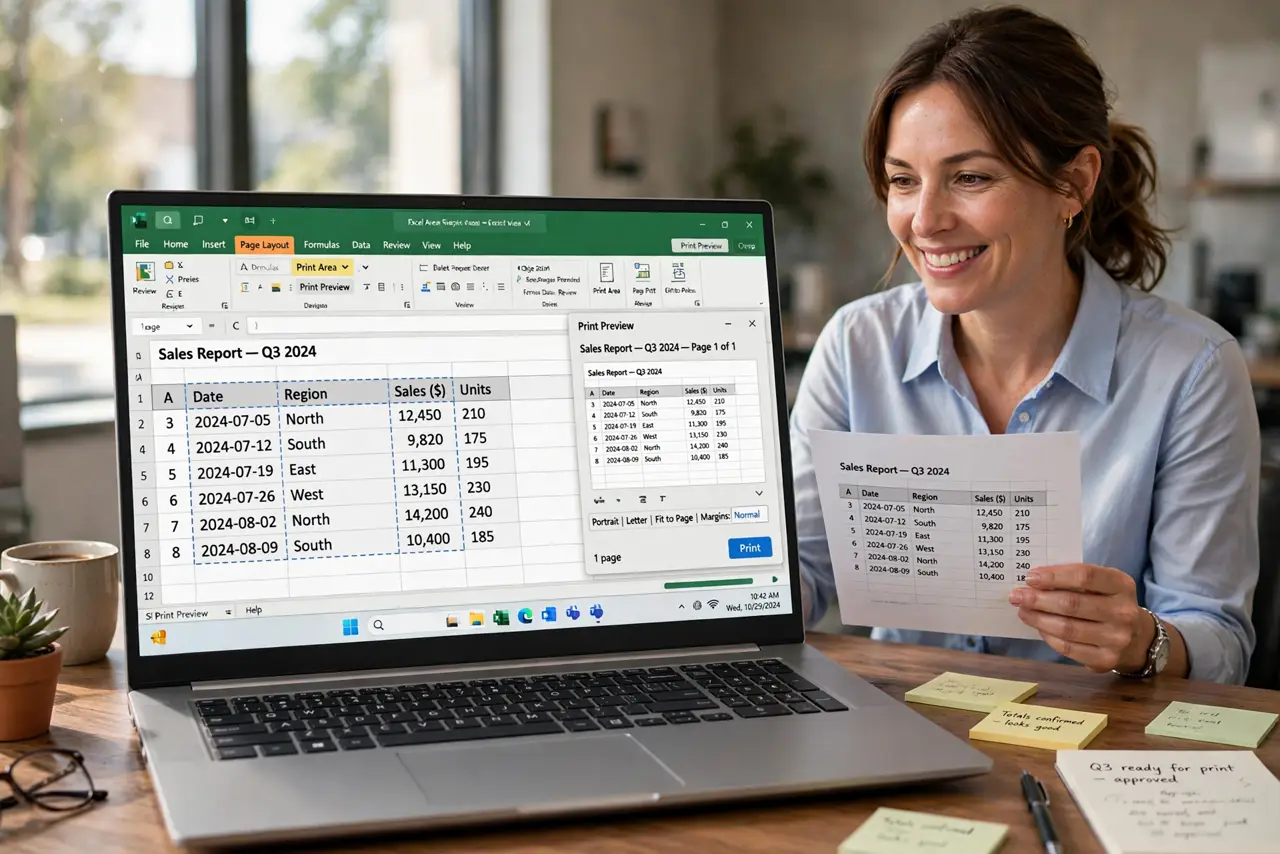
Quick fix: select the range you want to print, then go to Page Layout, Print Area, and Set Print Area. Open Print Preview to confirm only that range appears. To clear it later, use Page Layout, Print Area, Clear Print Area. Repeat row headers separately if your table spans pages.
Follow these steps
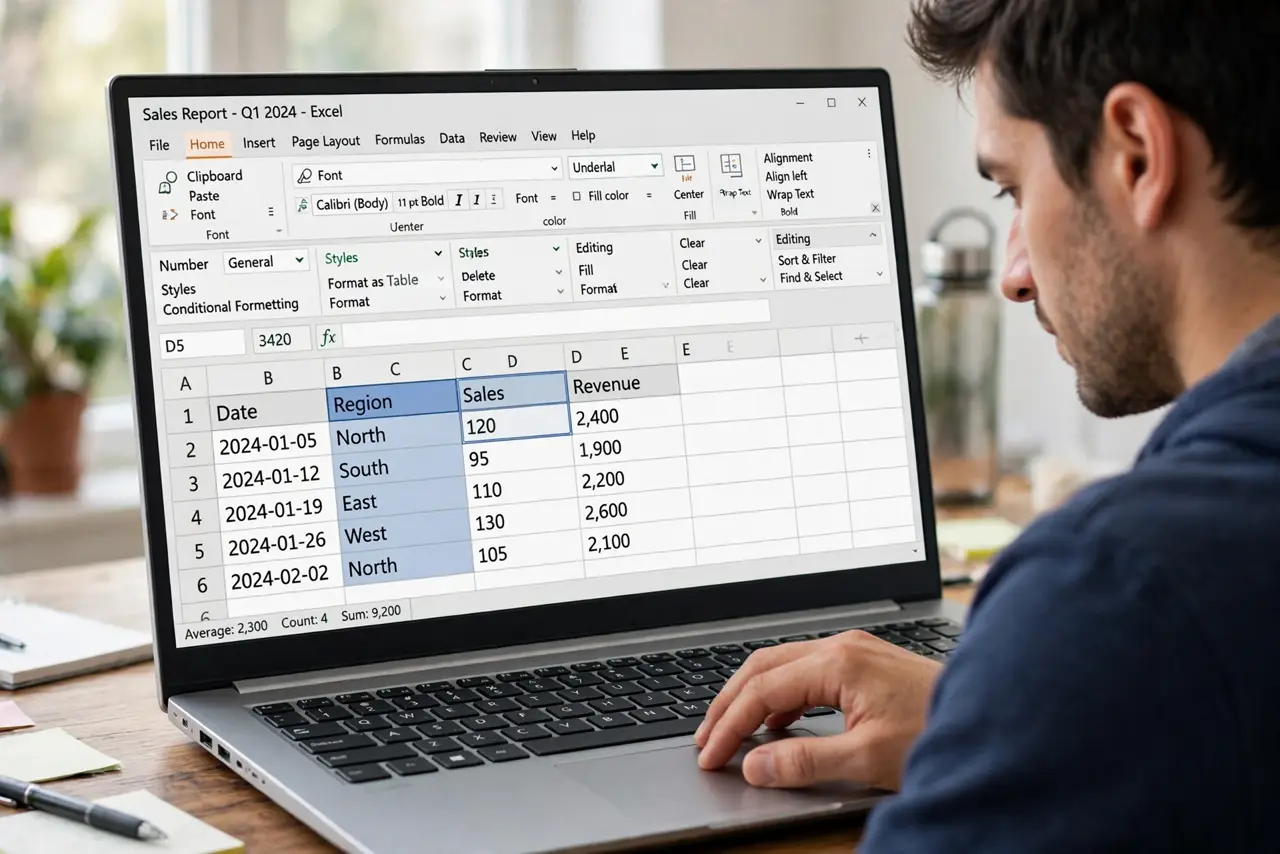
- Select the range. Highlight exactly the cells you want on paper — the table plus its headers, nothing more. Stray formatted cells far to the right are the classic cause of extra blank pages.
- Set the print area. Go to Page Layout, then Print Area, then Set Print Area. Excel remembers it per sheet — you set it once and every future print uses it.
- Preview before printing. Open File, then Print, and check the preview. If the range looks wrong, adjust the selection and set the area again — thirty seconds now saves a reprint.
- Clear it when done. Page Layout, Print Area, Clear Print Area removes the setting. A forgotten print area is why a sheet 'refuses' to print new data added later.
- Repeat headers on each page. If the table spans pages, use Page Layout, Print Titles, and set rows to repeat at top. Headers on every page beat flipping back to page one.
- Fit it to the page. After setting the area, use the fit-to-page scaling so the range lands neatly on your paper instead of spilling over.
What NOT to do
- Do not print without setting an area. Default whole-sheet printing wastes paper and looks unprofessional — always define the range.
- Do not include empty formatted columns. A formatted-but-empty column counts as content and generates blank pages.
- Do not forget to clear old print areas. Yesterday's area silently clips today's bigger table — clear and reset when the data changes.
- Do not skip Print Preview. The preview is the truth; the sheet view lies about pagination every time.
Frequently asked questions
Why is Excel printing blank pages?
Stray formatting or a too-wide print area. Set a precise print area and the blanks disappear.
Can I set multiple print areas?
Yes — Excel prints each area on its own page. Select ranges with Ctrl held down, then set the area.
Does the print area save with the file?
Yes, per worksheet. It travels with the workbook, so recipients print the same range you set.