Wrap Text? Basics
Your text spills into the next cell or gets cut off with ###, and widening the column ruins the whole layout. Wrap Text makes long content stack inside its own cell instead of invading neighbors — one of Excel's most clicked and most misunderstood buttons. This guide shows when to wrap, when not to, and how to fix the common messes.
TL;DR / Quick Fix
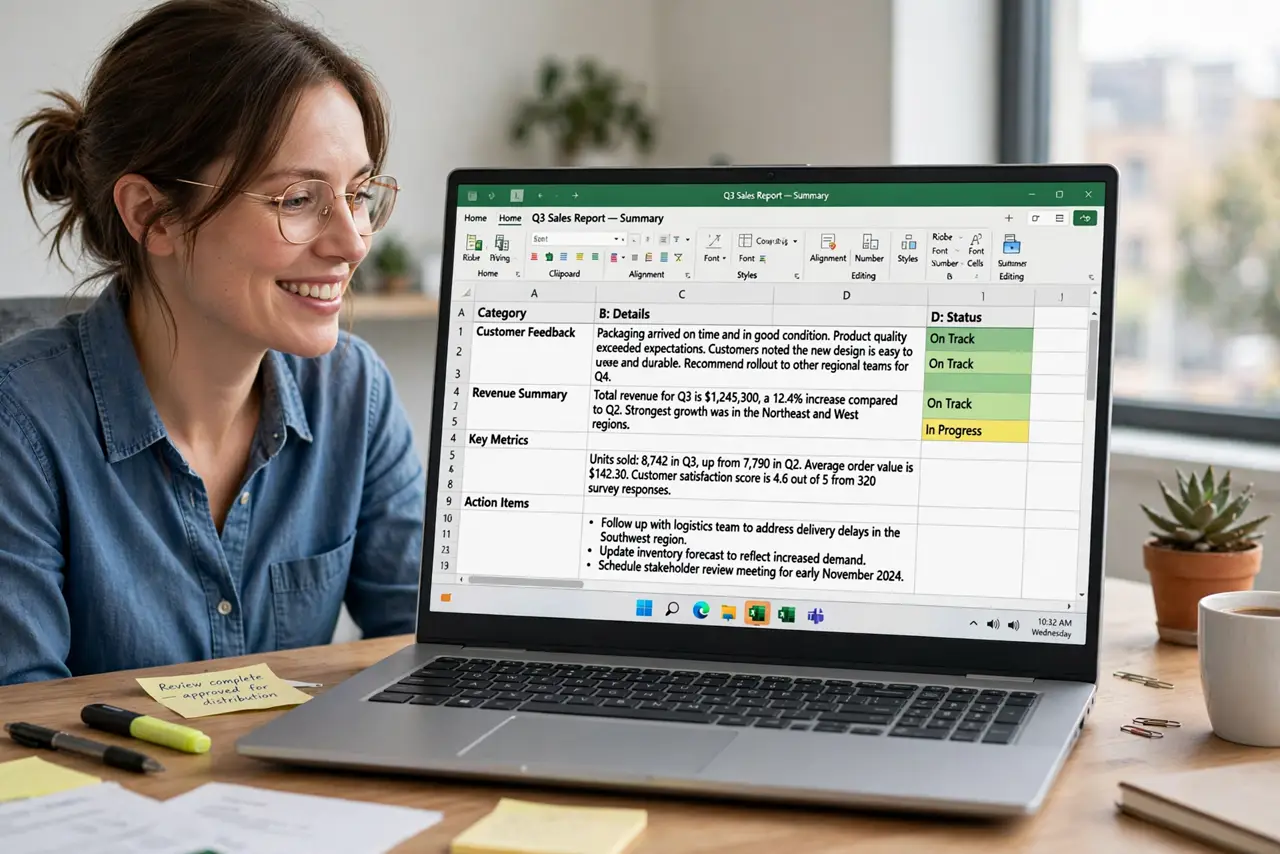
Quick fix: select the cells, then click Wrap Text on the Home tab. Row height grows to fit. If you see ###, the column is too narrow — widen it or shrink the font. For printed sheets, check Print Preview since wrapped rows can spill onto extra pages.
Follow these steps
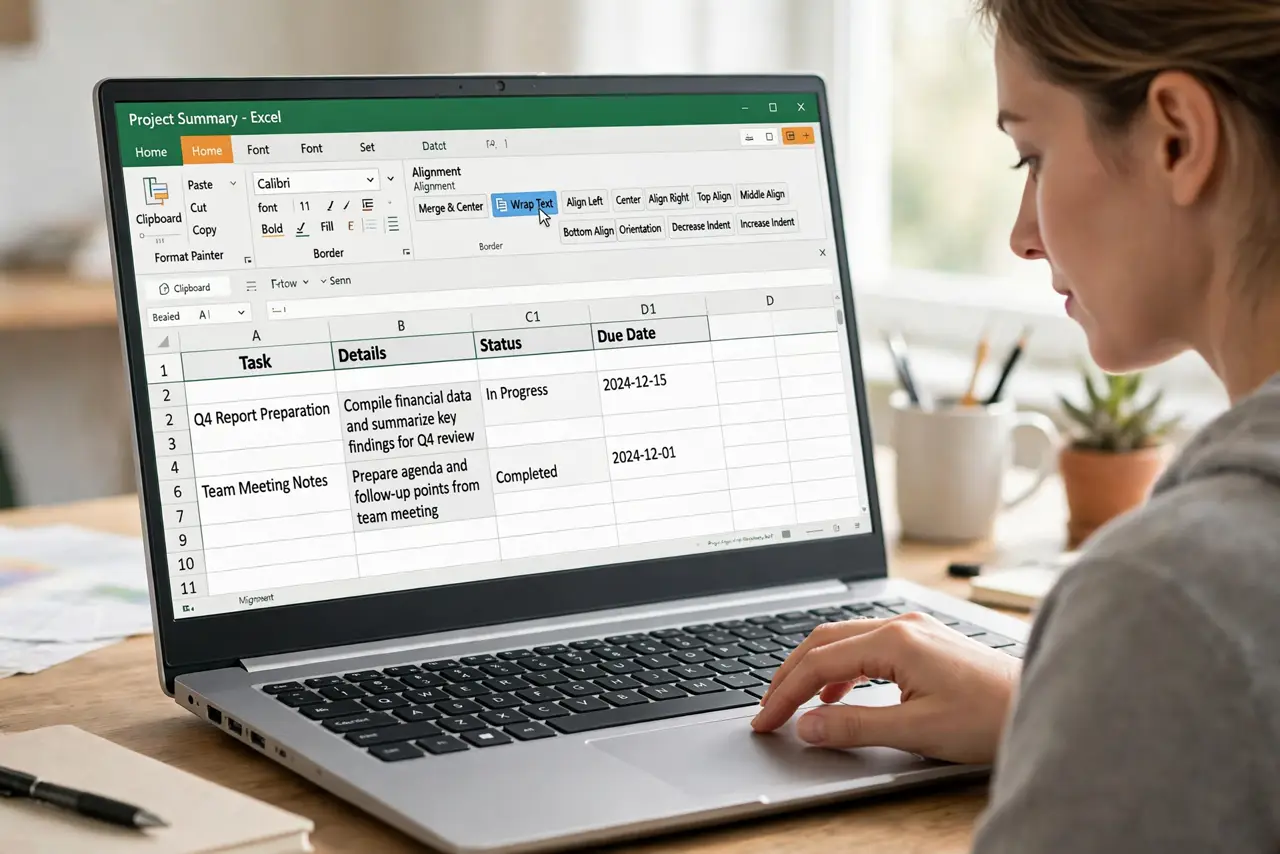
- Turn on Wrap Text. Select the cells, then Home, then Wrap Text. Long text now stacks within its own column width instead of spilling over — the row height adjusts automatically.
- Fix the ### display. Hash symbols mean the cell content is wider than the column even when wrapped. Widen the column a touch or reduce the font size — the content is safe, just not visible.
- Adjust row heights manually if needed. Auto-height usually works, but merged areas or pasted formatting can freeze it. Select the row, right-click, and choose AutoFit Row Height to recalculate.
- Use Alt+Enter for manual line breaks. Inside a cell, Alt+Enter (Option+Return on Mac) forces a new line exactly where you want it. This beats Wrap Text for addresses and multi-line labels.
- Watch printing with wrapped rows. Wrapped text grows rows, and grown rows can push a tidy sheet onto extra pages — check print layout in Print Preview before sending it out.
- Unwrap when it fights you. Select the cells and click Wrap Text again to toggle it off. Sometimes the clean fix is unwrapping and widening the column instead.
What NOT to do
- Do not wrap entire columns blindly. Wrapping everything creates giant rows and a sheet nobody can scan — wrap only the text-heavy columns.
- Do not merge cells to fit text. Merging breaks sorting, filtering, and copying — Wrap Text plus a wider column does the job safely.
- Do not shrink fonts to unreadable sizes. If the text needs 8-point font to fit, the column layout is wrong, not the font.
- Do not forget Print Preview. A screen-perfect sheet with wrapped text often prints across two pages — always preview.
Frequently asked questions
Why does Wrap Text make my rows huge?
Long text needs vertical space when the column is narrow. Widen the column and the rows shrink back down.
Wrap Text vs Shrink to Fit — which?
Wrap stacks text on multiple lines; Shrink to Fit squishes it onto one line. Wrap is readable; Shrink is for fixed-size forms.
Can I wrap text in Google Sheets too?
Yes — Format, then Wrapping, then Wrap. Same idea, same button, different menu path.