Expand Xbox Storage
Xbox Series X and S fill up fast — a few big games and the 'not enough space' message appears. Xbox offers two expansion routes: a proprietary expansion card that plays new games directly, or a regular USB drive for storing them. This guide explains which one you need and how to set it up.
TL;DR / Quick Fix
Quick fix: to play Xbox Series X/S games directly, buy the official Storage Expansion Card and plug it into the dedicated slot on the back — it works instantly. For cheaper bulk storage, use a USB 3.0 drive, but new games must be moved back to internal storage to play.
Follow these steps
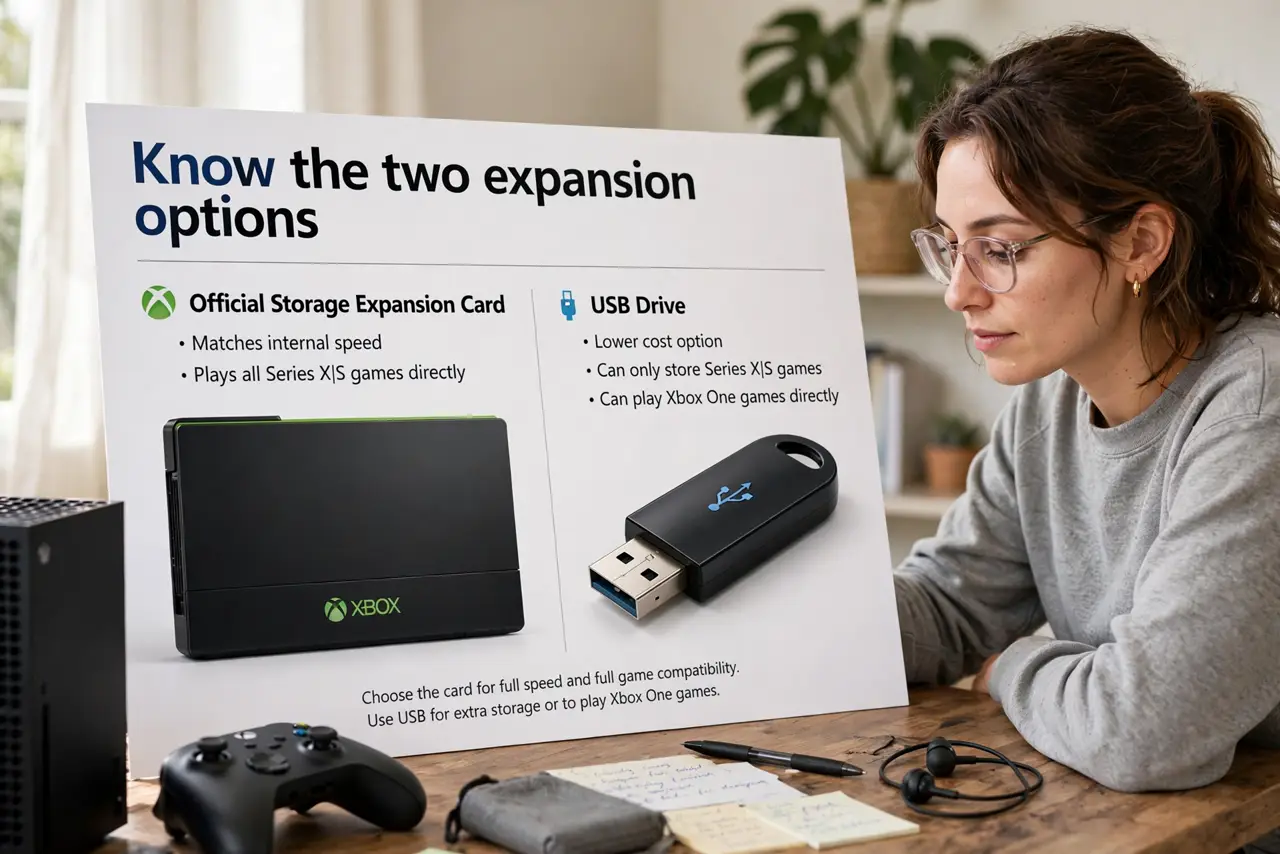
- Know the two expansion options. The official Storage Expansion Card matches internal speed and plays all games directly. A USB drive is cheaper but can only store Series X/S games — or play older Xbox One games directly.
- Buy the right card for your console. Expansion cards come in sizes like 512GB, 1TB, and 2TB. Any official card fits both Series X and Series S — pick the size your game library needs.
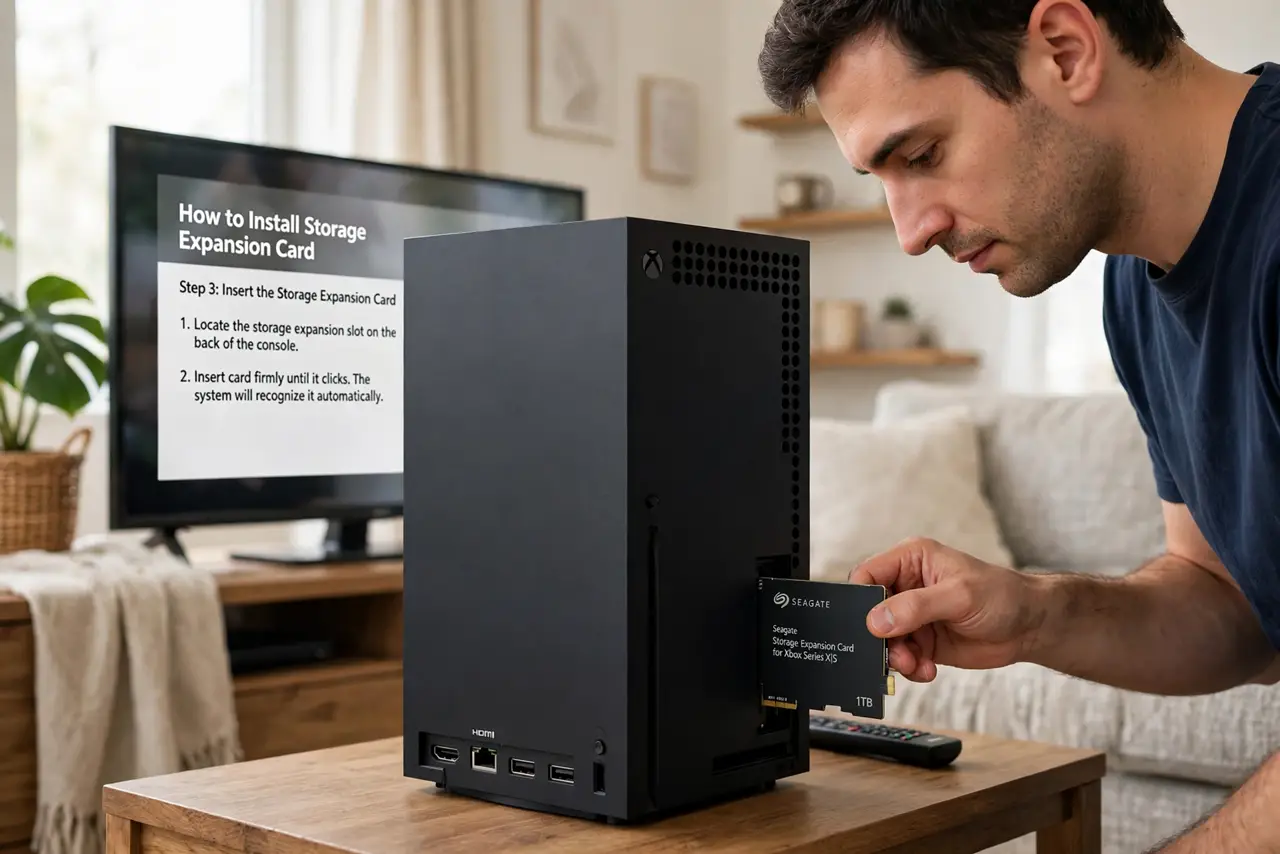
- Plug the card into the back slot. Power off the console, insert the expansion card firmly into the dedicated slot on the back, and power on. The Xbox detects it immediately — no formatting dance.
- Set it as the install location (optional). In Settings, then Storage, you can choose where new games install. Pointing installs at the card keeps internal space free.
- Use a USB drive for cold storage. Plug a USB 3.0 drive in for cheap bulk space. Move games you are not playing onto it, then move them back when you want to play — much faster than re-downloading.
- Manage with the storage menu. Settings, then Storage shows every drive and what is on it. Move games between drives from here instead of deleting and re-downloading.
What NOT to do
- Do not buy a random NVMe SSD expecting it to work. Only the official expansion cards fit the Xbox slot — standard PC drives do not.
- Do not expect USB drives to play new games directly. Series X/S titles must run from internal or expansion-card storage; USB is for storage and older games.
- Do not unplug the expansion card mid-game. Treat it like internal storage — removing it while the console is on can corrupt data.
- Do not pay for more than you will fill. Check your actual library size first — most players are fine with 1TB extra.
Frequently asked questions
Can I use the expansion card on two consoles?
Yes — move it between your Xboxes and your games come along. You will still sign in on each console.
Is the expansion card as fast as internal storage?
Yes — it is designed to match internal speed, so games load identically from either.
What size USB drive works for cold storage?
USB 3.0 drives of 128GB and up are supported for storing games. Bigger is better since modern games are huge.