Use Xbox Controller on PC
PC gaming with a keyboard is fine until a game clearly wants a controller — then you want your Xbox controller paired and working in minutes. Modern Xbox controllers connect over Bluetooth or USB with no extra software. This guide covers pairing, the common failure, and getting it working in games.
TL;DR / Quick Fix
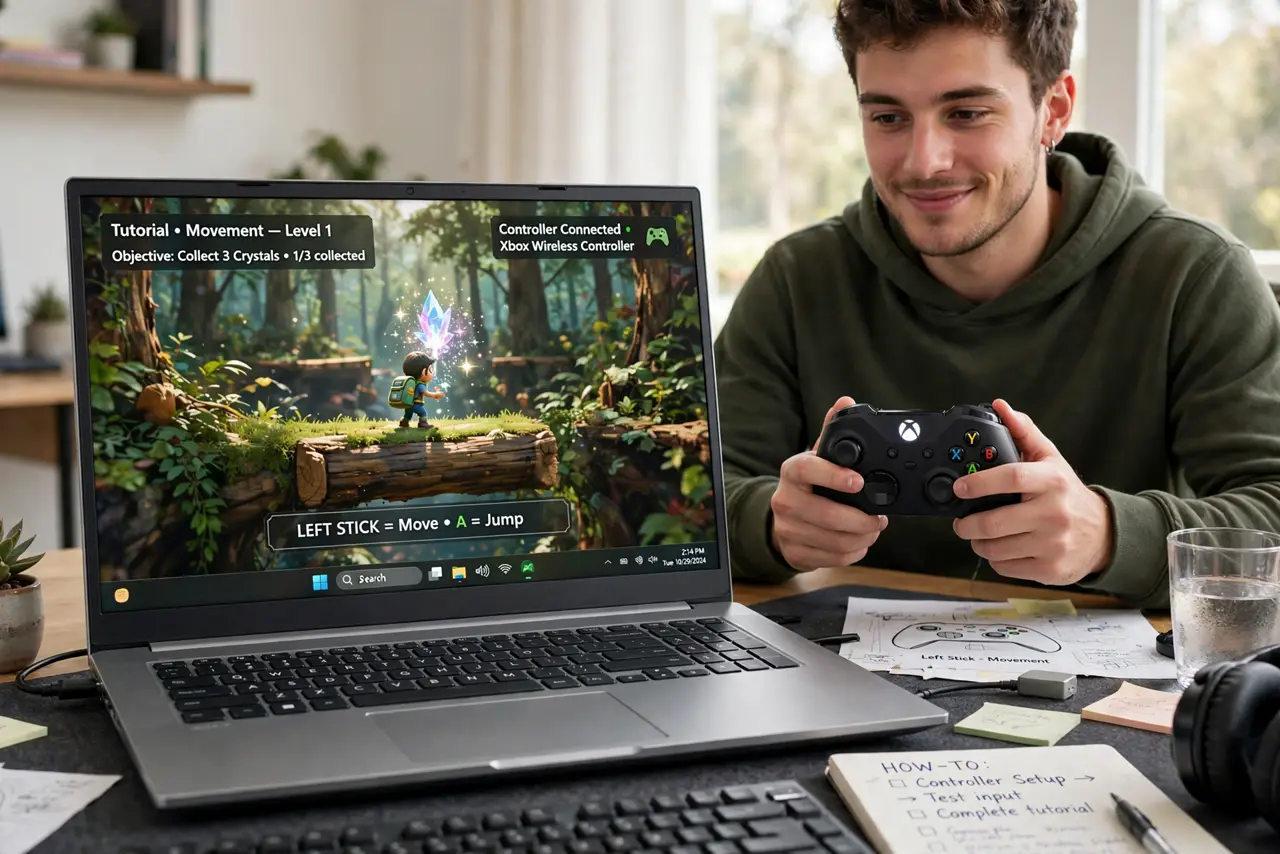
Quick fix: hold the Xbox button to power on, then hold the small pair button until the Xbox button flashes. On the PC, open Bluetooth settings, add a device, and choose the Xbox controller. For the most reliable connection, plug it in with a USB-C cable — it works instantly.
Follow these steps
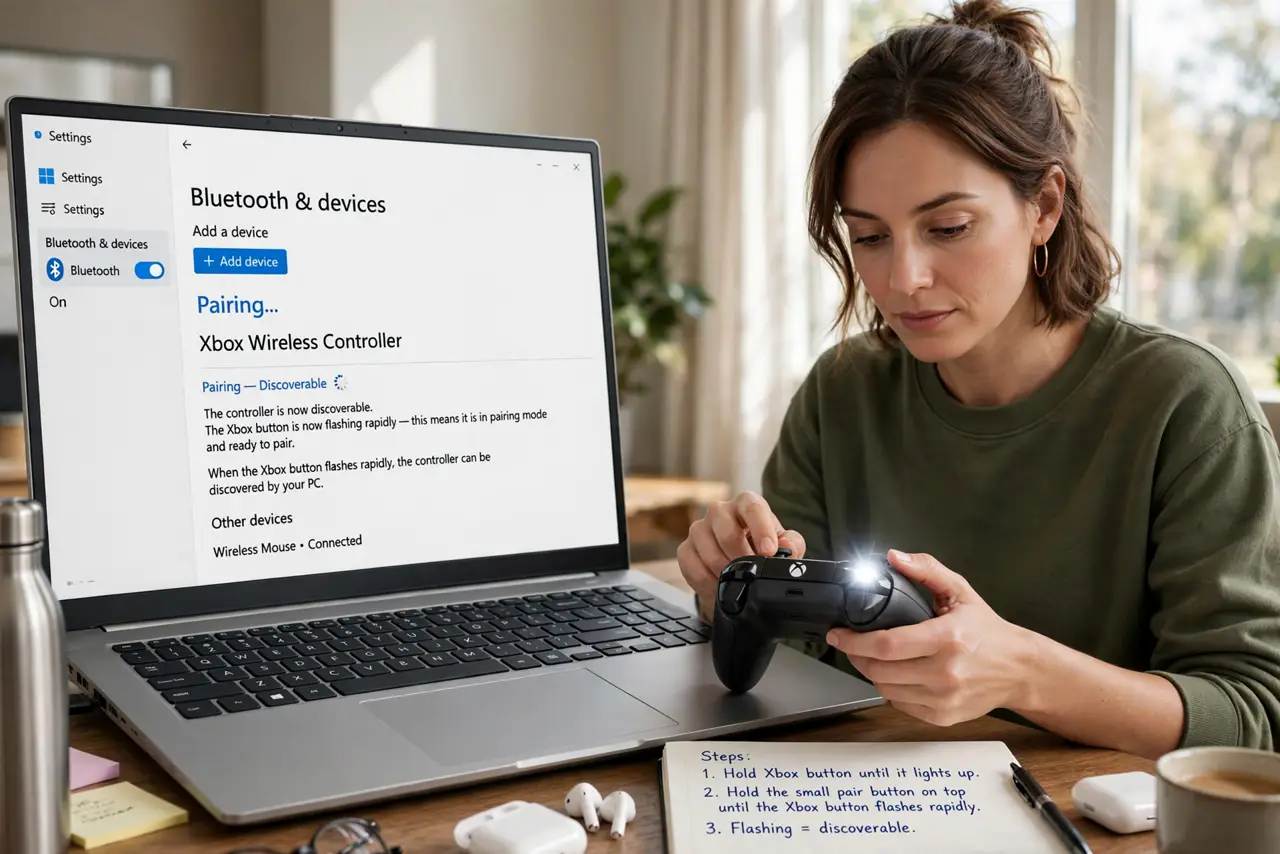
- Turn on pairing mode. Hold the Xbox button until it lights up, then hold the small pair button on the top edge until the Xbox button starts flashing rapidly. Flashing means it is discoverable.
- Open Bluetooth settings on the PC. Go to Settings, then Bluetooth and devices, and click Add device. Choose Bluetooth and wait for the Xbox controller to appear in the list.
- Select and connect. Click the Xbox controller entry. The Xbox button goes solid when connected — you are paired. Windows installs the driver automatically.
- Use USB for zero fuss. Plug the controller into the PC with a USB-C cable and it works immediately, no pairing needed. This is also how you update the controller's firmware.
- Test in a game. Launch a controller-friendly game and check the input. If the game ignores the controller, check its settings for a controller or gamepad input option.
- Fix the classic failure. If pairing fails repeatedly, remove the controller from the PC's Bluetooth device list, restart both, and pair fresh. Stale pairings cause most 'won't connect' cases — and a disconnecting controller usually has the same fix.
What NOT to do
- Do not buy a wireless adapter for a modern controller. Current Xbox controllers pair over standard Bluetooth — the old adapter was for older models.
- Do not pair while the controller is plugged into the Xbox. A controller can only be actively connected to one device — disconnect from the console first.
- Do not ignore firmware updates. An outdated controller firmware causes mysterious input issues — update via USB through the Xbox Accessories app.
- Do not use a charge-only USB cable and wonder why it fails. Data-capable USB-C cables work; some cheap cables carry power only.
Frequently asked questions
Does every PC game support controllers?
No — many do, especially action and racing games, but strategy and MMO titles are often keyboard-only. Check the game's store page for controller support.
Can I use it wirelessly and wired at the same time?
One connection at a time — plugging in USB while on Bluetooth switches to wired. Unplug to go back to wireless.
Why does my controller keep disconnecting?
Usually Bluetooth interference or low battery. Move the PC's Bluetooth antenna clear of metal, and keep the controller charged.