Build Your Own External Drive
You have a perfectly good drive left over from a laptop upgrade, and store-bought external drives cost more than the sum of their parts. An enclosure — a $20-ish case with a USB bridge — turns any bare SATA or NVMe drive into a fast external drive in ten minutes with one screwdriver. This guide picks the right enclosure, moves the drive over safely, and formats it for your machines. For choosing the drive itself, see how to pick an SD card for cameras — the speed-rating logic transfers.
TL;DR / Quick Fix
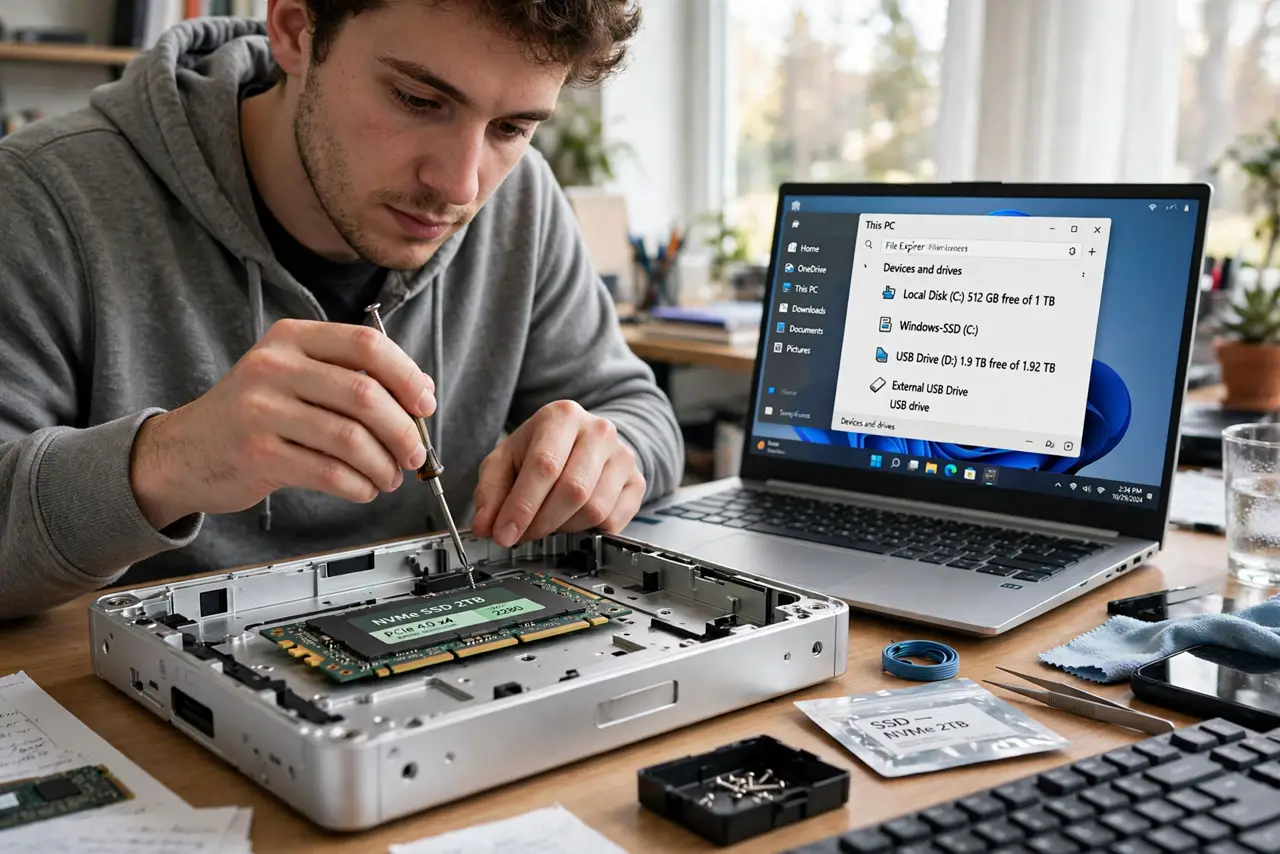
Quick fix: match the enclosure to your drive — 2.5-inch SATA or M.2 NVMe — and to your speed needs over USB. Slide the drive in, secure it, and format to exFAT for sharing between Windows and Mac. Ten minutes of work beats the price of a prebuilt external drive.
Follow these steps
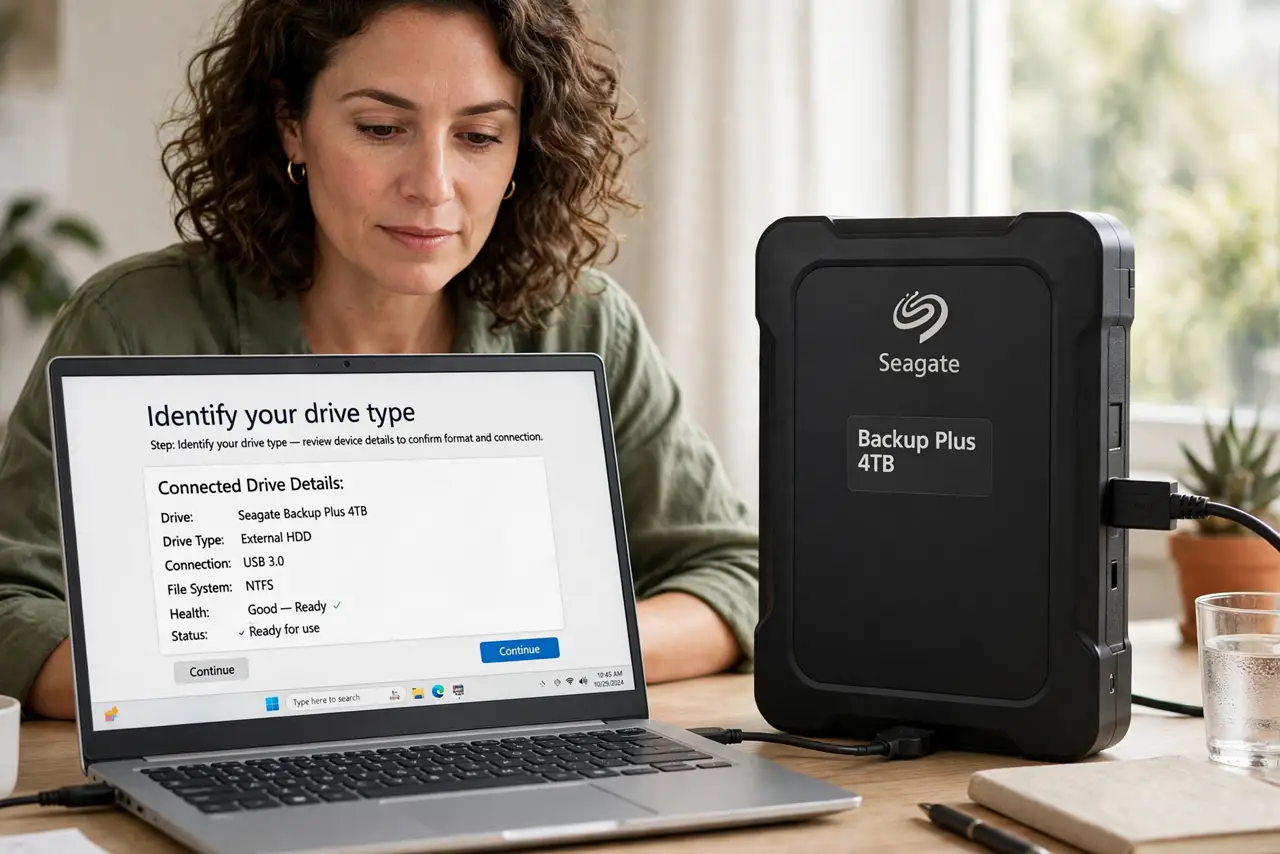
- Identify your drive type. A 2.5-inch laptop drive needs a SATA enclosure; a gumstick-shaped M.2 drive needs an NVMe (or SATA, for older M.2) enclosure. Check the drive's label or the old laptop's specs — buying blind wastes a return.
- Pick the enclosure speed. USB 3 speeds suit hard drives and SATA SSDs. For NVMe drives, a 10 Gbps USB enclosure actually uses the speed — a slow enclosure on a fast drive is money left on the table.
- Move the drive carefully. Power everything off, ground yourself on something metal, slide the drive into the connector firmly but gently, and secure the screws. Forcing a misaligned connector is how pins bend.
- Format for your machines. Use exFAT if the drive moves between Windows and Mac. For one ecosystem only, the native format is faster and more reliable — but exFAT is the universal answer.
- Test before trusting. Copy a large folder, verify it opens, then run the drive for a day before deleting the originals. New assemblies deserve a shakedown before they hold the only copy of anything.
- Label it. A strip of tape with the drive's contents and date beats the mystery-drive drawer every time.
What NOT to do
- Do not force the drive into the connector. SATA and M.2 connectors seat with modest pressure — resistance means wrong alignment, not a tight fit.
- Do not skip the format step on a drive from another system. Old partitions cause confusing behavior; a clean format starts right.
- Do not trust the only copy to a fresh build immediately. Test first, then migrate — new hardware earns trust.
- Do not buy the cheapest no-name enclosure for an NVMe drive. Cheap bridges overheat and throttle; a reputable mid-range one is worth it.
Frequently asked questions
Is it cheaper than buying an external drive?
Usually yes, when you already own the drive. If buying both new, prebuilt drives are often cheaper thanks to volume pricing.
Can I boot from it?
Often yes — most modern computers boot from USB drives. Check your machine's boot options if that is the goal.
Will it work with my game console?
Consoles accept USB drives for media and, on some, game storage. Format as the console requests — usually exFAT or its own format.