External Monitor Resolution Capped? Unlock It
Your external monitor can do better, but Windows only offers a low resolution. The cable, the port, or a mirrored display can each cap it. Check the resolution list first, then the connection.
TL;DR / Quick Fix
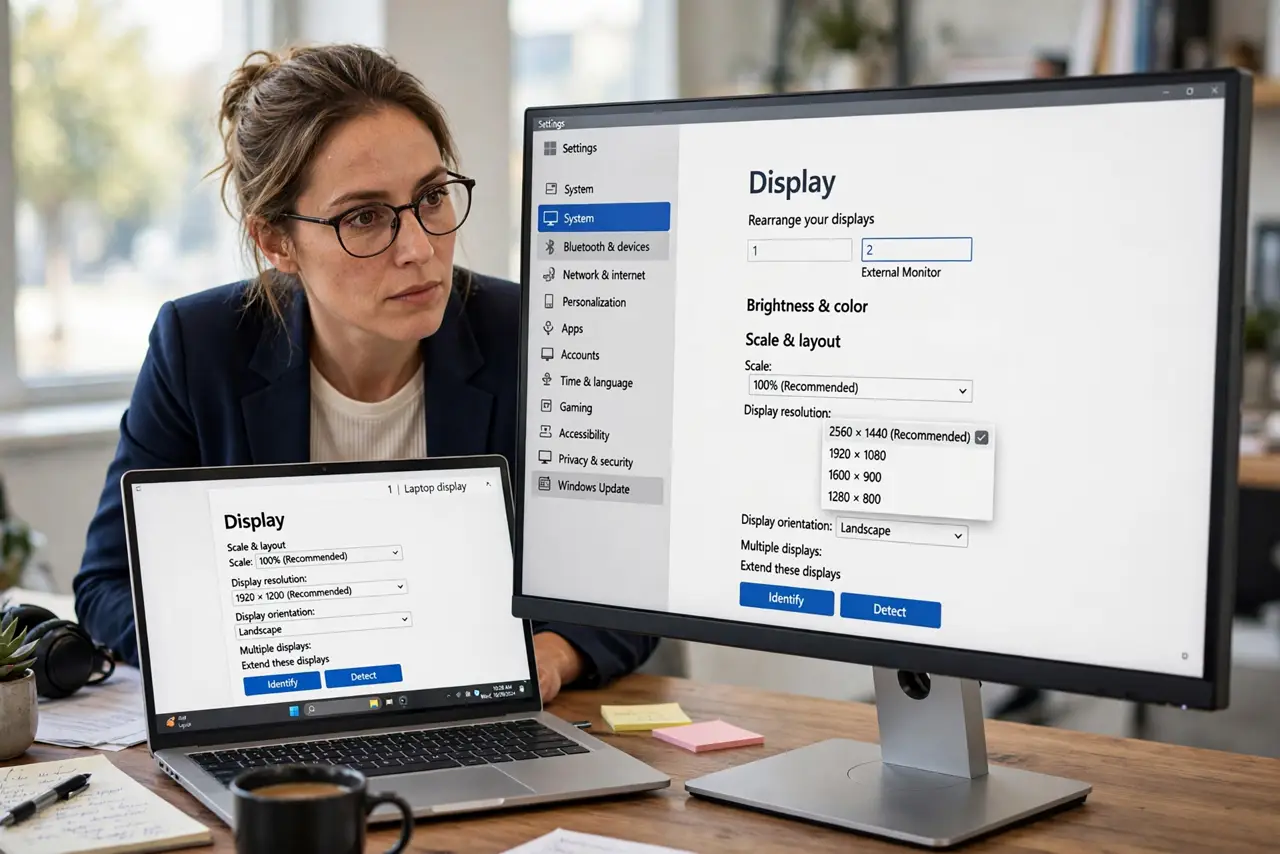
Quick fix: open Display settings, select the external monitor, and choose its highest resolution from the dropdown. If the higher choice is missing, reseat the cable, try another port, and switch from Duplicate to Extend, which often unlocks the full resolution.
Follow these steps
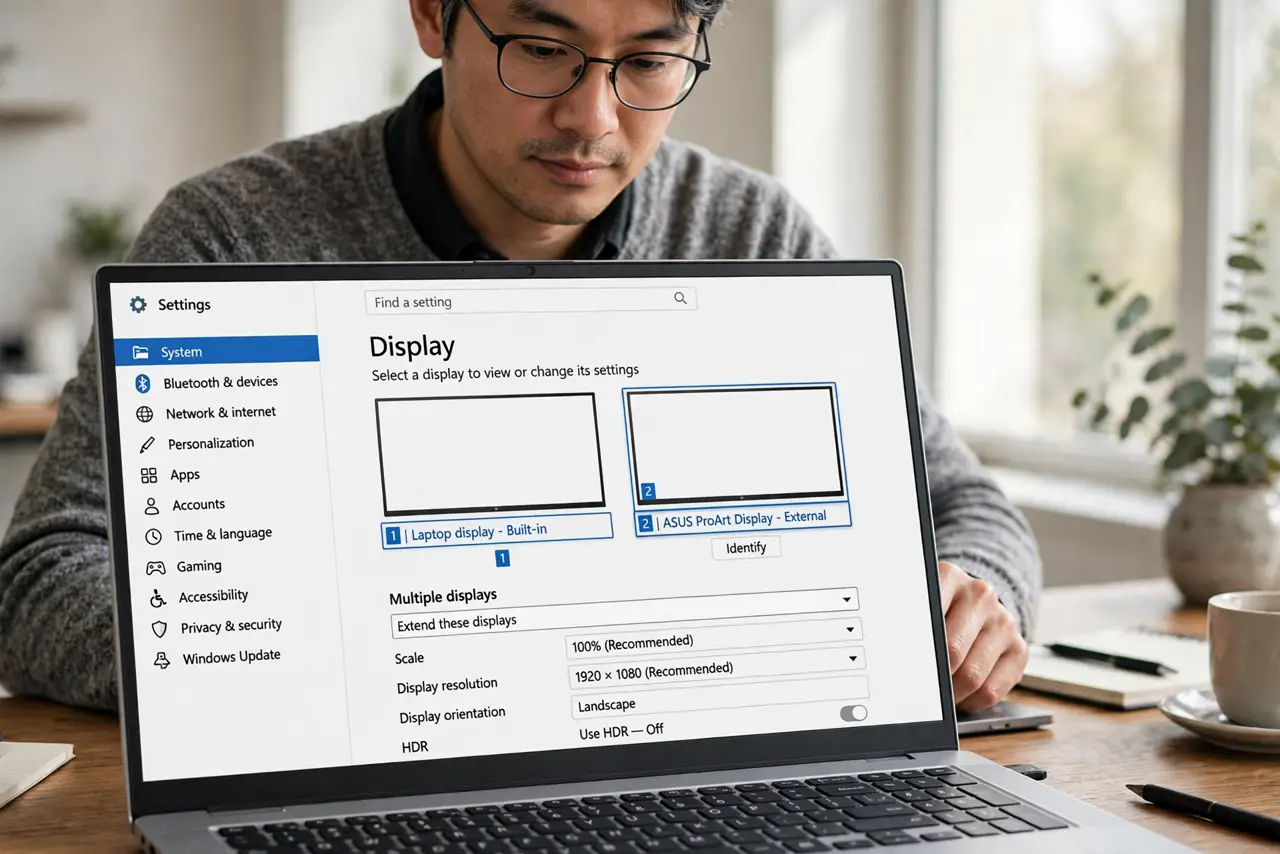
- Select the external monitor. Open Settings, then System, then Display, and click the external monitor in the diagram. Changes made while the laptop screen is selected will not affect the external monitor.
- Choose the highest resolution offered. Open the Display resolution dropdown and pick the highest option. If the monitor native resolution is missing, the cable or port is likely limiting what Windows can see.
- Switch from Duplicate to Extend. In the same Display page, change the layout from Duplicate to Extend these displays. Mirroring caps both screens at a shared resolution, while Extend lets each screen use its own.
- Reseat the cable at both ends. Turn the monitor off, unplug the video cable at both ends, plug it back firmly, and check the resolution list again. A loose cable can hide higher resolutions.
- Try another port and cable. Move the cable to a different port on the computer or monitor, or swap in a different cable. Some ports and older cables cannot carry the full resolution.
- Check the monitor input and menu. Open the monitor on-screen menu and confirm the input matches the cable you used. A monitor set to a limited input mode can cap the resolution Windows offers.
What NOT to do
- Do not set a resolution higher than the list offers by forcing it. The list reflects what the cable, port, and monitor can actually carry together.
- Do not judge the monitor while it is mirroring the laptop. Duplicate mode caps the external screen at the laptop resolution, which is expected behavior, not a fault.
- Do not change laptop and external resolutions together. Select the external monitor first, so you know which screen each change affects.
- Do not buy a new monitor before trying another cable and port. A capped resolution is often a connection limit, not a panel limit.
Frequently asked questions
Why is my monitor native resolution missing?
The cable, port, or Duplicate mode is limiting it. Extend the displays, reseat the cable, and try another port to reveal the full list.
Does Duplicate mode lower resolution?
Yes, it can. Mirroring forces a resolution both screens support, so the better screen is capped at the weaker screen level.
What if the list still stops low?
Try another cable and port, and confirm the monitor input in its own menu. If all fail, the port itself may be the limit.