Real vs Fake Update Prompts? Tell Apart
Pop-ups demanding you 'update now' are everywhere — and half of them are lies. A real update prompt comes from your system or your browser; a fake one comes from a website trying to install malware. Learning to tell them apart in three seconds is one of the most valuable security skills you can have.
TL;DR / Quick Fix
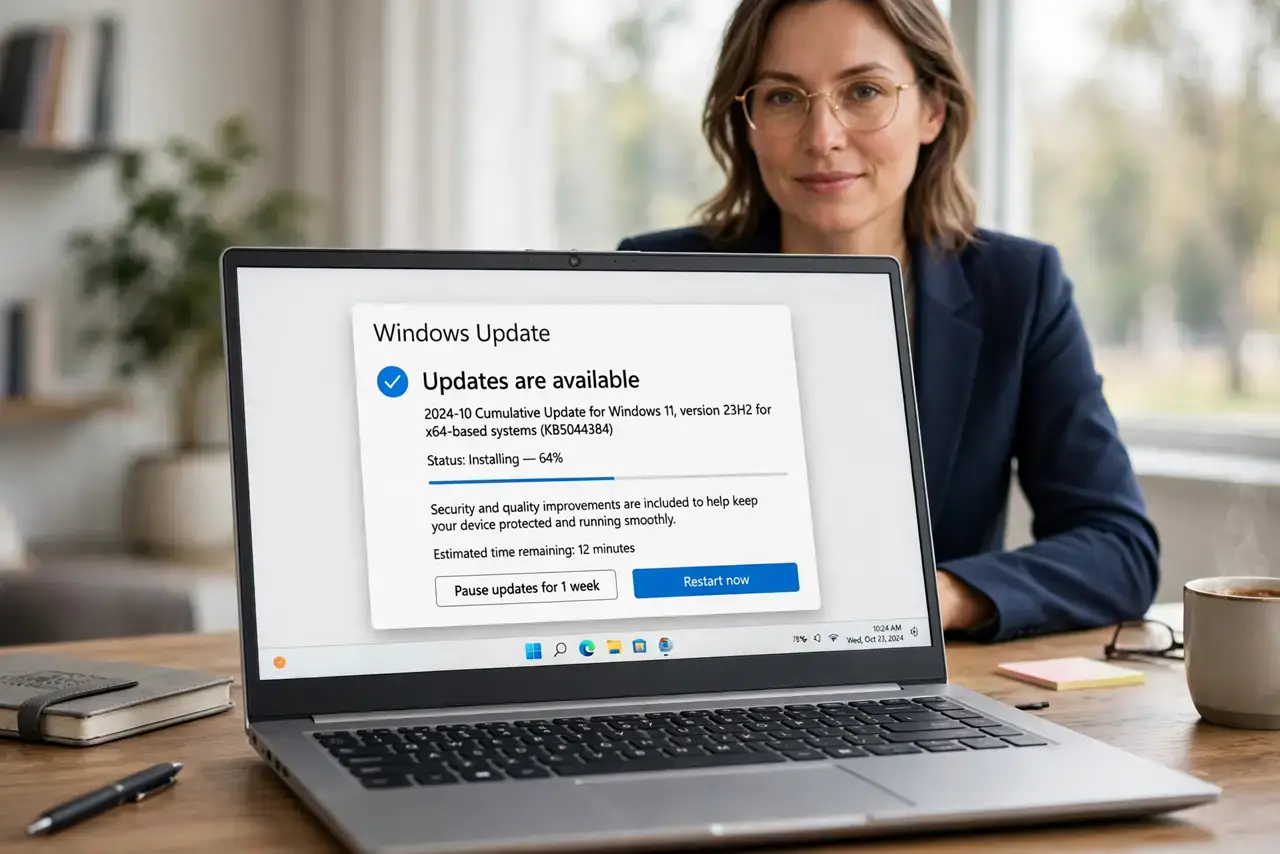
Quick fix: real updates appear in your system settings or browser menu — never as a flashing banner on a random website. When in doubt, close the popup without clicking it and check for updates manually. Never download an 'update' file from a website.
Follow these steps
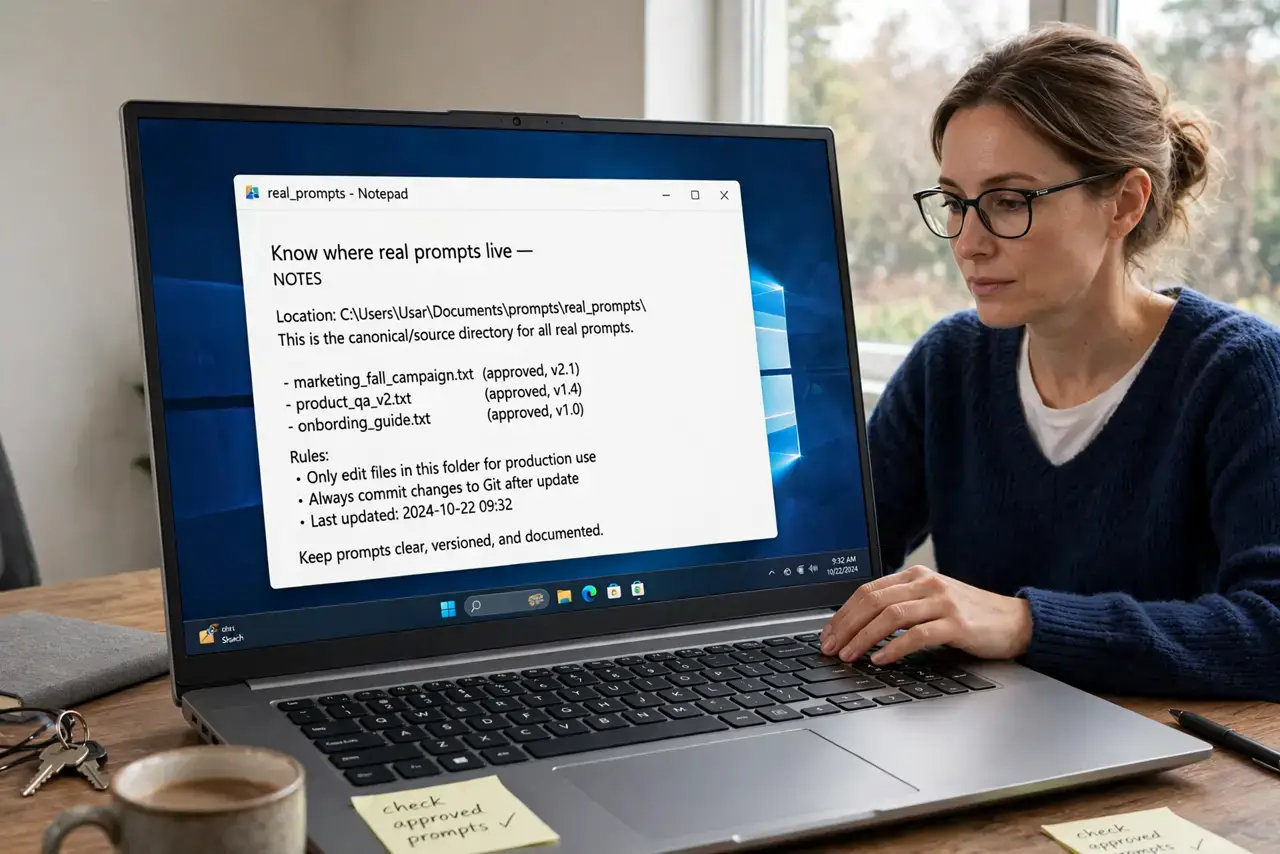
- Know where real prompts live. Real update prompts appear in Settings, in your browser's menu, or as a system notification — never inside a webpage's flashing banner or countdown timer.
- Close the suspicious popup safely. Do not click its buttons, not even the X — close the tab with Ctrl+W or kill the browser. Fake prompts often rig every button to download malware.
- Check for updates manually. Open Settings and look for updates yourself, or open your browser's About page. If an update is real, it will be waiting there — no popup needed.
- Never download 'updates' from websites. No legitimate software updates itself through a random download link on a webpage. If a site offers you an updater file, it is malware — the same trick as fake browser popups.
- Watch for urgency theater. Countdowns, 'critical warning' language, and robotic voices are manipulation, not information. Real updates wait patiently in your settings.
- Keep auto-updates on. With automatic updates enabled, you rarely need to think about prompts at all — the real ones install quietly in the background.
What NOT to do
- Do not click 'Update now' on a website banner. That button has never once delivered a real update in the history of the web.
- Do not trust a prompt that names a specific threat. 'Your Flash Player is outdated' from a random site is the oldest fake-update trick there is.
- Do not install an updater that arrives by email. Software vendors do not email you installer files — those attachments are malware.
- Do not disable updates to avoid the confusion. Skipping real updates leaves the very holes that fake-update malware tries to exploit.
Frequently asked questions
What does a real Chrome update prompt look like?
A small, calm notice in the browser menu or the About page — never a full-page flashing alert with a countdown timer.
Can a fake update prompt infect me if I just look at it?
Looking is safe; clicking is not. Close the tab without touching its buttons and you are fine.
Why do fake updates mention Flash Player?
Because it was once universal and is now dead — the name still scares people who remember updating it years ago.
What to read next
- Fake Chrome Update Popup? How to Spot It
- 'Your Computer Is Infected' in the Browser? Fake