Convert Files Between Formats
Someone sent you a file your computer refuses to open — a document in an odd format, a photo from an iPhone, an audio clip nothing plays. The format is just the container, and changing containers is usually free and takes seconds. Here is how to convert common files without sketchy software or quality loss.
TL;DR / Quick Fix
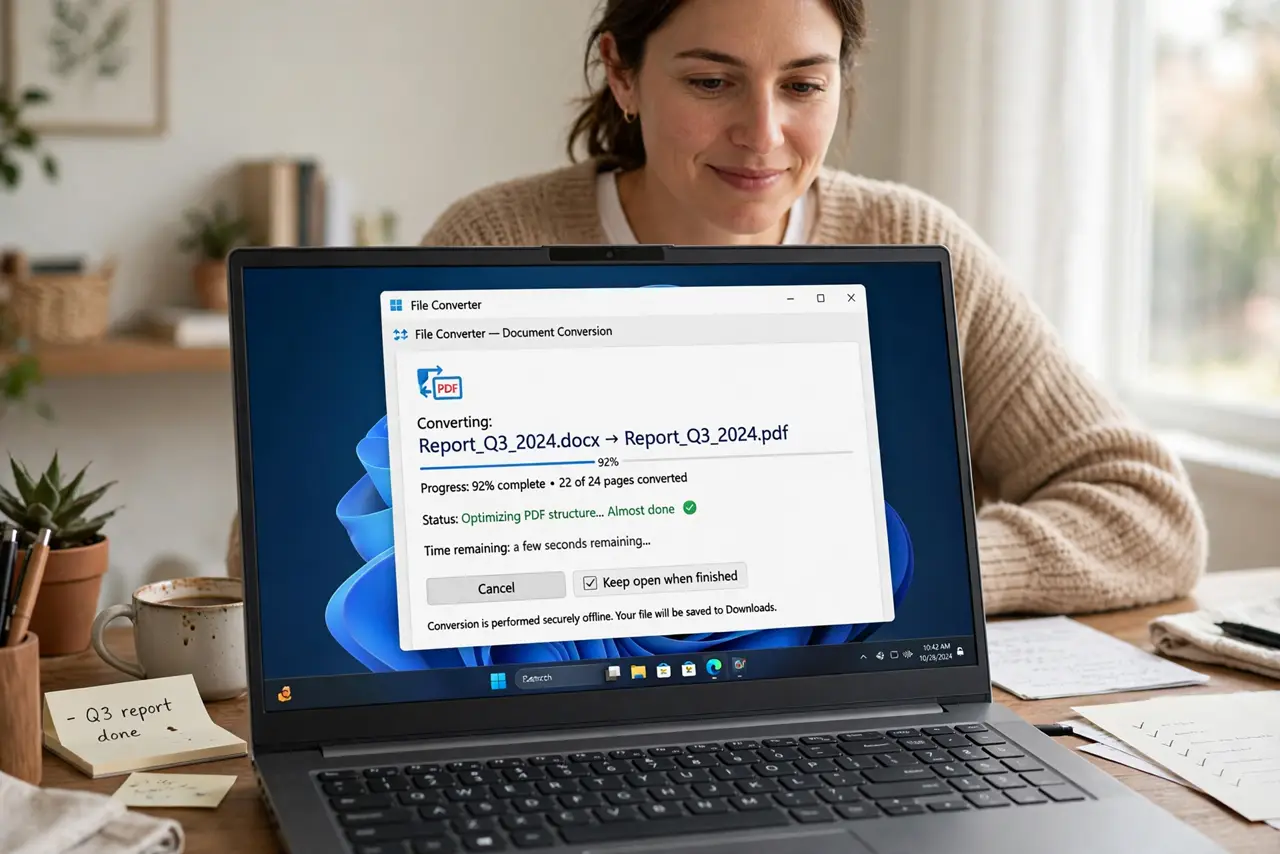
Quick fix: to change a file's format, use the app's own export or 'Save as' first — Word, Pages, and photo editors convert cleanly. For odd formats, a trusted desktop converter beats uploading sensitive files to random websites. Keep the original until you verify the converted file opens correctly.
Follow these steps
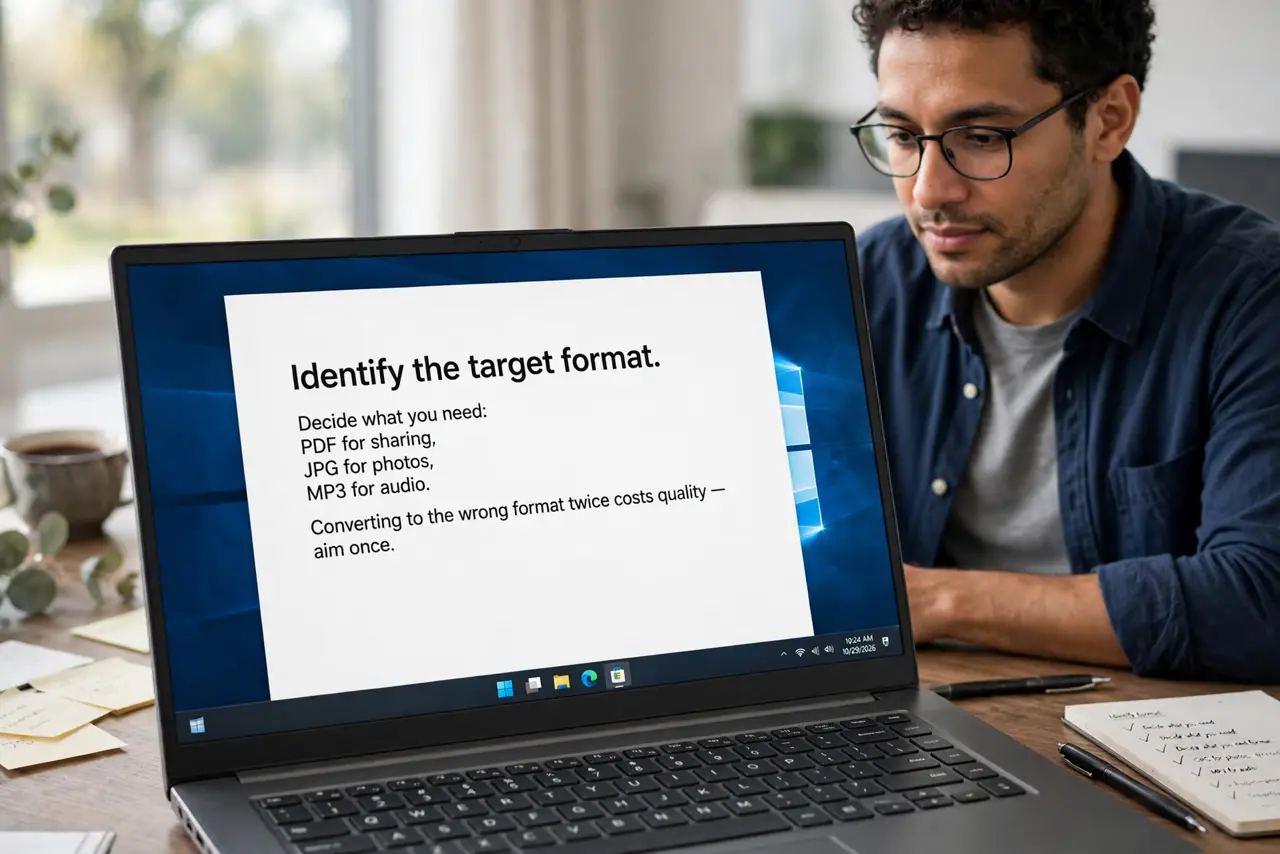
- Identify the target format. Decide what you need: PDF for sharing, JPG for photos, MP3 for audio. Converting to the wrong format twice costs quality — aim once.
- Use the app's own export first. Word, Pages, Photoshop, and most editors convert cleanly through File, Export or Save As. Built-in export preserves quality better than any third-party tool.
- Try a free desktop converter next. For formats your apps cannot handle, a reputable desktop converter keeps your files on your machine. Install one well-reviewed tool rather than five random ones.
- Be cautious with online converters. Uploading works in a pinch, but you hand your file to a stranger's server. Never upload contracts, IDs, or anything sensitive — this is the issue people hit constantly with HEIC photos.
- Keep the original until you verify. Save the converted file, open it, and check it looks right before deleting anything. A corrupt conversion is only a disaster if the original is gone.
- Name files to show the format. Save as 'report-final.pdf' rather than overwriting 'report.docx'. Keeping both avoids confusion about which version is the master copy.
What NOT to do
- Do not convert the same file back and forth. Every lossy conversion (JPG to JPG, MP3 to MP3) degrades quality a little more each time.
- Do not upload sensitive documents to free converter sites. Tax forms, contracts, and IDs do not belong on a stranger's server.
- Do not install 'free converter' toolbars or bundles. Legit converters come as clean apps — bundled extras are the red flag.
- Do not assume the conversion kept everything. Fonts, transparency, and layers can shift — always open and inspect the result.
Frequently asked questions
Will converting JPG to PNG improve quality?
No — converting to a lossless format cannot restore quality already lost. It only makes the file bigger.
What's the safest format to share a document?
PDF. It looks the same on every device and most people can open it without special software.
Why does my converted video look blurry?
The converter likely used heavy compression. Convert again with higher quality settings, from the original file.