Files Vanish From a USB Stick? Why
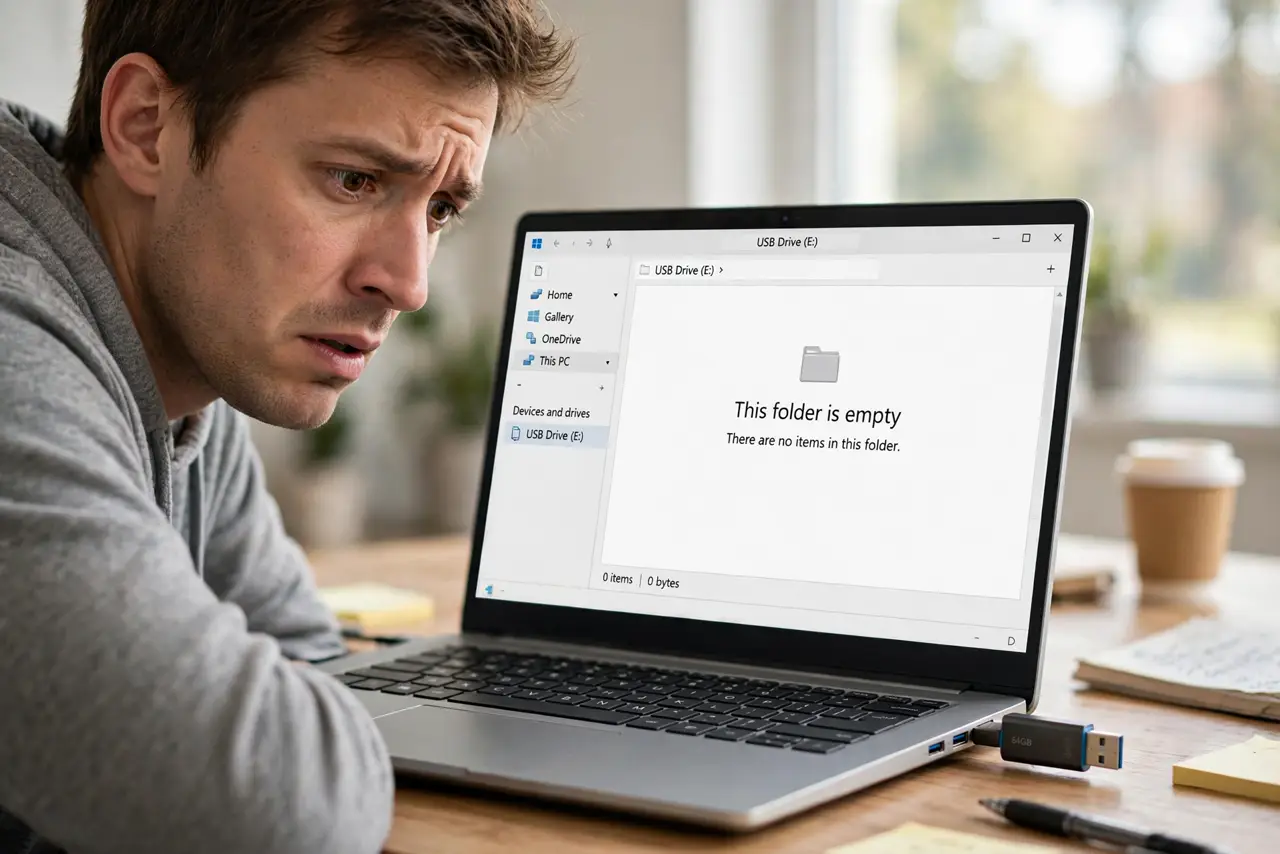
You copied files to a USB stick, and now some — or all — are gone. The stick is not haunted: interrupted writes, a fake-capacity drive, or file system corruption are the usual causes. This guide finds out which one hit you and whether the files can come back.
TL;DR / Quick Fix
Quick fix: stop writing to the stick immediately — new data overwrites the old. Check for hidden files and test the stick's real capacity with a free tester. If the files were never truly written, they are gone; if they were, recovery software can often bring them back.
Follow these steps
- Stop using the stick right now. Every new write risks overwriting the vanished files. Eject the stick and do all diagnostics from a copy or read-only where possible.
- Show hidden files first. Open the drive with hidden files visible. Malware and some copy glitches hide files instead of deleting them — the files may be sitting there, invisible.
- Verify the stick's real capacity. Run a free capacity tester like H2testw or F3. Counterfeit sticks lie about their size: files 'copied' past the real capacity vanish, and no software brings those back.
- Check whether the copy actually finished. Think back: did you eject before the copy completed? Files vanish most often because the stick was pulled mid-write — the same corruption behind a card asking to format.
- Try recovery software. If the files were fully written, recovery tools scan the raw storage and often restore them. Save recovered files to your computer, not back to the same stick.
- Retire a stick that loses files twice. A stick that eats files repeatedly has failing memory. Replace it — and never again keep the only copy of anything on a USB stick.
What NOT to do
- Do not keep copying new files onto the stick. Each new write can permanently overwrite the sectors holding your lost files.
- Do not trust a suspiciously cheap high-capacity stick. Counterfeit drives are the number one cause of vanishing files — test capacity on day one.
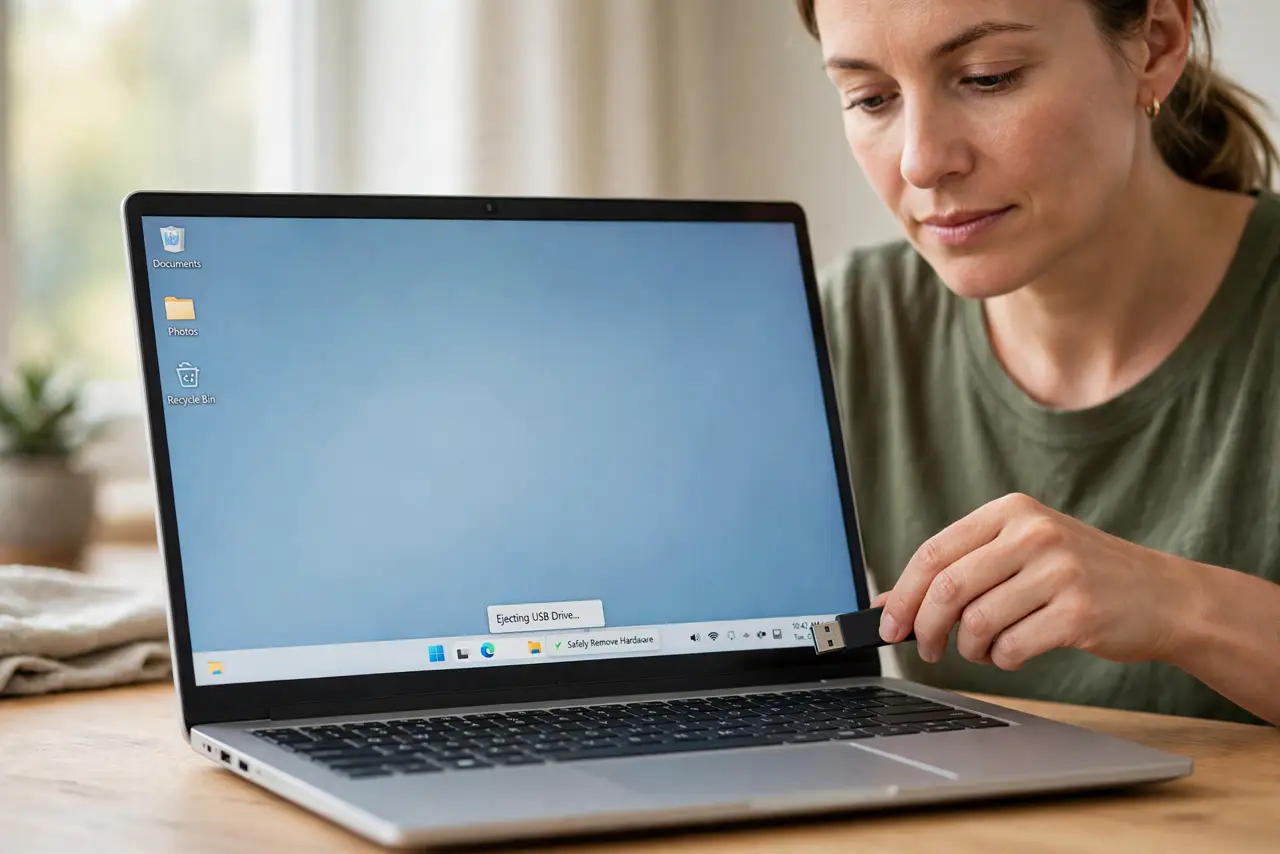
- Do not yank the stick without ejecting. Unsafe removal mid-write is the classic way files disappear.
- Do not save recovered files back to the same stick. Recover to your computer first, verify, then decide what the stick is still good for.
Frequently asked questions
Where did my files go on the USB stick?
Usually one of three things: the copy never finished, the stick is counterfeit with fake capacity, or the file system corrupted. Hidden files are the lucky fourth option.
Can deleted USB files be recovered?
Often yes, if nothing overwrote them. Stop using the stick and run recovery software as soon as possible.
How do I test if my USB stick is fake?
Use H2testw on Windows or F3 on Mac and Linux. They write and verify the full advertised capacity and expose fakes.