SD Card Asks to Format? Recover First
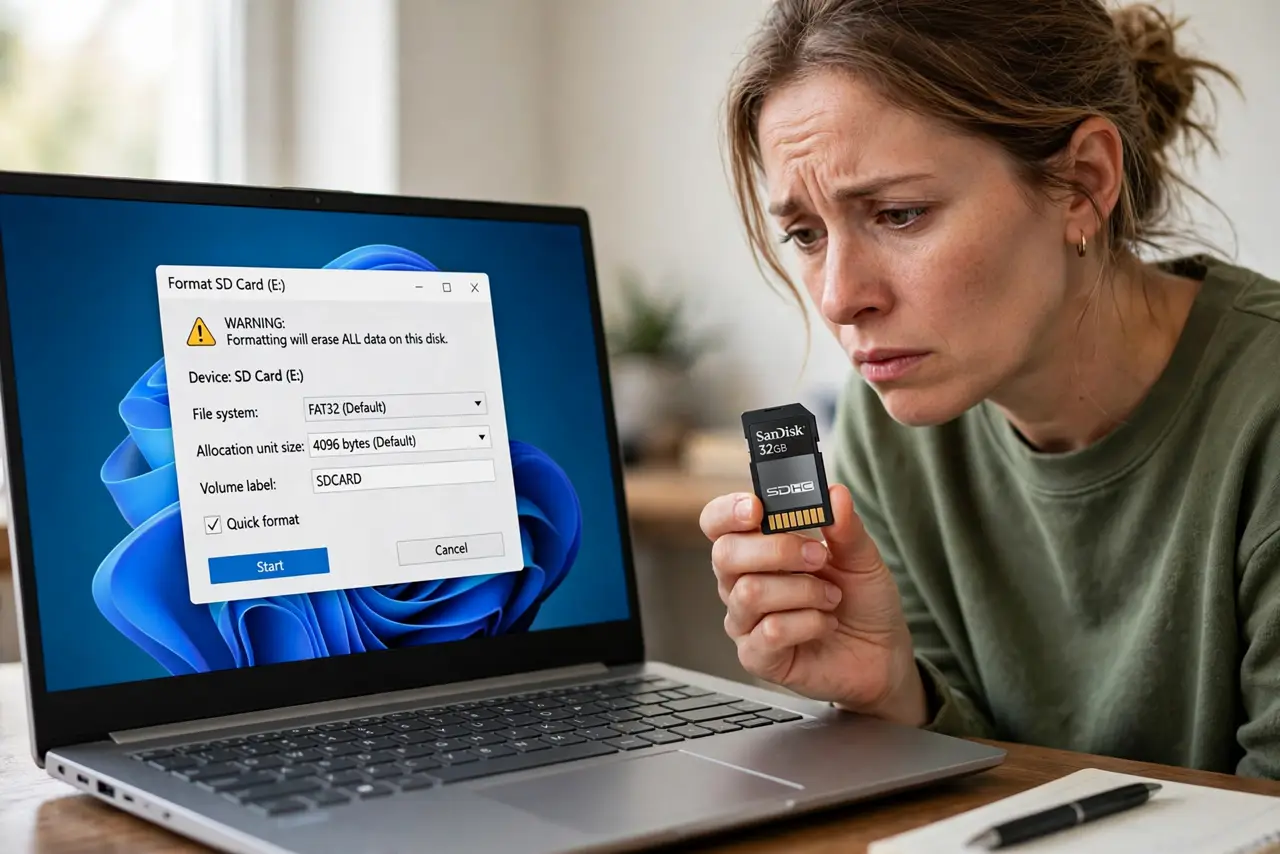
Your camera or computer says the SD card needs formatting — but formatting erases everything on it. The card's file system is damaged, not necessarily your photos. Do not format yet: this guide recovers the files first, then fixes the card.
TL;DR / Quick Fix
Quick fix: do NOT click Format. Try the card in another device first — if it reads there, copy everything off immediately. If no device reads it, use free recovery software to pull the files, then format the card fresh. A card that keeps corrupting should be replaced.
Follow these steps
- Do not click Format — yet. Formatting wipes the file index and makes recovery much harder. Treat the format prompt as a warning, not an instruction, until your files are safe.
- Try the card in another device. Put the card in a different camera, phone, or computer. A card that reads elsewhere has a device or reader problem, not a dead card — copy everything off while you can.
- Use recovery software before formatting. If no device reads the card, run a reputable photo recovery tool on it. These tools scan the raw storage and often recover photos even when the file system is unreadable.
- Copy recovered files, then verify. Save recovered files to your computer and open several to confirm they are intact. Recovery sometimes returns partial files, so spot-check before trusting the set.
- Format the card in the camera. Once files are safe, format the card in the camera you will use it in — not on the computer. Camera formatting builds the file system the camera expects, preventing repeat corruption.
- Replace a card that corrupts twice. If the same card asks to format again after a fresh format, its memory is failing. Cards are cheap; irreplaceable photos are not — retire it.
What NOT to do
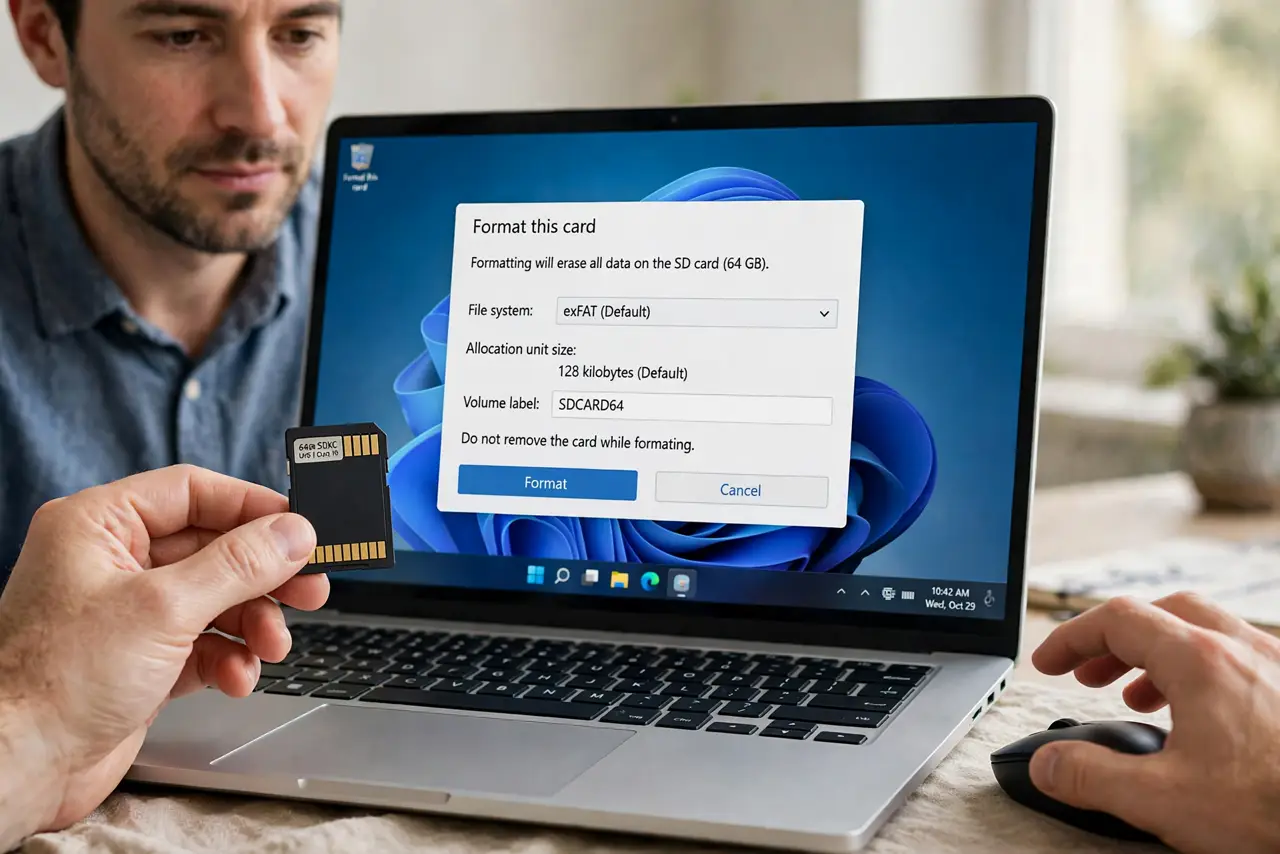
- Do not format the card before recovering. Formatting is the point of no return for easy recovery — files first, format second.
- Do not keep shooting on a card that asked to format. New photos may overwrite the old ones you still hope to recover.
- Do not yank the card out mid-write. Pulling a card while the camera saves corrupts the file system — power off first, then eject.
- Do not buy recovery software before trying the free options. Free tools recover most cases; pay only if the free scan finds your files but will not save them.
Frequently asked questions
Why does my SD card suddenly ask to format?
The file system got corrupted — usually from ejecting during a write, a dying card reader, or the card's memory wearing out.
Can I recover photos without formatting?
Yes, in most cases. Recovery software reads the raw data directly, bypassing the damaged file system. After recovery, if Windows still will not show the card, see Windows SD card not showing.
Should I format on the computer or camera?
In the camera. Camera formatting creates the exact structure the camera expects and reduces future corruption.