Fire TV Privacy? Check This
Amazon's Fire TV ties your watching to your Amazon account — convenient for purchases, rich for profiling. The privacy controls exist, but they are scattered across device settings and your Amazon account. Here is the full sweep, both places.
TL;DR / Quick Fix
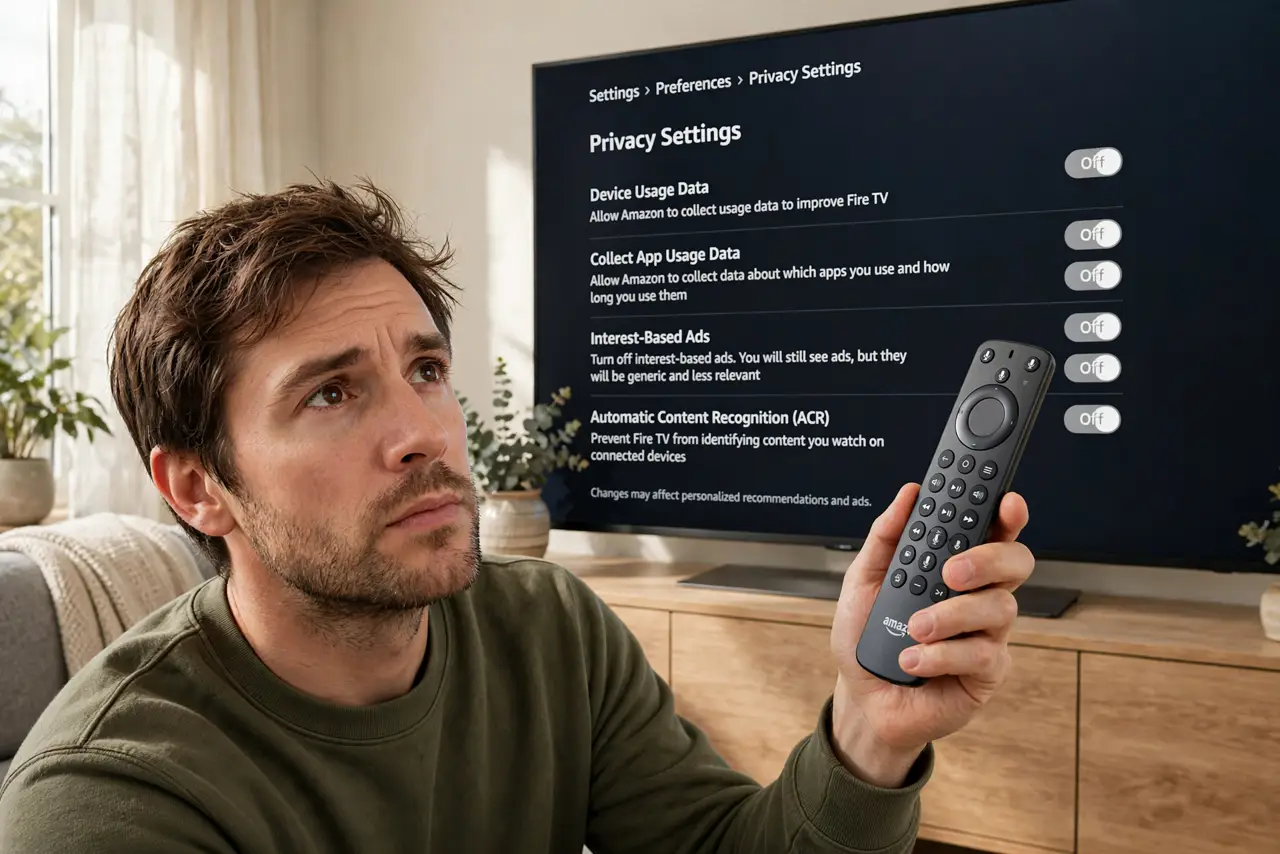
Fire TV shares viewing and voice data with Amazon's ad systems by default. On the device open Settings > Preferences > Privacy Settings and switch off device usage data, interest-based ads, and data monitoring. Then open your Amazon account's advertising preferences online and opt out there too. Streaming is unaffected.
Follow these steps
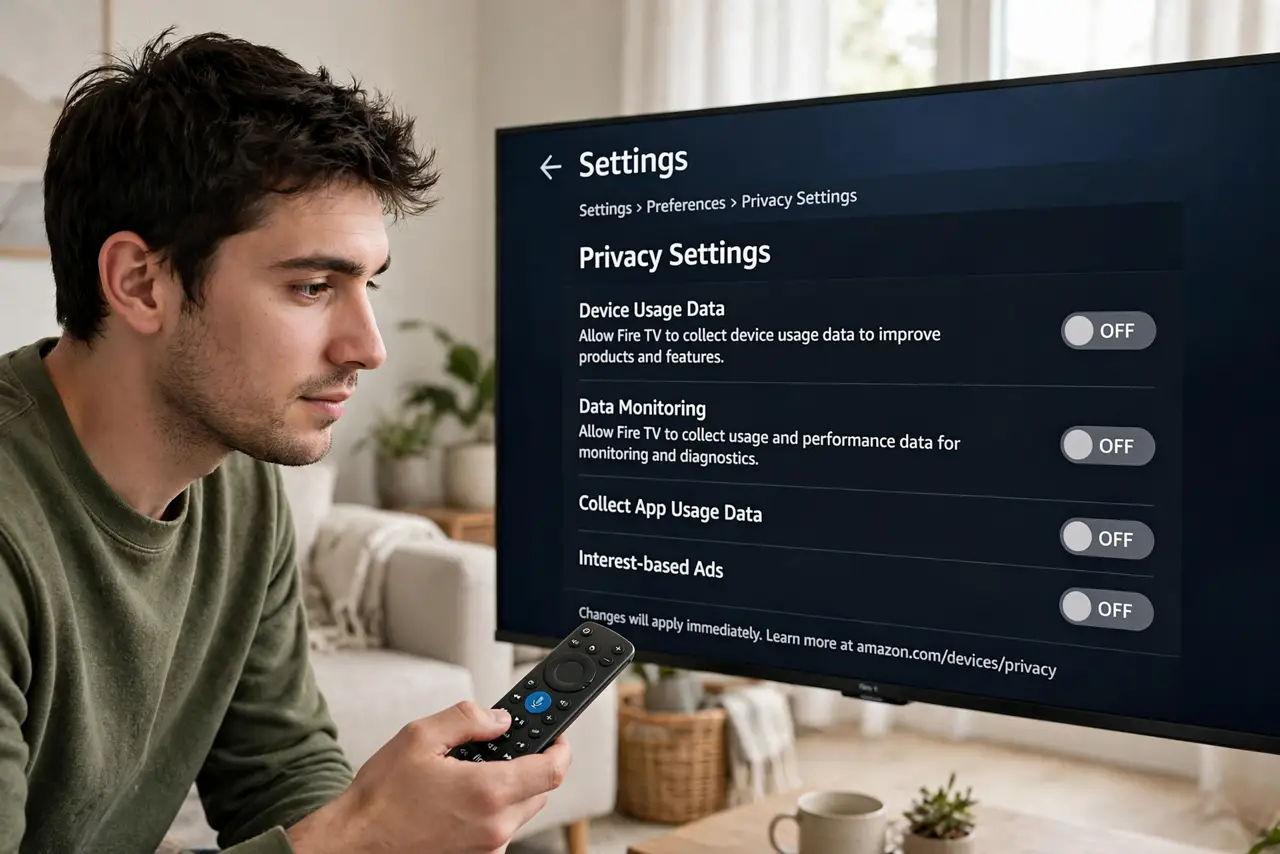
- Open Settings > Preferences > Privacy Settings. Switch off device usage data and data monitoring. These feed Amazon's analytics about how you use the device.
- Turn off interest-based ads. This is the ad-targeting layer. The same opt-out exists across Amazon — see the ad personalization overview.
- Review Alexa voice recordings. Delete stored recordings and switch off human review / improvement use. Full steps are in the Alexa privacy guide.
- Check per-app data collection. Some preinstalled apps have their own usage-data toggles. Skim the app list for anything phoning home.
- Opt out in your Amazon account online. Open your Amazon account's advertising preferences on the web and opt out of interest-based ads there — the device toggles alone leave account-level profiling on.
- Revisit after updates. Fire OS updates can restore defaults or add new data options. Check twice a year.
What NOT to do
- Do not delete recordings and call it done. Deleting history without changing the collection toggles just clears the past.
- Do not expect Prime Video to stop recommending. Recommendations run on watch history, which is separate from ad targeting.
- Do not skip the Amazon account side. Device toggles plus account-level opt-out together are the complete fix.
- Do not share one profile for the whole family. Kids' viewing in your profile trains recommendations and the ad profile — make a kids profile.
Frequently asked questions
Will this break Alexa on the Fire TV?
No. Voice control keeps working — you are limiting data retention and human review, not the feature.
Does Amazon still know what I watch?
For operating the service, yes. For ad targeting, you have opted out — which is the part that matters here.
Why are there two places to opt out?
Amazon splits device settings from account advertising preferences. Both layers need the toggle for full effect.