Fire TV Privacy Settings
Your Fire TV Stick is convenient — and chatty. Amazon collects viewing data, app usage, and Alexa voice recordings by default, all changeable in a few menus most owners never open. Five minutes of toggles turns a data firehose into a trickle. Also delete stored Alexa recordings while you are at it.
TL;DR / Quick Fix
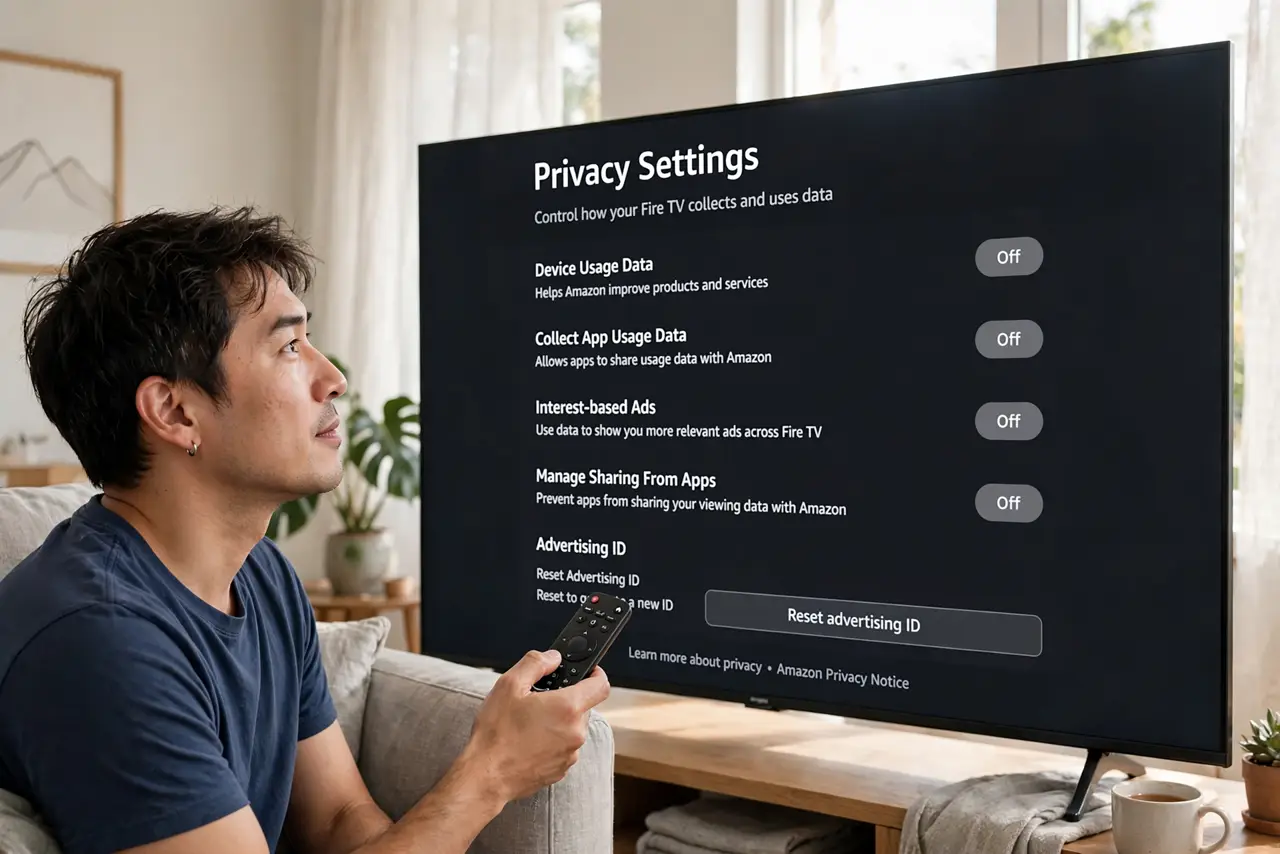
Quick fix: on Fire TV go to Settings > Preferences > Privacy Settings and switch off Device Usage Data, App Usage Data, and Interest-based Ads. Then delete stored Alexa voice recordings in the Alexa app. Amazon's defaults favor Amazon — five minutes of toggles flips that.
Follow these steps
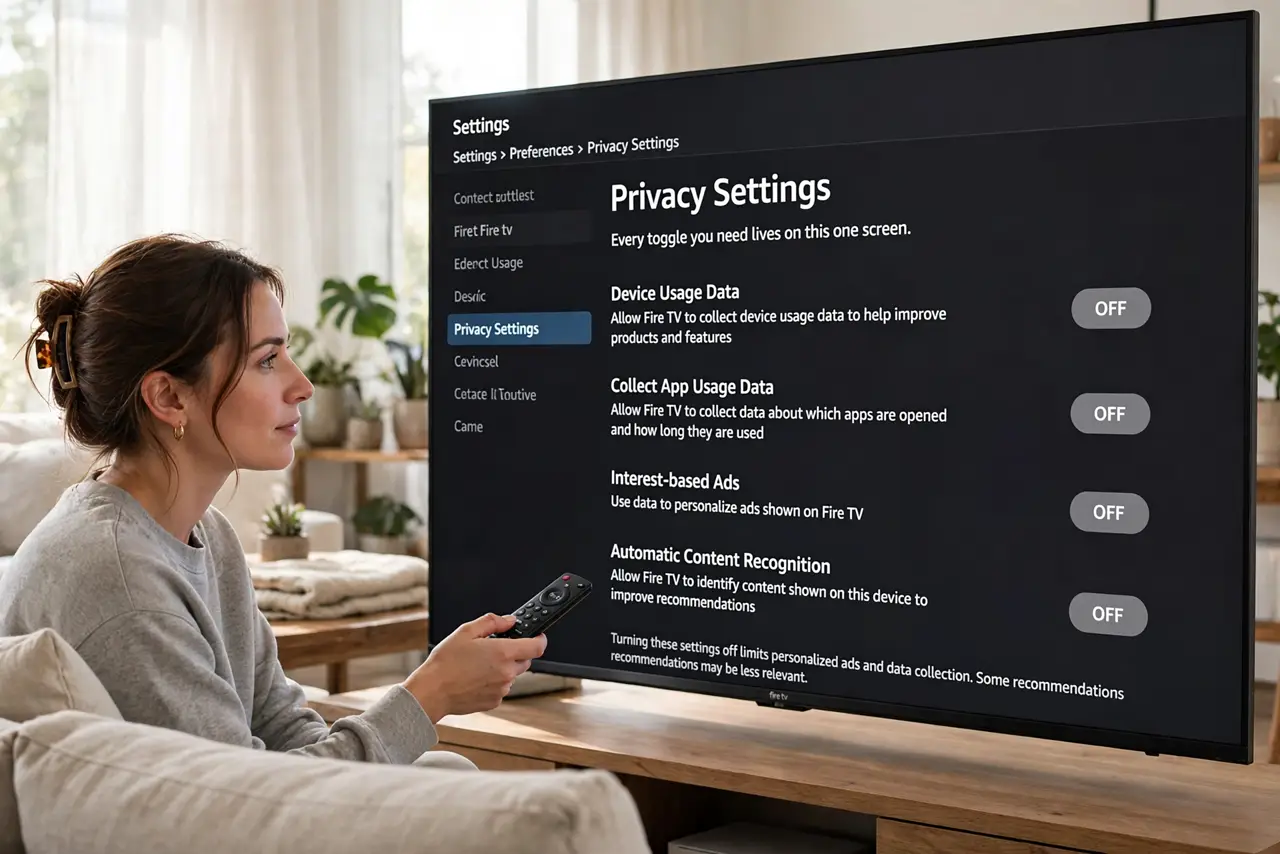
- Open Privacy Settings. Go to Settings > Preferences > Privacy Settings on the Fire TV. Every toggle you need lives on this one screen.
- Turn off Device Usage Data. This is the big one: it stops the stick reporting how you use the device itself back to Amazon.
- Turn off Collect App Usage Data. A separate toggle covering which apps you open and how long you use them. Off means your watch habits stay yours.
- Turn off Interest-based Ads. Without this, ads on the Fire TV are targeted from your viewing profile. Off means generic ads — a fair trade.
- Handle Alexa voice recordings. Voice searches through the remote are stored like any Alexa recordings — delete them in the Alexa app and enable auto-delete.
- Recheck after updates. Fire OS updates occasionally reset or add privacy toggles. A two-minute revisit after each update keeps the settings honest.
What NOT to do
- Do not assume “privacy settings” means private. These toggles reduce collection; Amazon still knows you own the device and stream.
- Do not skip the Alexa recordings step. The on-device toggles do not cover voice clips — that is a separate deletion.
- Do not forget apps have their own tracking. Netflix, YouTube, and others track within their apps regardless of Fire TV settings.
- Do not leave the defaults because “it just works.” It works identically with the toggles off — defaults favor Amazon, not you.
Frequently asked questions
Will apps still work?
Yes — every streaming app works identically. You lose personalized ads and some recommendations, nothing functional.
What about the smart TV itself?
If the stick is plugged into a smart TV, harden that too — see turn off TV tracking for brand paths.
Does this stop Amazon knowing what I watch on Prime?
No — Prime Video viewing is account activity, separate from device data collection.