Manage Blocked Senders
Someone's emails vanished — a newsletter you actually wanted, or a contact whose mail lands in spam. Or the reverse: a persistent sender you need gone. Gmail's blocked-senders list is the control room for both: review who's blocked, unblock the innocent, and block the pests properly.
TL;DR / Quick Fix
Quick fix: open Gmail settings, go to Filters and Blocked Addresses, and unblock or delete entries there — blocked senders land in spam, never the inbox. To block someone new, open their email and choose Block from the three-dot menu. Review the list yearly; old blocks pile up.
Follow these steps
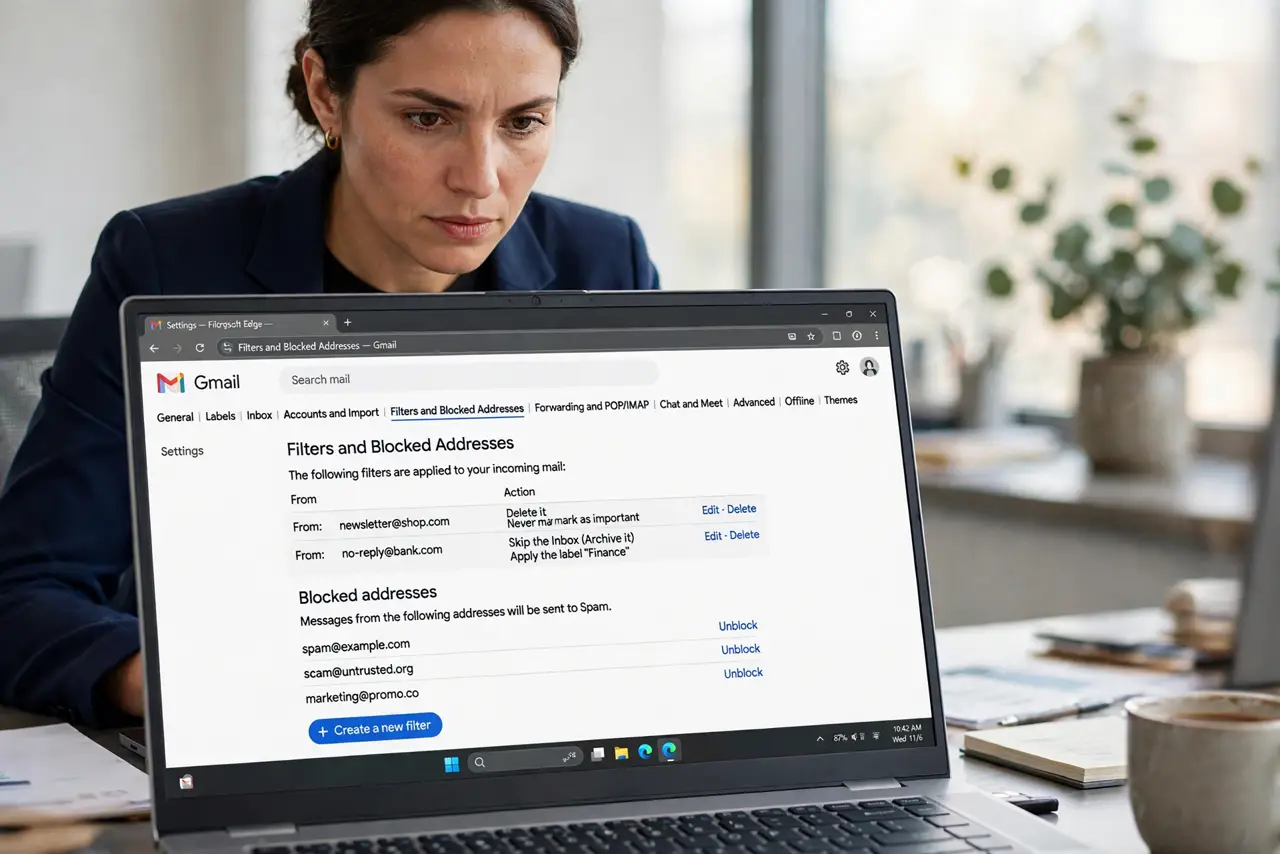
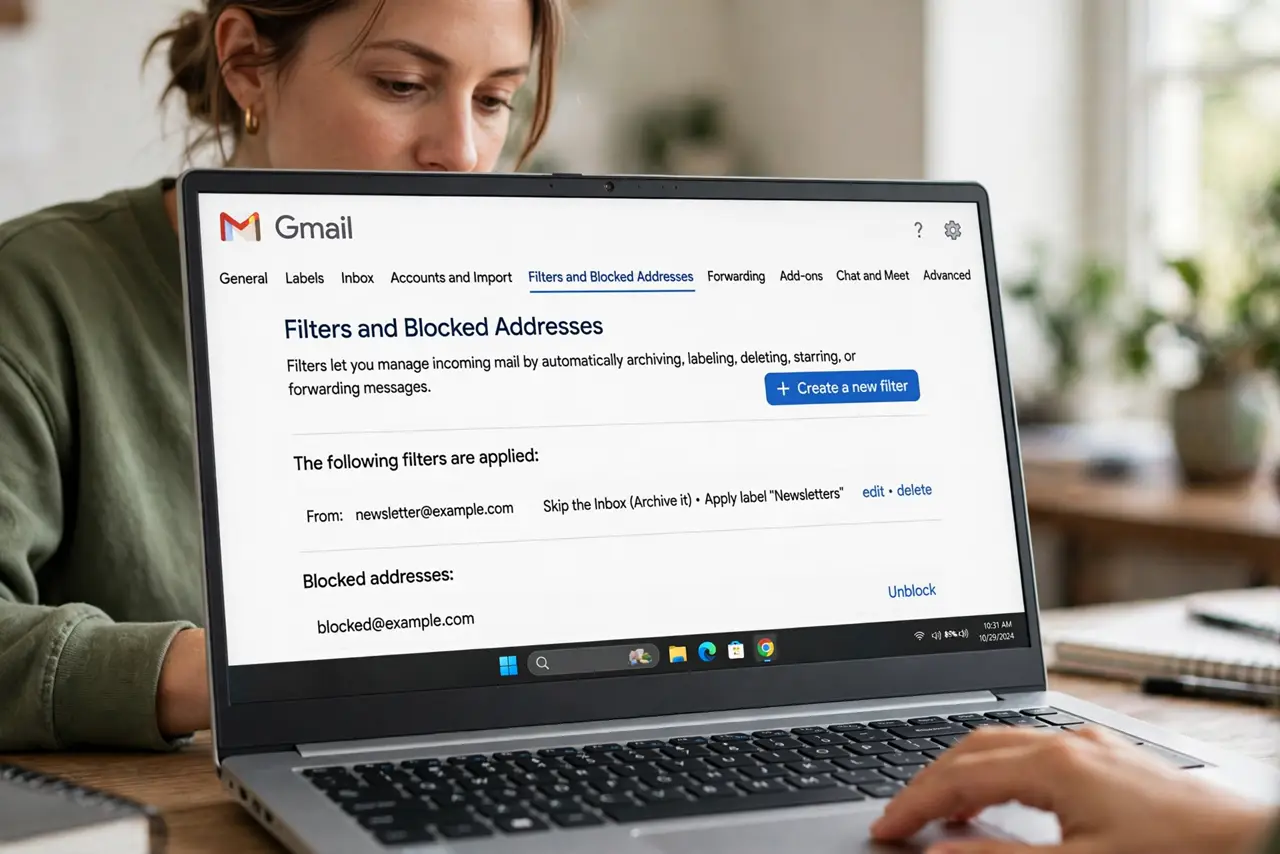
- Open Filters and Blocked Addresses. Gear icon, 'See all settings,' then the 'Filters and Blocked Addresses' tab. The bottom section lists every blocked sender — this is the control room.
- Unblock the innocent. Find the sender, click 'unblock,' confirm. Their future mail returns to the inbox — already-spammed mail stays in spam, so check there for the missing messages.
- Block a new sender properly. Open one of their emails, click the three-dot menu, choose 'Block.' Gmail confirms; from then on their mail skips the inbox to spam. Blocking is per sender address, not per domain.
- Know block vs unsubscribe. Blocking hides the mail; unsubscribing stops it at the source. For legitimate newsletters you no longer want, unsubscribe — for harassment or spam, block.
- Review the list yearly. Old blocks accumulate — ex-colleagues, old vendors, that store from 2019. A yearly review keeps the list meaningful and catches accidental blocks from hasty clicks.
- Check spam before assuming a block. Missing mail isn't always a block — overzealous filters also divert mail. Search 'in:spam' for the sender before concluding they're blocked.
What NOT to do
- Do not block to unsubscribe from legit mail. Unsubscribing is cleaner and permanent; blocking a real newsletter just fills your spam folder forever.
- Do not assume blocked mail is gone. It lands in spam and auto-deletes after 30 days — but it still arrives, which matters for legal or billing threads.
- Do not block an entire domain casually. Blocking '[email protected]' is fine; blocking the whole domain can nuke receipts and order updates you need.
- Do not forget to check the list after 'missing email' panics. Half of all 'Gmail ate my email' cases end at an old, forgotten block.
Frequently asked questions
Where do blocked senders' emails go?
To spam — never the inbox, never bounced. They auto-delete from spam after 30 days like everything else there.
Can a blocked sender tell they're blocked?
No — Gmail sends no notification. Their mail just silently lands in your spam, indistinguishable from any other filtered mail.
What's the difference between block and report spam?
Block only affects that sender for you. Report spam also trains Gmail's global filters — use it for actual spam so everyone benefits.