Create a Gmail Filter
Every newsletter, receipt, and notification lands in your inbox and you triage them by hand, daily. Gmail filters do that triage for you: they match incoming mail by sender, subject, or keywords and then label, archive, star, or delete it automatically. Understand filters vs labels first, then build your first filter correctly here.
TL;DR / Quick Fix
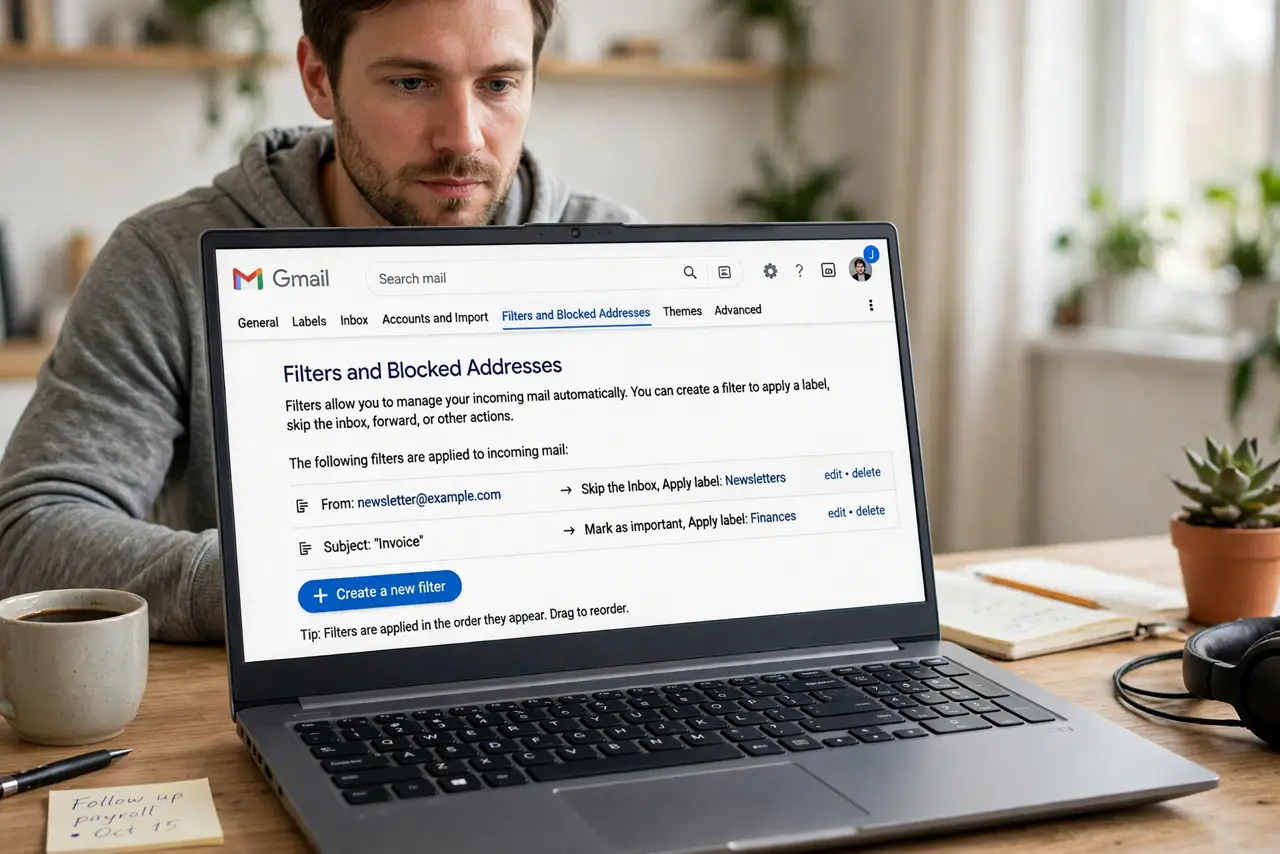
Quick fix: in Gmail go to Settings > See all settings > Filters and Blocked Addresses > Create a new filter. Match by sender or subject, click Create filter, then choose Skip the Inbox and Apply the label. Test one filter first — a too-broad rule hides wanted mail.
Follow these steps
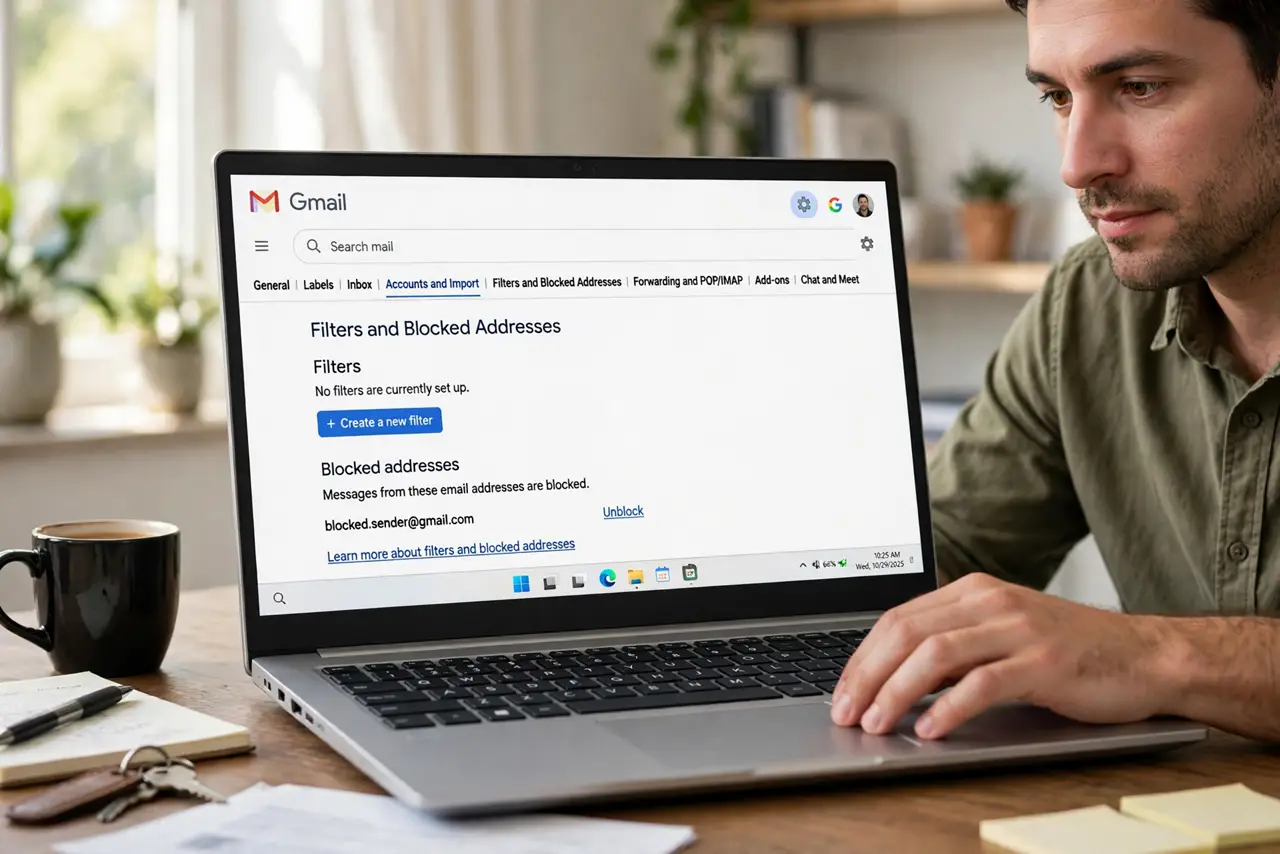
- Open the Filters settings. Click the gear icon in Gmail, choose See all settings, then the Filters and Blocked Addresses tab. This is the only place filters live — the search bar alone cannot create one.
- Define what to match. Click Create a new filter and fill in From, Subject, or Has the words. Use the sender address for newsletters, keywords for receipts — and click Search to preview matches before saving.
- Choose the actions. Check Skip the Inbox (Archive it) to keep it out of the inbox, Apply the label to file it, Star it or Mark as read as needed. Each action is independent — combine only what you mean.
- Decide on old mail too. The Also apply filter to matching conversations checkbox backfills the rule onto existing mail. Leave it off for a first test; turn it on once the filter proves itself.
- Create and test. Click Create filter, then send yourself a test or wait for the next matching message. Check the label or All Mail to confirm it landed where expected.
- Edit or delete from the same tab. Filters list under the same tab with edit and delete links. If mail starts misfiling, edit the match terms narrower — never stack a second filter to fight the first.
What NOT to do
- Do not match on a single common word like order. You will sweep up mail you actually wanted.
- Do not check Delete it on a first filter. Archive and label first; delete only after weeks of proof.
- Do not create ten filters at once. Build one, watch it for a few days, then add more.
- Do not use filters to hide mail from people you owe answers to. A filter is organization, not avoidance.
Frequently asked questions
Do Gmail filters work on the phone app?
Yes — filters run on Google servers, so they apply no matter which device you read mail on. You just cannot create or edit them in the mobile app; use a desktop browser for that.
What is the difference between a filter and a label?
A label is a folder-like tag you apply; a filter is the automatic rule that applies labels — or archives, stars, deletes — for you. See the filters vs labels guide for the full comparison.
Can a filter pull mail out of Spam?
Filters run after Gmail's spam check, so a filter cannot rescue mail from Spam. But Never send it to Spam keeps wanted mail out of it in the first place.