Change Gmail's Default Font
Every email you write starts in Gmail's default font, and maybe you are tired of it — or your company wants everything in Arial. Changing the default takes thirty seconds in settings, and it applies to every new email and reply from then on. Here is where the setting hides.
TL;DR / Quick Fix
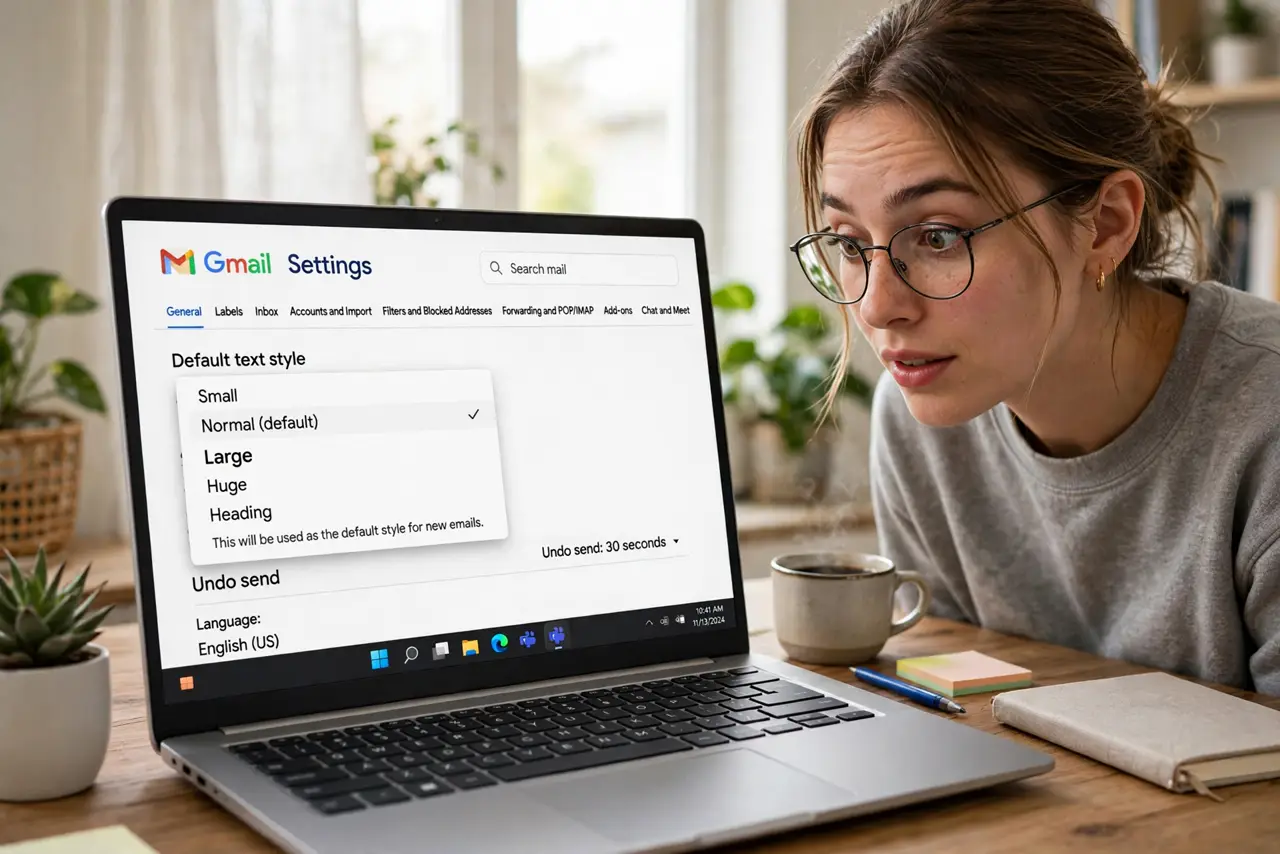
Quick fix: in Gmail settings under General, find Default text style and pick your font, size, and color. It applies to all new emails going forward. Your existing drafts keep their old formatting — only new compositions use the new default.
Follow these steps
- Open General settings. Gear icon, See all settings, General tab — the Default text style section sits near the top, hard to miss once you know it exists.
- Pick the font, size, and color. Choose from Gmail's font list, set a comfortable size, and pick a color — dark gray is easier on eyes than pure black for long emails.
- Understand what it affects. New emails and replies from now on. Already-written drafts and old sent mail keep whatever formatting they had.
- Keep it professional. One readable font beats a rainbow. If this is a work account, match whatever your company uses — consistency matters more than taste.
- Remember recipients may override. Some mail apps and accessibility settings replace your font choice. Your pick is a suggestion, not a guarantee — keep it simple so fallbacks look fine.
- Reset if you regret it. The same dropdown restores Gmail's default in one click. Experiment freely — nothing here is permanent.
What NOT to do
- Do not pick a novelty font for work email. Comic Sans sends a message, and it is not the one you want.
- Do not set tiny text as the default. If recipients need a magnifier, your font choice failed — 11 or 12 point minimum.
- Do not use light colors on white. Pastel text looks stylish in the editor and unreadable in the inbox — stick to dark colors.
- Do not expect pixel-perfect rendering everywhere. Email fonts are suggestions; design your message to survive the fallback.
Frequently asked questions
Will my font choice show on the recipient's phone?
Usually yes for common fonts, no for exotic ones — phones substitute their own. Stick to standard fonts for consistency.
Can I set different fonts for different signatures?
The signature editor has its own formatting, independent of the default text style. Style each where it lives.
Does the default apply to the mobile app?
Yes — the default text style syncs to the Gmail mobile app for new compositions.