Plain Text Mode in Gmail? How To
Sometimes you want an email with zero formatting — no fonts, no colors, no hidden tracking pixels, just words. Job applications to old-school systems, mailing lists that mangle HTML, or simply a preference for simplicity. Gmail's plain text mode strips it all, per email, with one menu choice.
TL;DR / Quick Fix
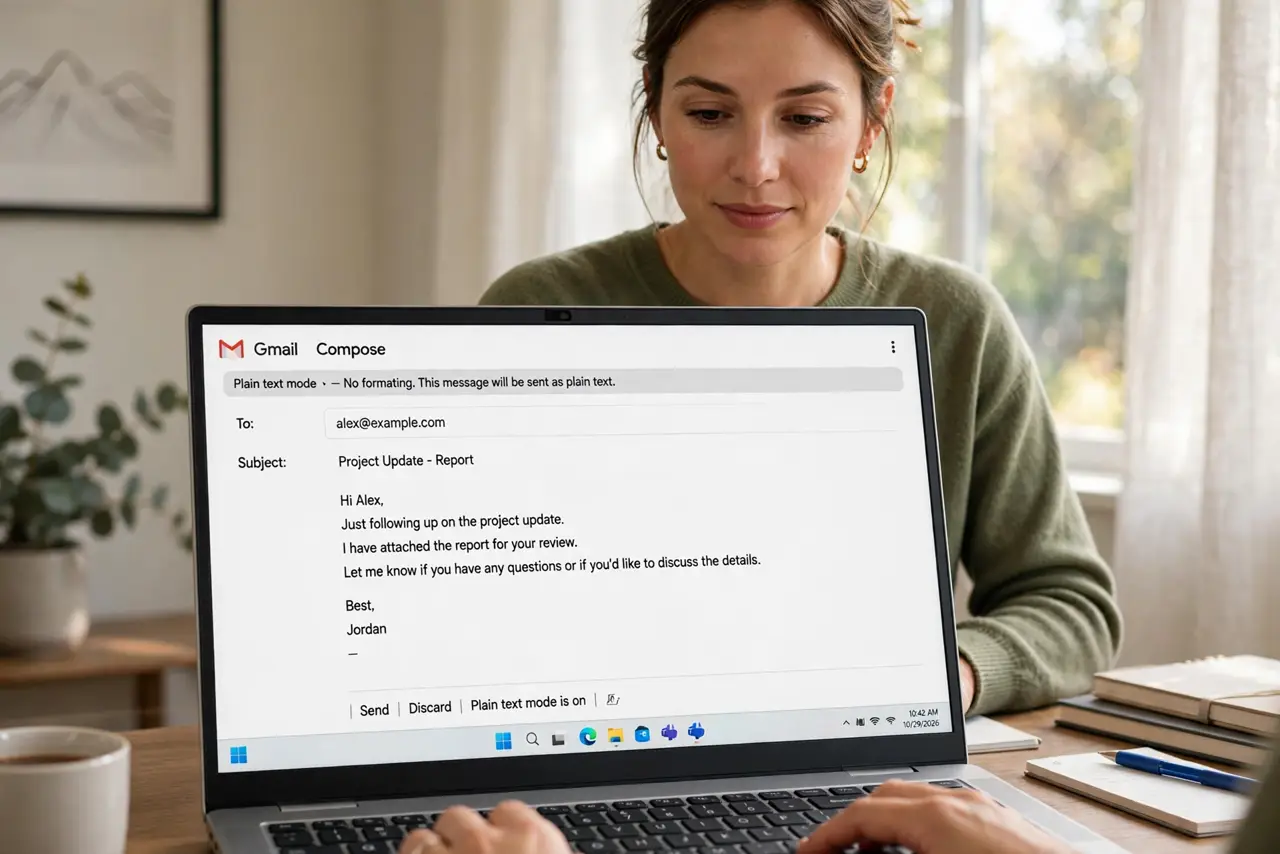
Quick fix: in the compose window, click the three-dot menu at the bottom and choose Plain text mode. All formatting is stripped from that email — just clean text. It applies per email, so your next compose starts formatted again unless you switch it back.
Follow these steps
- Open a compose window. Plain text mode is per-email, so start the email you want unformatted — the setting lives in the compose window, not in main settings.
- Find it in the compose menu. Click the three-dot 'More options' menu at the bottom of the compose window and select Plain text mode. Formatting vanishes instantly.
- Understand what gets stripped. Fonts, colors, bold, links become plain URLs, images are removed. What remains is text — universally readable, impossible to break.
- Use it for compatibility. Old mailing lists, applicant tracking systems, and some corporate filters mangle HTML mail. Plain text sails through everything.
- Know it is per-email. The mode resets for each new compose. There is no global 'always plain text' switch in Gmail — choose it when you need it.
- Switch back freely. The same menu toggles formatting back on. Accidentally stripped a draft? Re-enable and reformat — nothing is lost permanently.
What NOT to do
- Do not use plain text for designed newsletters. Stripping formatting from a marketing email defeats its purpose — plain text is for correspondence.
- Do not assume plain text means more private. It removes tracking pixels but the email still travels normally — see HTTPS vs VPN for real privacy tools.
- Do not paste formatted text and expect it to stay plain. Paste-then-switch strips it; switch-then-paste keeps it clean from the start.
- Do not forget links become bare URLs. Long URLs in plain text look messy — use a shortener or just accept the honest clutter.
Frequently asked questions
Can I make plain text the default?
Not in Gmail — it is per-email by design. If you live in plain text, the two-click toggle becomes muscle memory quickly.
Do recipients prefer plain text?
Many technical folks do — it is fast, accessible, and never broken. For general audiences, formatted mail is the safer default.
Does plain text stop email tracking?
It removes the tracking pixels embedded in HTML, which is the main tracking vector. Open-tracking via other means is rare by comparison.