Stop Defaulting to Reply All
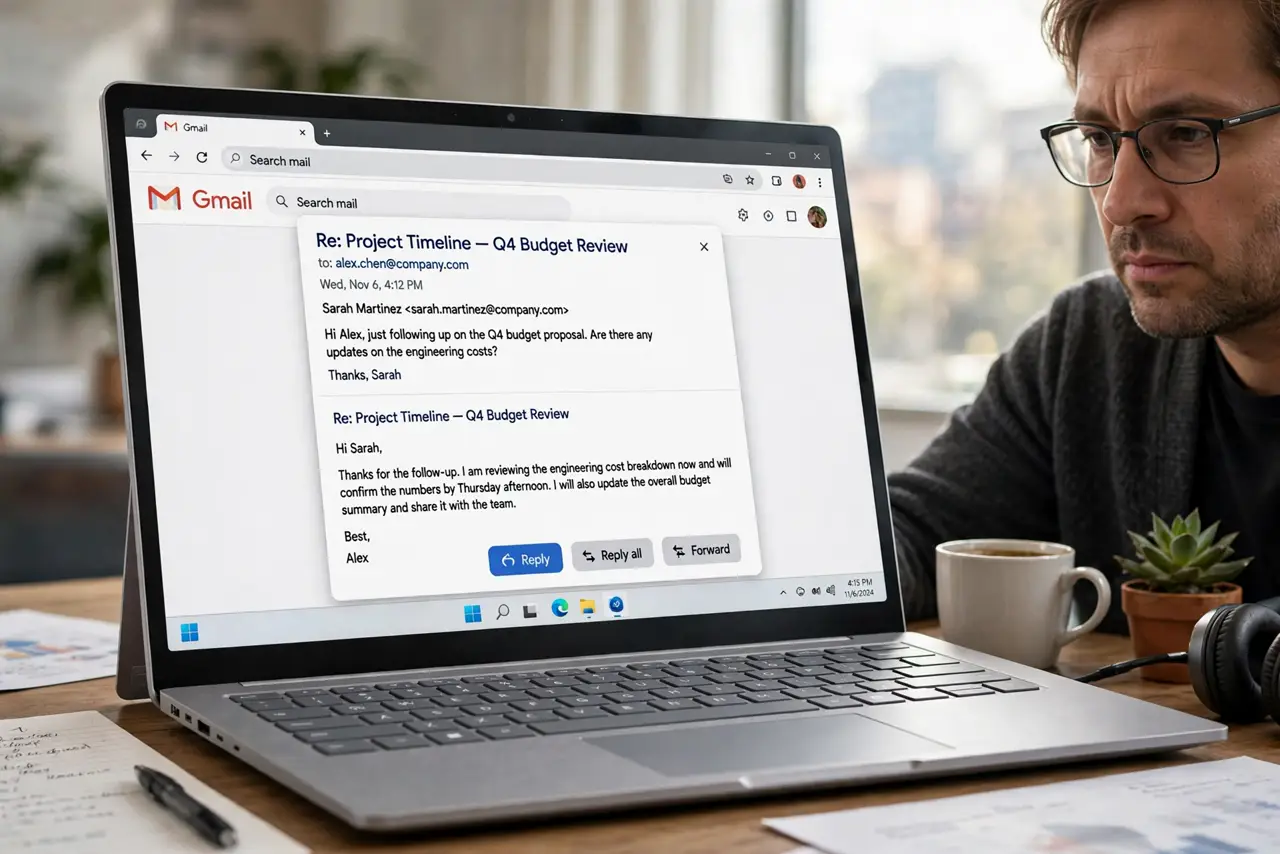
Every reply you send goes to the whole thread — embarrassing on a company-wide email, catastrophic on a client thread. Here's the uncomfortable truth: Gmail has no 'default to reply-all' setting to switch off. If every reply includes everyone, you're hitting the wrong button or something is interfering — here's how to find out which.
TL;DR / Quick Fix
Quick fix: Gmail has no reply-all default to switch off — if every reply goes to all, you're tapping the wrong button or an extension is interfering. Use the single curved-arrow Reply, not the double-arrow Reply-all. Check extensions if replies still include everyone unexpectedly.
Follow these steps
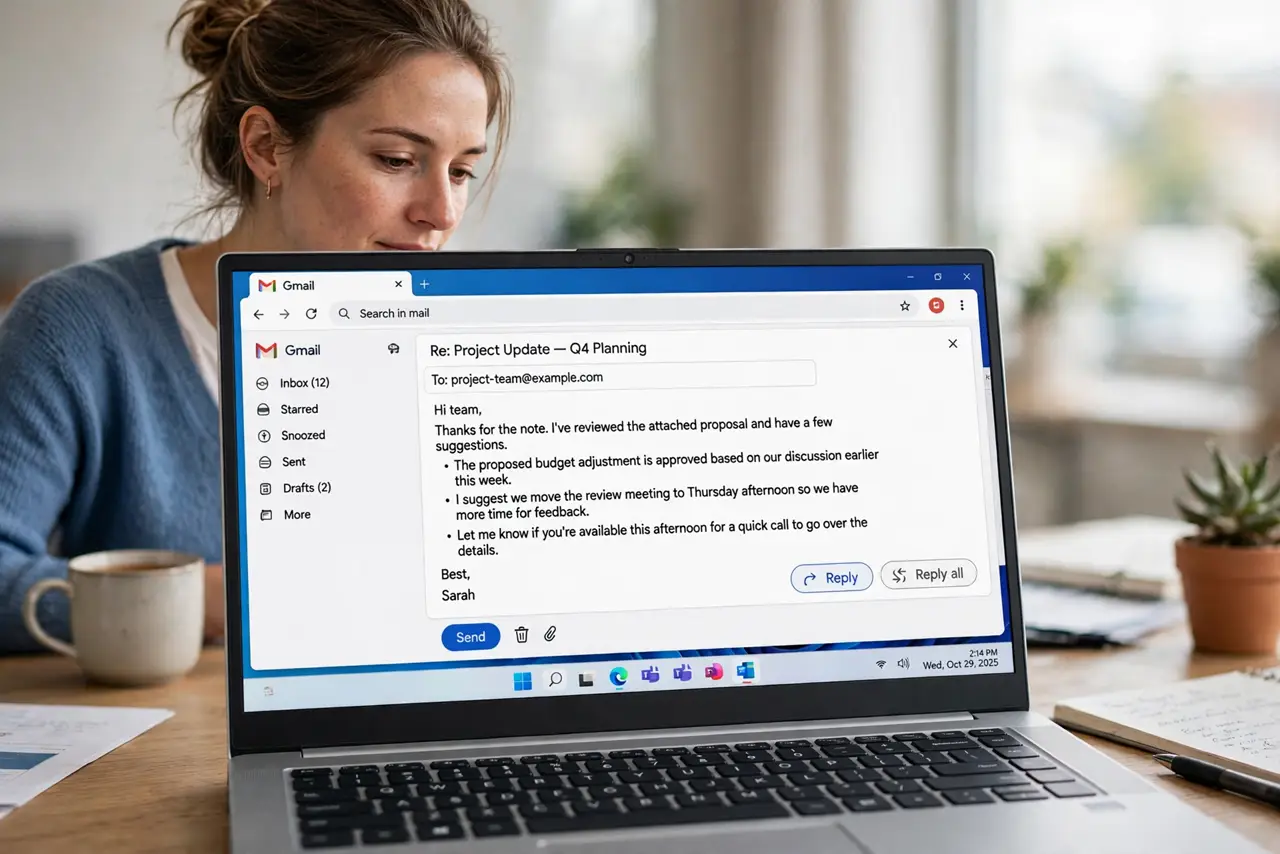
- Learn the two buttons. Single curved arrow: Reply (sender only). Double curved arrow: Reply all (everyone). They sit side by side in the compose window — the double arrow is the one causing the trouble.
- Check which one you're actually hitting. On mobile especially, fat-finger taps land on Reply-all. Slow down for a week and watch the recipient line before sending — most 'default reply-all' mysteries are muscle memory.
- Inspect browser extensions. Some CRM and mail-merge extensions hijack the reply button or default to reply-all. Disable extensions one by one and test — the culprit reveals itself fast.
- Use the keyboard shortcut deliberately. Press 'r' for reply, 'a' for reply-all in Gmail's keyboard shortcuts. If 'a' fires when you meant 'r', that's the mystery solved — shortcuts don't lie.
- Set the default reply behavior where it exists. Gmail's web interface has no default, but some mobile apps and third-party clients do — check their individual settings if the problem is app-specific.
- Consider confidential mode for sensitive threads. When a reply must never reach the whole thread, confidential mode blocks forwarding entirely — belt and suspenders for the truly sensitive.
What NOT to do
- Do not assume Gmail changed a setting on you. There is no reply-all default in Gmail to have changed — the cause is always button, shortcut, or extension.
- Do not reply-all to 'stop' reply-all. Replying all to complain about reply-all storms is the classic corporate sin — reply to the sender only.
- Do not trust your memory of which button you hit. Check the Sent folder: the recipient list there is the ground truth of what actually went out.
- Do not forget Undo Send as a safety net. A 30-second undo window catches the reply-all you sent half a second after clicking.
Frequently asked questions
Does Gmail really have no default reply setting?
Correct — unlike some desktop clients, Gmail always defaults the compose to Reply (sender only). Reply-all requires the explicit double-arrow click or the 'a' shortcut.
Why do my replies include people I didn't add?
Either Reply-all was used, or an extension added them. Check Sent for the truth, then check extensions — there's no third option in Gmail.
How do I apologize for a reply-all mistake?
Quickly, briefly, to the sender only: acknowledge, don't over-explain, and never reply-all the apology. Then set up Undo Send so next time you catch it.