Delegate Your Gmail Inbox?
You need an assistant — or a colleague covering your vacation — to handle your email without handing over your password. Gmail delegation grants someone access to read, send, and manage your inbox from their own account. No password sharing, revokable in one click, and every sent email is marked as sent by the delegate. Here is the safe setup.
TL;DR / Quick Fix
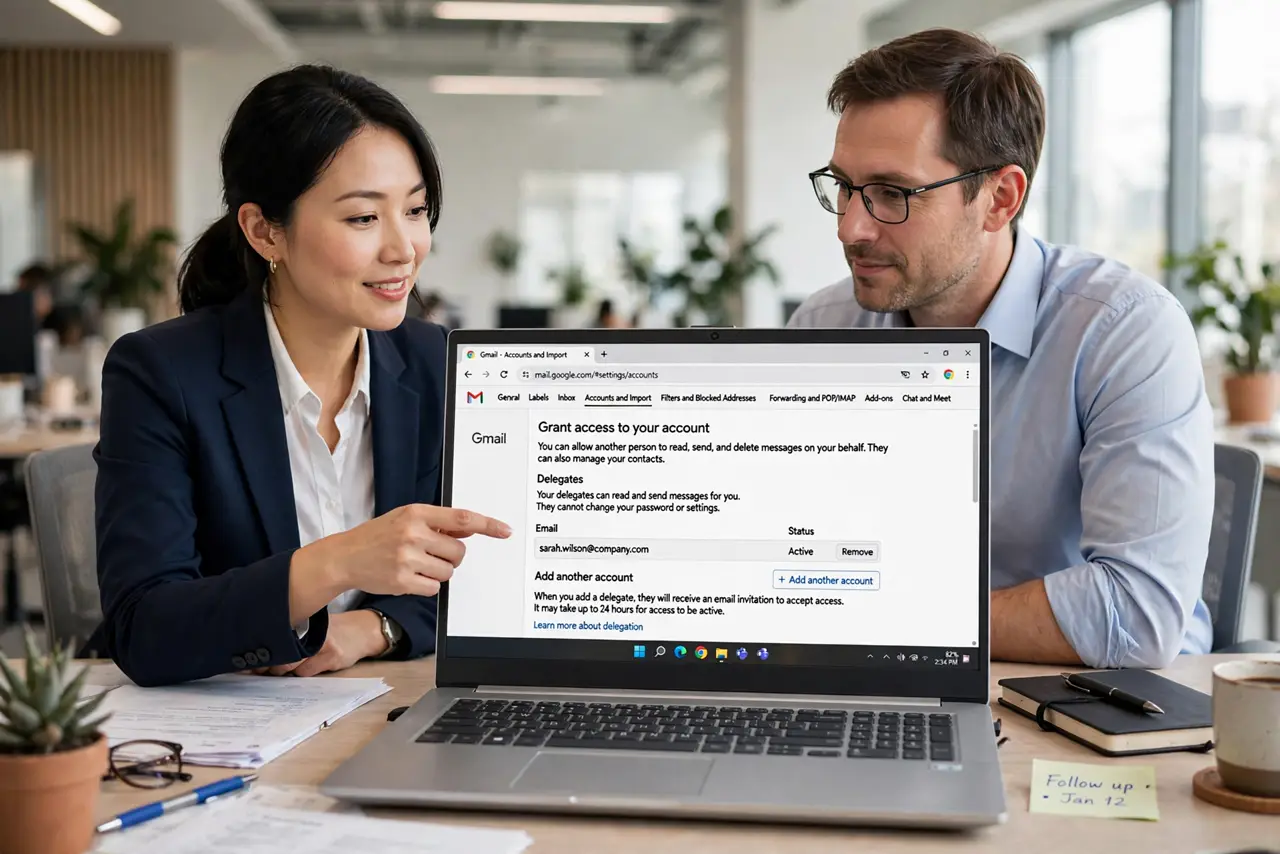
Quick fix: Gmail delegation lets a trusted person manage your inbox from their own account — no password sharing. Turn it on in Settings → Accounts and Import → Grant access. The delegate reads, sends, and organizes as you, with sent mail marked accordingly. Revoke access anytime in one click.
Follow these steps
- Open the delegation settings. In Gmail on a computer, go to Settings → See all settings → Accounts and Import. Find 'Grant access to your account' — this is delegation. It is not available in the mobile app, so use a desktop browser.
- Add your delegate. Click 'Add another account,' enter the delegate's Gmail address, and confirm. They receive an email invitation they must accept within 7 days. Until they accept, nothing changes — no access is granted silently.
- Wait for acceptance and verification. Google verifies the setup, which can take up to 24 hours after the delegate accepts. You will get a confirmation email when it is live. Plan ahead — do not set this up the morning your vacation starts.
- Show the delegate how it works. The delegate opens their own Gmail, clicks their profile picture, and switches to your account from the menu. They read, reply, label, and archive as you. Sent emails show 'sent by delegate on behalf of you' — recipients see the honesty.
- Set ground rules. Agree on what the delegate may do: reply to what, delete what, and what to leave for you. Delegation grants broad power — deleting included — so a short written agreement prevents surprises. For vacation coverage, a filter to pre-sort helps the delegate triage faster.
- Revoke when done. Back in Accounts and Import, click 'delete' next to the delegate to revoke instantly. Do this the day coverage ends — lingering access is the most common delegation mistake. The delegate's sent history stays in your Sent folder for reference.
What NOT to do
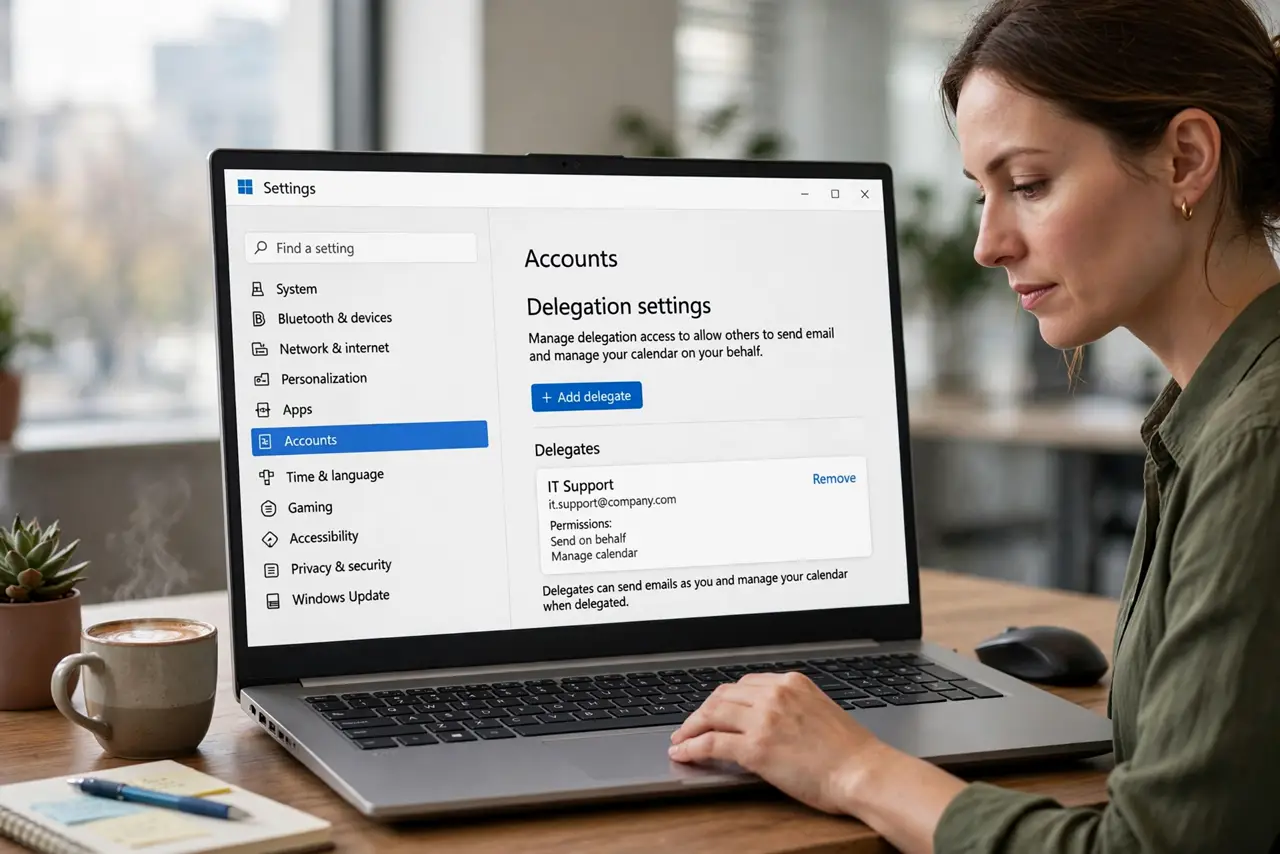
- Do not share your password instead of delegating. Password sharing gives total account control with no audit trail and no clean revocation — delegation exists to avoid exactly this.
- Do not delegate to a non-Gmail address casually. Delegation works between Gmail accounts; external addresses complicate or block it.
- Do not forget the 7-day invitation expiry. If the delegate dawdles, the invite dies and you start over — send it early.
- Do not leave delegation active 'just in case.' Revoke the day the help ends; re-adding later takes two minutes.
Frequently asked questions
Can the delegate change my password?
No — delegates cannot change account settings, passwords, or chat settings. They manage mail only, which is the safety boundary that makes delegation sane.
How many delegates can I have?
Gmail allows up to 10 delegates on a standard account (more on Workspace). Each must accept individually, and you can revoke each separately.
Will the delegate see my chat history?
Delegates see mail, not your Google Chat history or other Google services. Delegation is inbox-scoped — Drive, Calendar, and Photos stay private.