Skip the Inbox With Filters
An inbox at zero is a myth for most people — but an inbox that only holds mail needing you is achievable. The Skip the Inbox filter action archives matching mail on arrival, filing it under a label without it ever cluttering the inbox. Here is when to use it and the one setup that avoids losing mail.
TL;DR / Quick Fix
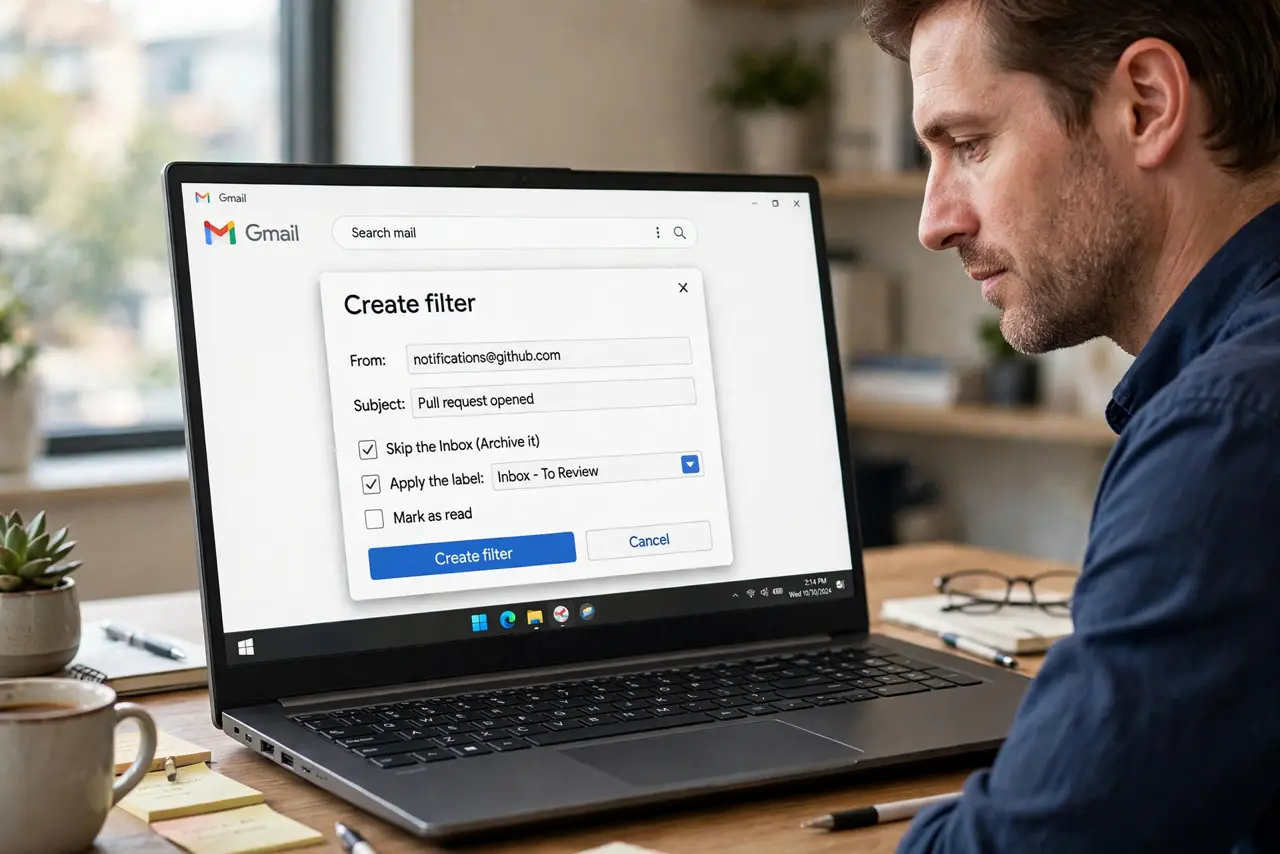
Quick fix: when creating a Gmail filter, check Skip the Inbox (Archive it) plus Apply the label — mail files itself under the label and never clutters the inbox. Never skip the inbox without a label, or the mail becomes nearly invisible. Review the label until you trust the rule.
Follow these steps
- Know what Skip the Inbox does. It archives matching mail on arrival — the message skips the inbox and lands under its label and in All Mail. It is not deletion; nothing is lost.
- Build the filter with a label attached. Create the filter as in the filter guide, check Skip the Inbox (Archive it), and always pair it with Apply the label. The label is your only visible trail.
- Pick the right mail for it. Newsletters, receipts, notifications, and automated reports are ideal. Never auto-skip mail from your boss, clients, or anyone expecting a reply.
- Test with the label visible. After creating it, open the label and confirm new mail files correctly for a week. Also check All Mail if a message seems missing.
- Use search to find skipped mail. Skipped mail still answers to search. Use search operators like from: or label: to pull it back instantly.
- Undo or narrow when it misfires. Edit the filter to tighten the match terms, or uncheck Skip the Inbox to let mail flow back to the inbox. One adjustment beats a second competing filter.
What NOT to do
- Do not skip the inbox without applying a label. The mail becomes nearly invisible.
- Do not auto-skip personal mail to feel productive. If someone needs an answer, the inbox is where it belongs.
- Do not combine Skip the Inbox with Delete it on the same filter. That is a shredder, not an organizer.
- Do not forget the label exists. A filter you never check is a black hole with extra steps.
Frequently asked questions
Where does skipped mail go?
To All Mail and under its label, marked read or unread per your filter settings. It never sits in the inbox, but it is fully searchable.
Can I still get notifications for skipped mail?
Only if the filter also stars it or the label has notifications enabled in the mobile app. By default, skipped mail arrives silently — which is usually the point.
How do I stop skipping?
Edit the filter and uncheck Skip the Inbox. Matching mail returns to the inbox from that moment on — already-archived mail stays archived until you move it.