Find Emails With Attachments
Someone sent you a contract last month and now it is buried under a thousand emails. Scrolling is hopeless — but Gmail's search operators find attachments in seconds: by file type, by size, even by name. Here are the searches that actually work.
TL;DR / Quick Fix
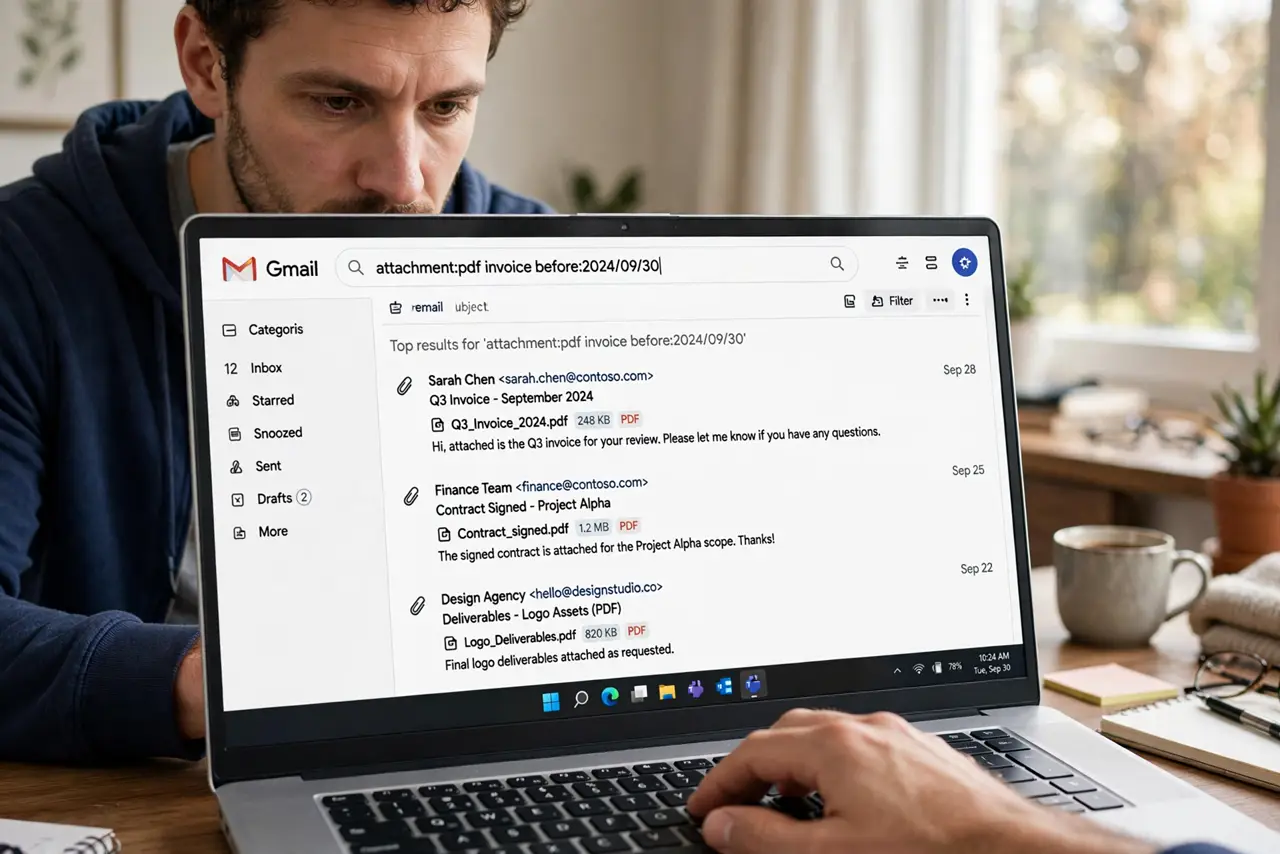
Quick fix: type has:attachment in Gmail's search bar to list every email with a file attached. Narrow it with filename:report.pdf for a name, or larger:10M for big files. Combine with from:[email protected] to find that contract in seconds instead of scrolling.
Follow these steps
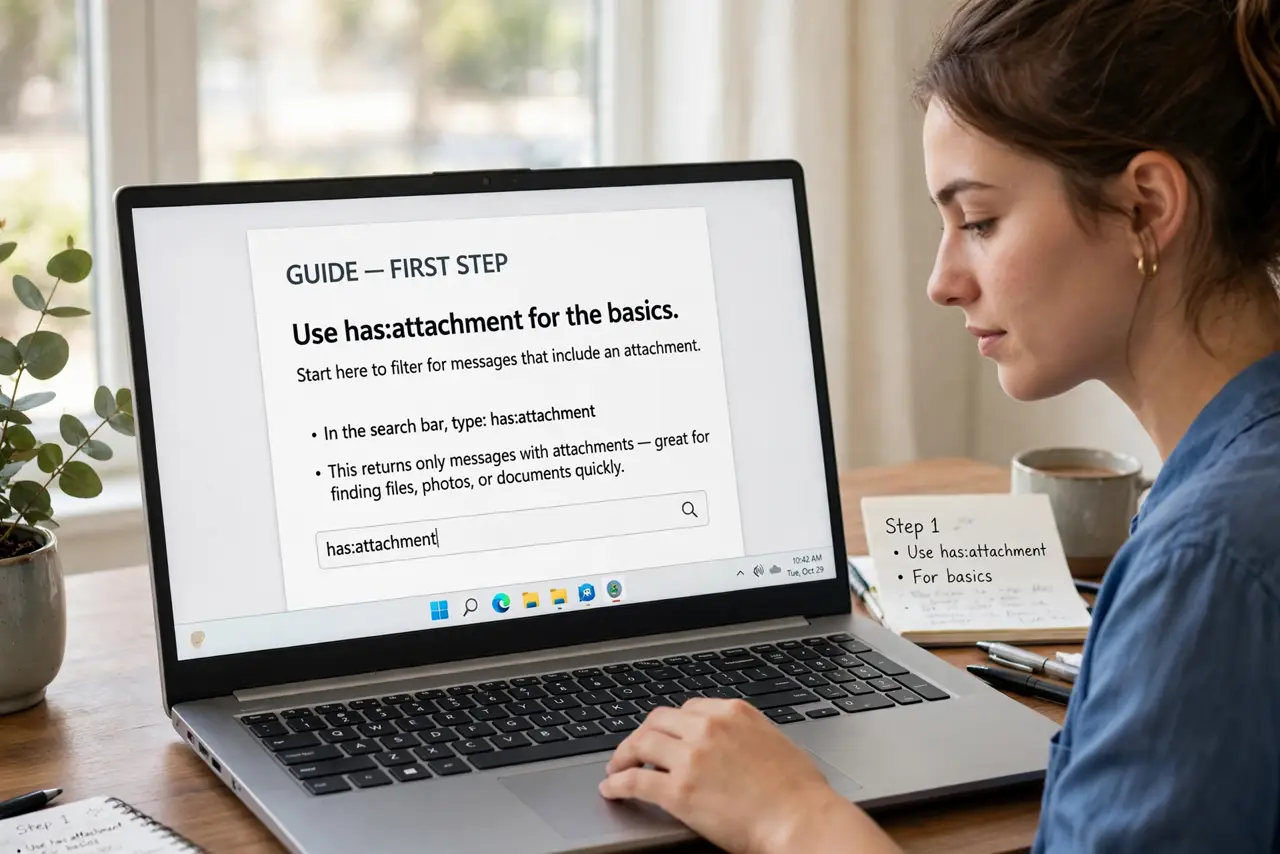
- Use has:attachment for the basics. Type has:attachment in the search bar — every email carrying a file appears. This alone beats scrolling through months of mail.
- Search by filename. Add filename:contract.pdf (or just part of the name) to find a specific file. Partial names work — filename:contract catches contract-final-v2.pdf too.
- Filter by size. larger:10M finds the big files eating your storage; smaller:1M finds the tiny ones. Combine with has:attachment for a storage audit.
- Combine with sender or date. from:[email protected] has:attachment finds their invoices; after:2026/01/01 narrows to this year's files. Operators stack freely.
- Use the search dropdown for point-and-click. Click the sliders icon in the search bar — the advanced panel builds these operators for you, including the 'has attachment' checkbox.
- Preview before downloading. Click the attachment thumbnail to preview most file types in the browser. Download only what you actually need — previews save time and disk space.
What NOT to do
- Do not scroll when you can search. Manual scrolling through thousands of emails is the slowest possible way to find a file.
- Do not download every attachment 'just in case.' Preview first — downloads pile up in your Downloads folder and your storage quota.
- Do not forget Trash and Spam in your hunt. Attachments in deleted or spam mail still match searches until Gmail purges them.
- Do not open unexpected attachments blindly. A found file from an unknown sender gets a virus scan first — curiosity is how malware spreads.
Frequently asked questions
Can I search inside the attachment's contents?
For common formats like PDFs and documents, yes — Gmail indexes their text. A keyword from inside the file often finds it.
Why can't I find an old attachment?
It may be in Trash past 30 days (auto-deleted), or in Spam. Check both before concluding it is gone.
Do attachments count toward my storage?
Yes — every attachment eats Google storage quota. The larger: operator is your tool for finding the space hogs.