IMAP Setup for Mail Apps? Basics
You want Gmail in a desktop app like Outlook or Thunderbird instead of the browser. IMAP is the protocol that syncs your mail — folders, read status, everything — between Gmail and the app. Setup is usually automatic now, with a few manual details for stubborn apps.
TL;DR / Quick Fix
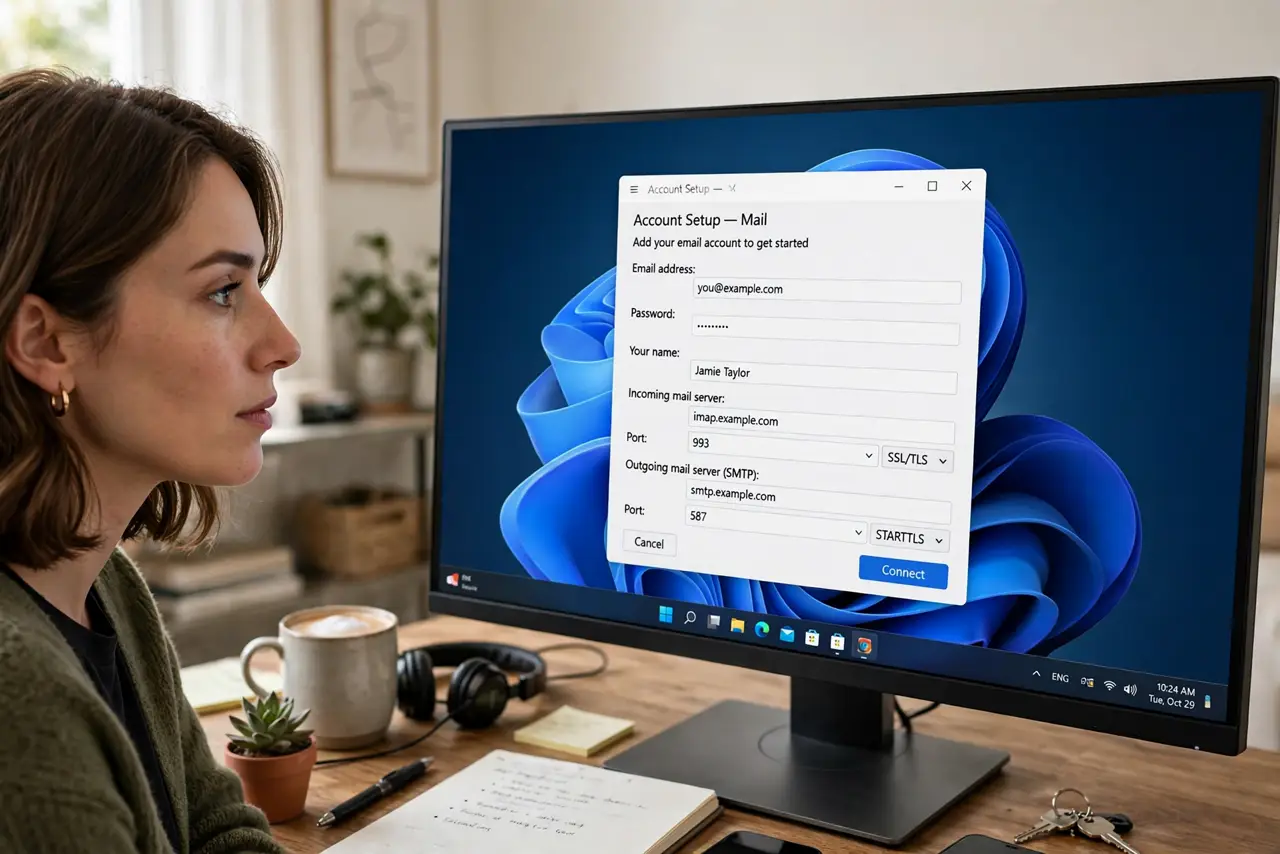
Quick fix: in the mail app, choose Gmail and sign in with Google. If the app asks for a server anyway, use imap.gmail.com on port 993 with SSL, then generate an app password since Google blocks plain passwords. IMAP syncs folders and read status across devices.
Follow these steps
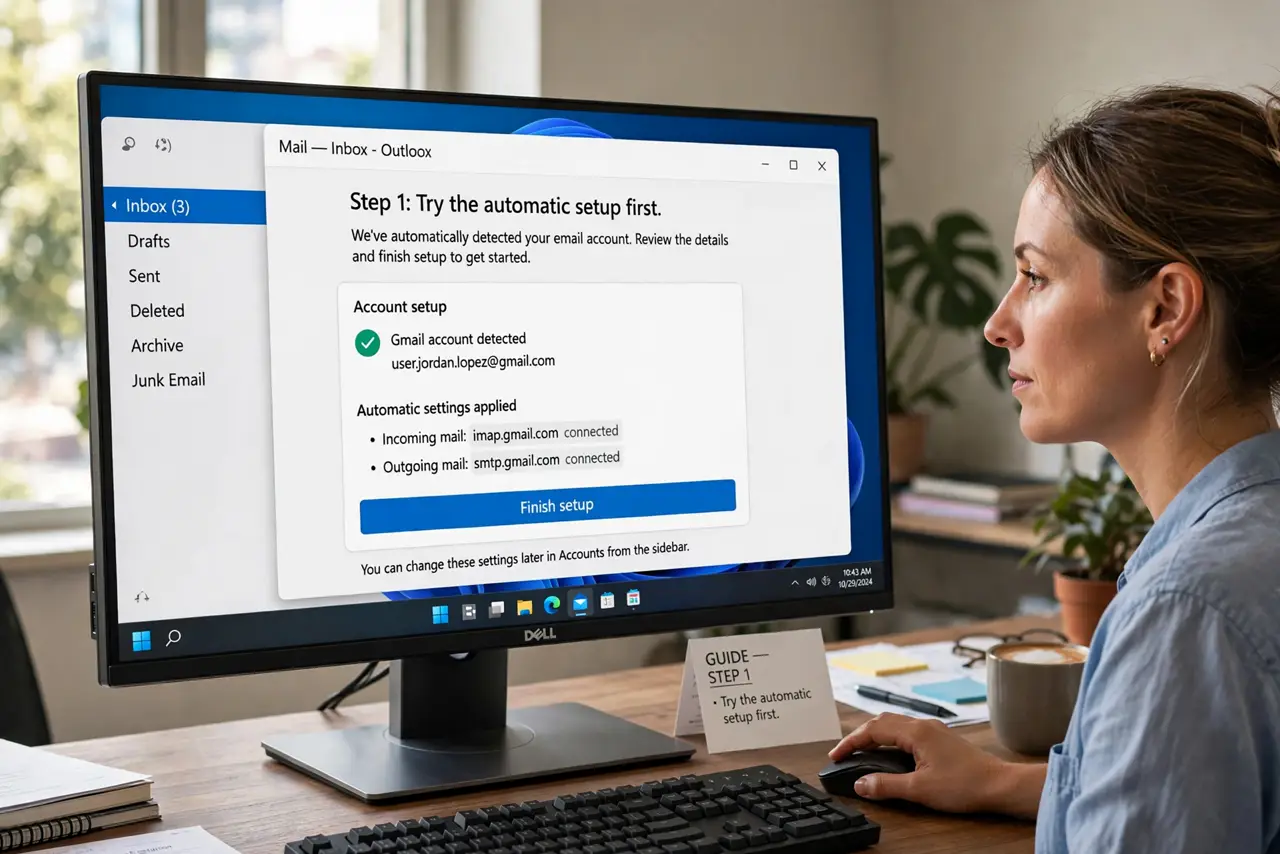
- Try the automatic setup first. Add the account and sign in with Google when the app offers it. Modern apps use OAuth and configure everything themselves.
- Enable IMAP in Gmail. In Gmail Settings under Forwarding and POP/IMAP, make sure IMAP is enabled. It is on by default for most accounts.
- Use the manual server details. If the app insists: incoming server imap.gmail.com, port 993, SSL/TLS. Outgoing is smtp.gmail.com, port 465 or 587.
- Generate an app password. Google blocks plain-password logins, so old apps need an app password pasted into the password field.
- Check folder sync settings. Confirm the app subscribes to your Gmail labels as folders. Missing Sent or custom labels usually means subscription, not sync failure.
- Prefer IMAP over POP. POP downloads and often deletes server copies; IMAP keeps everything synced everywhere. There is rarely a reason to choose POP today.
What NOT to do
- Do not paste your real Gmail password into old apps. Use an app password — Google blocks the real one anyway.
- Do not enable POP 'because it was the default.' POP scatters mail across devices; IMAP unifies it.
- Do not panic over duplicate Sent mail. Some apps save sent mail twice until you map the Sent folder correctly.
- Do not disable IMAP in Gmail settings later. The app goes silent and the cause is invisible.
Frequently asked questions
Is IMAP safe to use?
Yes — with SSL/TLS encryption and OAuth or app passwords, IMAP is the standard safe way to sync mail.
Why does setup fail with the right password?
Almost always the blocked plain-password login. Generate an app password, or use the app's Google sign-in button.
Will IMAP delete my Gmail?
No. IMAP mirrors mail; deleting in the app deletes on the server too, but nothing vanishes on setup alone.