Inbox Category Tabs? Manage Them
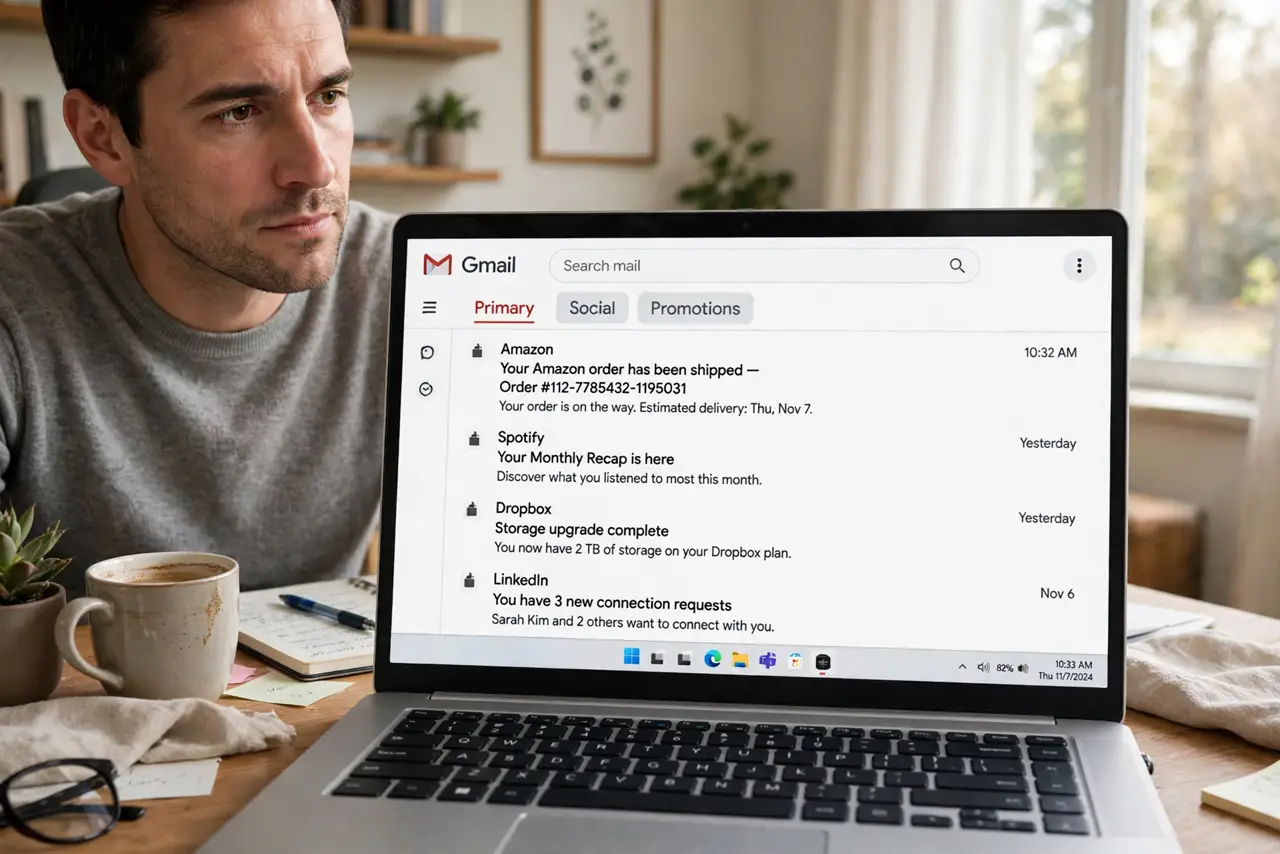
Gmail sorts your mail into Primary, Social, and Promotions tabs — helpful until the important email hides in Promotions and you miss it. The tabs are fully customizable: keep them, drop them, or train them. Here is how to make the tab system serve you instead of hiding things from you.
TL;DR / Quick Fix
Quick fix: in Gmail settings under Inbox, check or uncheck the category tabs — Primary, Social, Promotions, Updates, Forums — to show only what you want. Drag any misfiled email to the right tab to teach Gmail. Missed important mail usually means too many tabs; fewer tabs, fewer hiding places.
Follow these steps
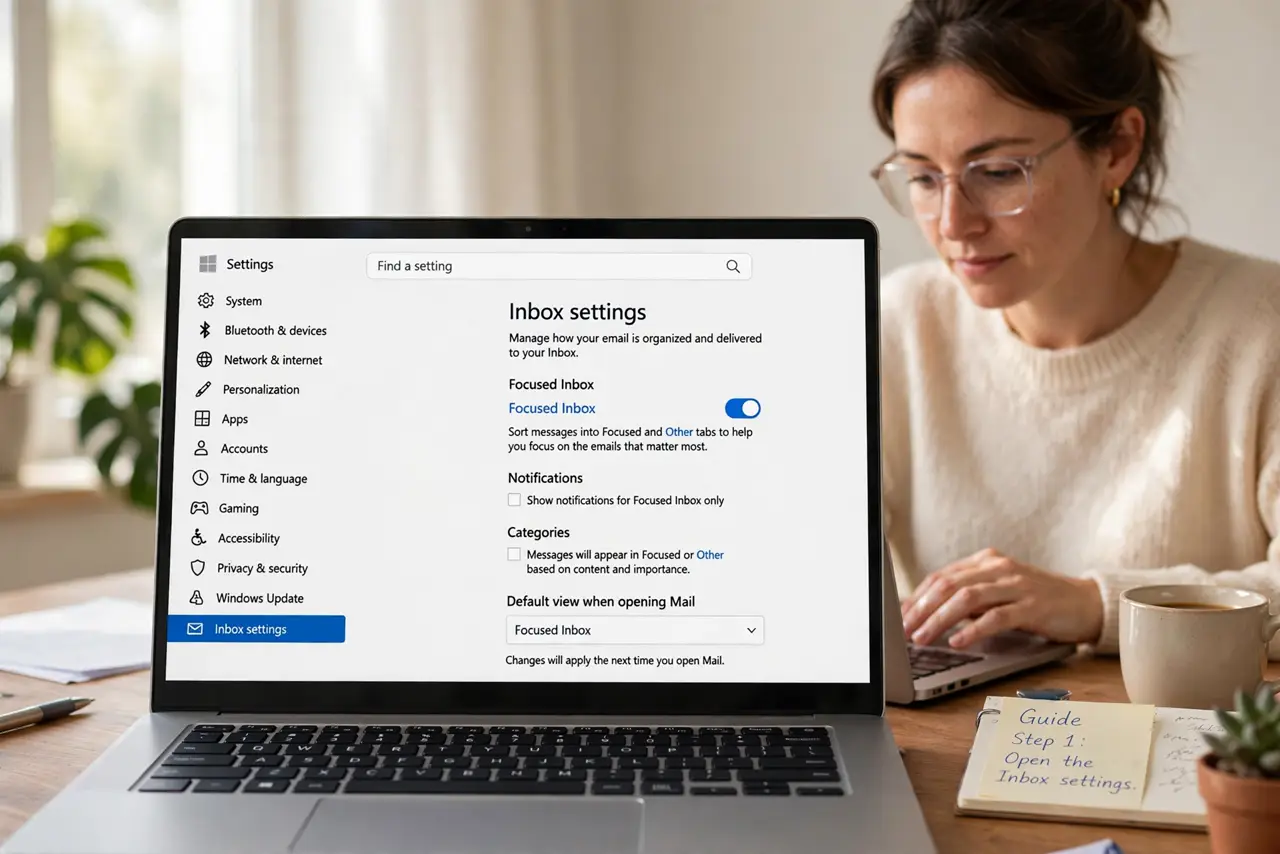
- Open the Inbox settings. Gear icon, See all settings, Inbox tab — the category checkboxes live at the top. This is mission control for the tabs.
- Enable only the tabs you need. Primary plus Promotions covers most people. Each tab you remove is one fewer place for important mail to hide — minimalism wins here.
- Train Gmail by dragging. Drag a misfiled email to the correct tab and confirm 'do this for future messages.' A week of corrections teaches the filter your patterns.
- Check Promotions deliberately. Important mail lands in Promotions constantly — receipts, school notices, account alerts. Glance at it daily until your training sticks.
- Use 'Default' inbox type for tabs. The tabs belong to the Default inbox style. If you switched to another inbox type, the tabs vanish — switch back to Default to restore them.
- Consider turning tabs off entirely. One unified inbox with good filters suits many people better than tabs. Uncheck everything except Primary for the single-stream life.
What NOT to do
- Do not ignore the Promotions tab for weeks. That is where the 'missed the important email' stories come from — peek regularly.
- Do not fight the tabs when filters serve better. Labels and filters organize deterministically; tabs guess — use both wisely.
- Do not enable all five tabs at once. Five hiding places is four too many — start with two and add only if needed.
- Do not assume Gmail's categories are fixed. Your dragging retrains them continuously — the tabs learn, slowly but surely.
Frequently asked questions
Why did an important email go to Promotions?
Gmail guesses by sender patterns — bulk senders land in Promotions even when you care. Drag it to Primary and confirm the training prompt.
Can I rename the tabs?
No — the five category names are fixed. For custom organization, use labels, which you can name freely.
Do tabs work on the mobile app?
Yes — the Gmail app shows the same tabs, and your training syncs across devices instantly.