Pick an Inbox Type
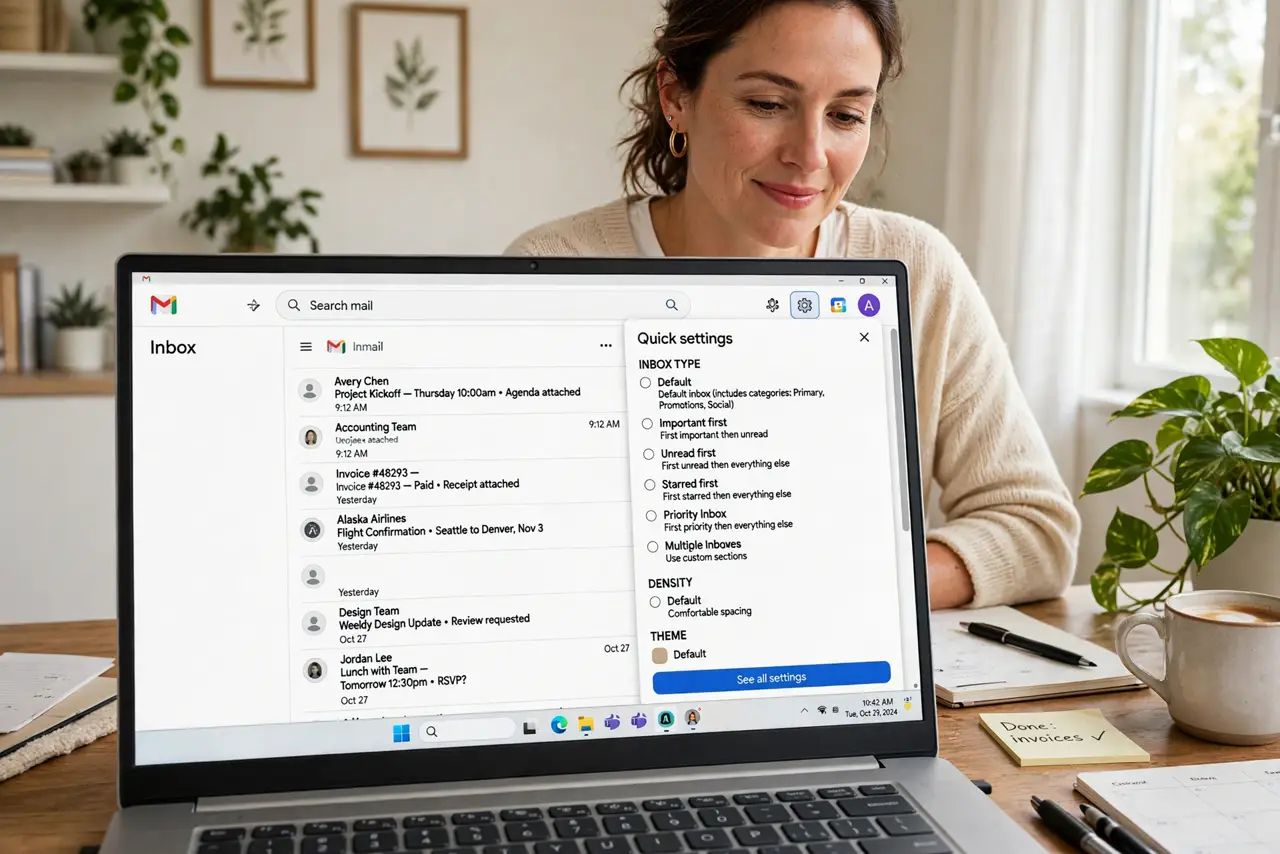
Gmail's default inbox dumps everything into one long river, and important mail drowns in newsletters. But Gmail actually ships with several inbox layouts — Important first, Unread first, Starred first, Priority Inbox — and switching is safe and instant. This guide explains what each type does so you pick the one that matches how you work.
TL;DR / Quick Fix
Quick fix: open Gmail settings, go to Inbox, and try Important first or Unread first instead of Default. Your mail is never deleted by switching — it only changes the order. Give each layout a day or two before judging it, since the first hours always feel strange.
Follow these steps
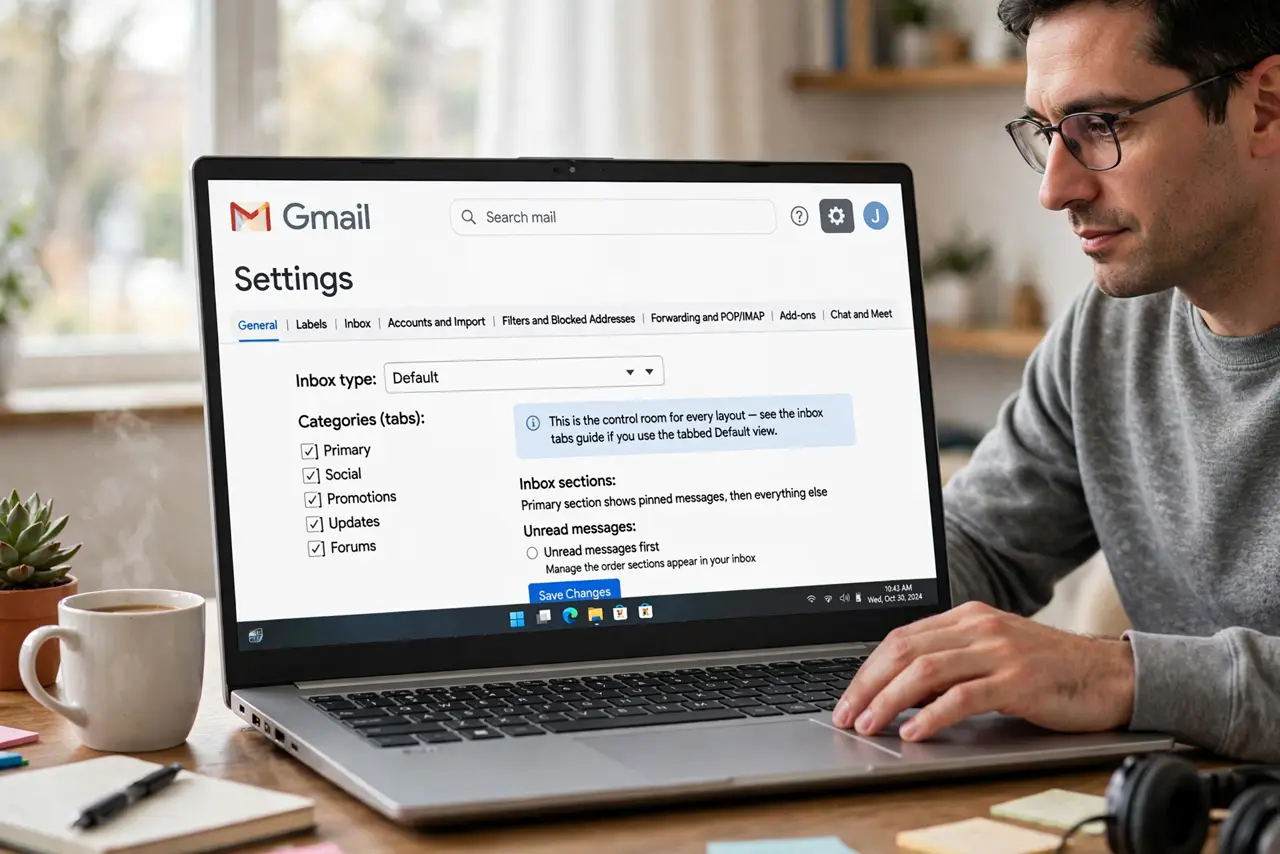
- Open the Inbox settings. In Gmail on a computer, click the gear icon and choose See all settings, then the Inbox tab. This is the control room for every layout — see the inbox tabs guide if you use the tabbed Default view.
- Understand the main types. Default groups mail into tabs like Primary and Promotions. Important first and Unread first sort by Gmail's judgment. Starred first shows only what you starred. Priority Inbox splits the page into sections you arrange yourself.
- Try Important first. Gmail learns which senders matter to you and floats them up. It takes a week or two to get good — correct it with the importance markers and it improves fast.
- Try Unread first. Simple and honest: everything unread on top, everything read below. If your system is just clearing the unread pile daily, this is the cleanest view.
- Consider Priority Inbox. This one lets you build sections — unread, starred, important — in your own order. It is the most powerful option and the most setup, so save it for when the presets feel wrong.
- Switch back freely. Nothing about changing inbox type deletes, archives, or moves mail. If a layout feels wrong after a few days, change it again — experimenting is free.
What NOT to do
- Do not confuse inbox type with inbox tabs. Tabs split the Default inbox into categories; types change the whole layout — different settings, different results.
- Do not judge a layout in the first hour. Any new order feels wrong at first; give it two full days of real mail before deciding.
- Do not expect Important first to be perfect on day one. It learns from your behavior — mark a few messages important or not and it sharpens up.
- Do not use multiple inboxes and Priority Inbox at once without a plan. Stacking power features creates clutter; master one first.
Frequently asked questions
Which inbox type is best for most people?
Unread first for simplicity, Important first once it learns you. Default with tabs is fine if you already triage promos well.
Will changing inbox type lose my labels?
No. Labels, filters, and stars are untouched — only the display order changes.
Why does Important first feel wrong?
It needs training data. Spend a week marking messages with the importance arrows and it starts sorting like you do.