Nudges in Gmail? Basics
Gmail quietly surfaces old emails you forgot to answer — 'Received 5 days ago. Reply?' — those are nudges. They're Gmail's way of catching the follow-ups that slip through a busy inbox, using reply prediction. Some people find them lifesaving; others find them naggy. Either way, you should know they exist and how to control them.
TL;DR / Quick Fix
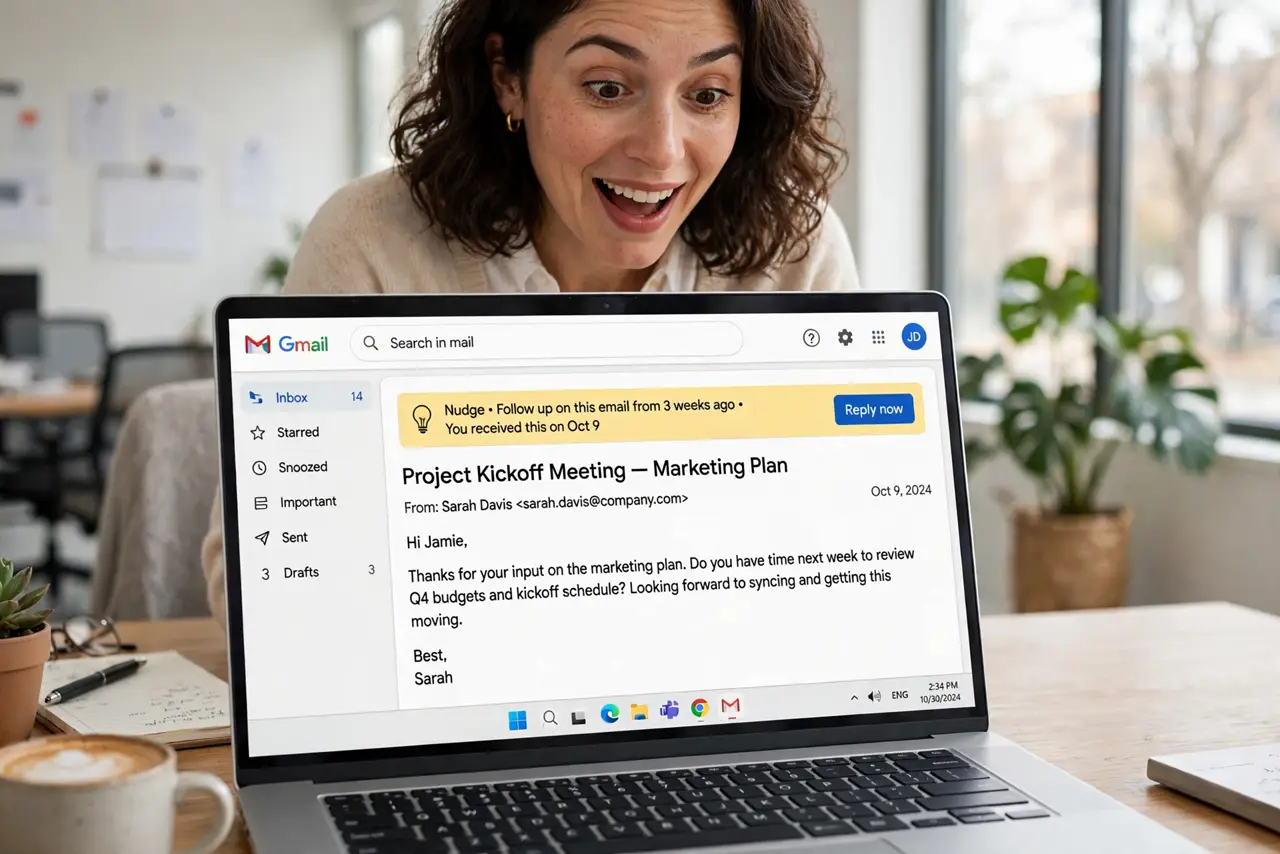
Quick fix: nudges are on by default — Gmail highlights emails needing replies or follow-ups at the top of your inbox. If they help, leave them; if they nag, turn them off in Settings under Nudges. They only appear on emails Gmail thinks need action, not on everything.
Follow these steps
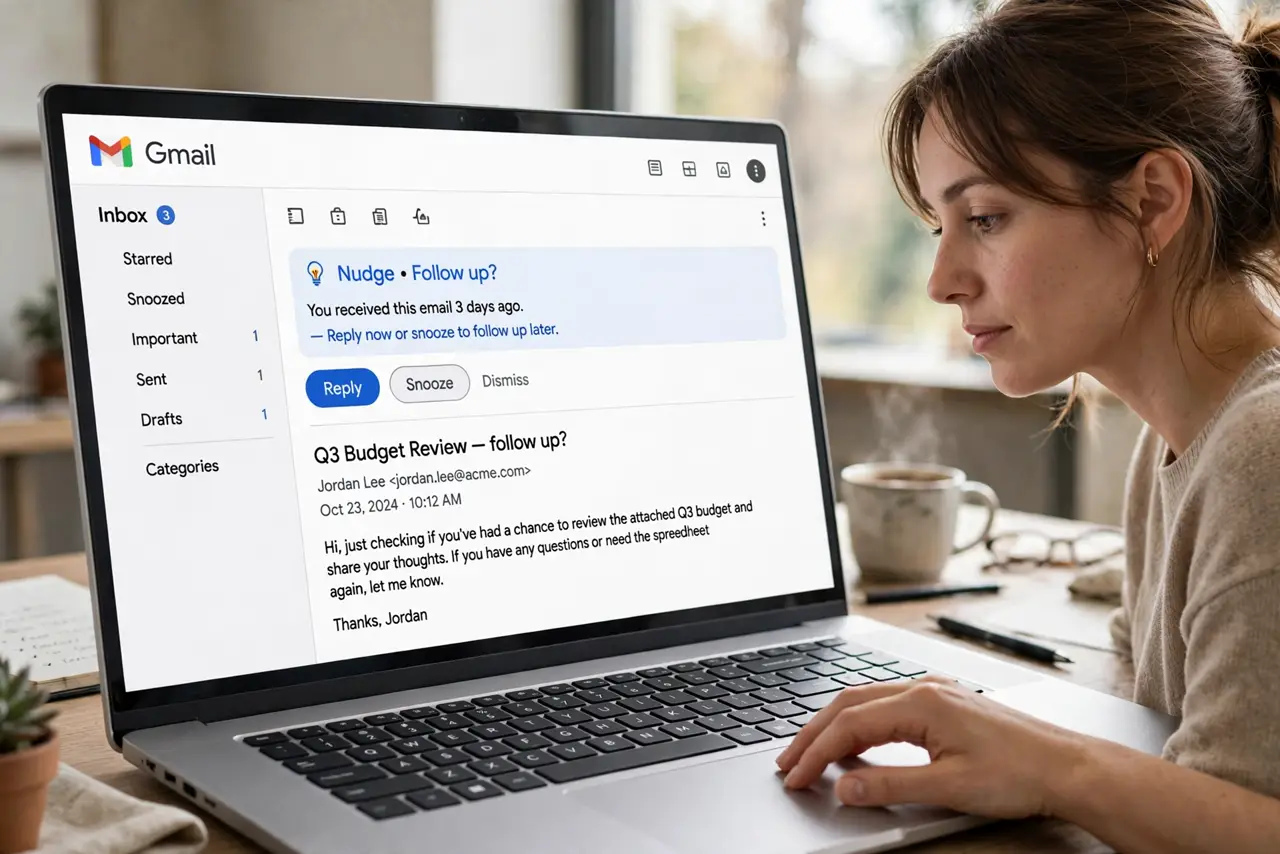
- Spot a nudge. Nudges appear as subtle highlighted suggestions on older emails: 'Received 3 days ago. Reply?' or 'Sent 5 days ago. Follow up?' They surface at the top of the inbox, above newer mail.
- Understand how Gmail chooses. Gmail predicts which emails need replies based on your habits — unanswered questions, promised follow-ups. It's a guess, sometimes wrong; see nudge reply details for the mechanics.
- Act on the good ones. The value is in the catch: that client email you meant to answer, the follow-up you promised. Treat nudges as a safety net review once a day, not an interruption.
- Dismiss the wrong ones. Dismiss a bad nudge and Gmail learns. The predictions improve as you correct them — a week of dismissals noticeably sharpens the suggestions.
- Turn them off if they nag. Settings, scroll to Nudges, uncheck the options. No shame in it — if your inbox is already under control, nudges are just noise.
- Pair with snooze for control. Snooze is the manual version of nudges: pick exactly when an email returns. Use snooze for emails you control, nudges for the ones you'd forget.
What NOT to do
- Do not treat every nudge as urgent. They're predictions, not priorities — a nudge just means Gmail guessed, not that the email matters.
- Do not leave nudges on if they stress you out. Productivity tools should reduce anxiety, not add a nagging layer — turn them off guilt-free.
- Do not assume nudges see everything. They work on Gmail's predictions of your main inbox categories — muted or filtered mail may never nudge.
- Do not confuse nudges with reminders. Nudges resurface emails; they don't create tasks — for real follow-up tracking, use Tasks or your calendar.
Frequently asked questions
Can I get nudges in the Gmail app?
Yes — nudges work in the mobile app too, with the same on/off setting syncing from the web. The suggestions look the same on both.
Why am I not seeing any nudges?
Either the setting is off, or Gmail hasn't found anything worth nudging. They appear only when the prediction model is confident — quiet inboxes get few nudges.
Do nudges work for all email types?
They focus on emails likely needing replies or follow-ups. Newsletters and notifications rarely nudge — it's tuned for conversational email.