Use Gmail Offline? Setup
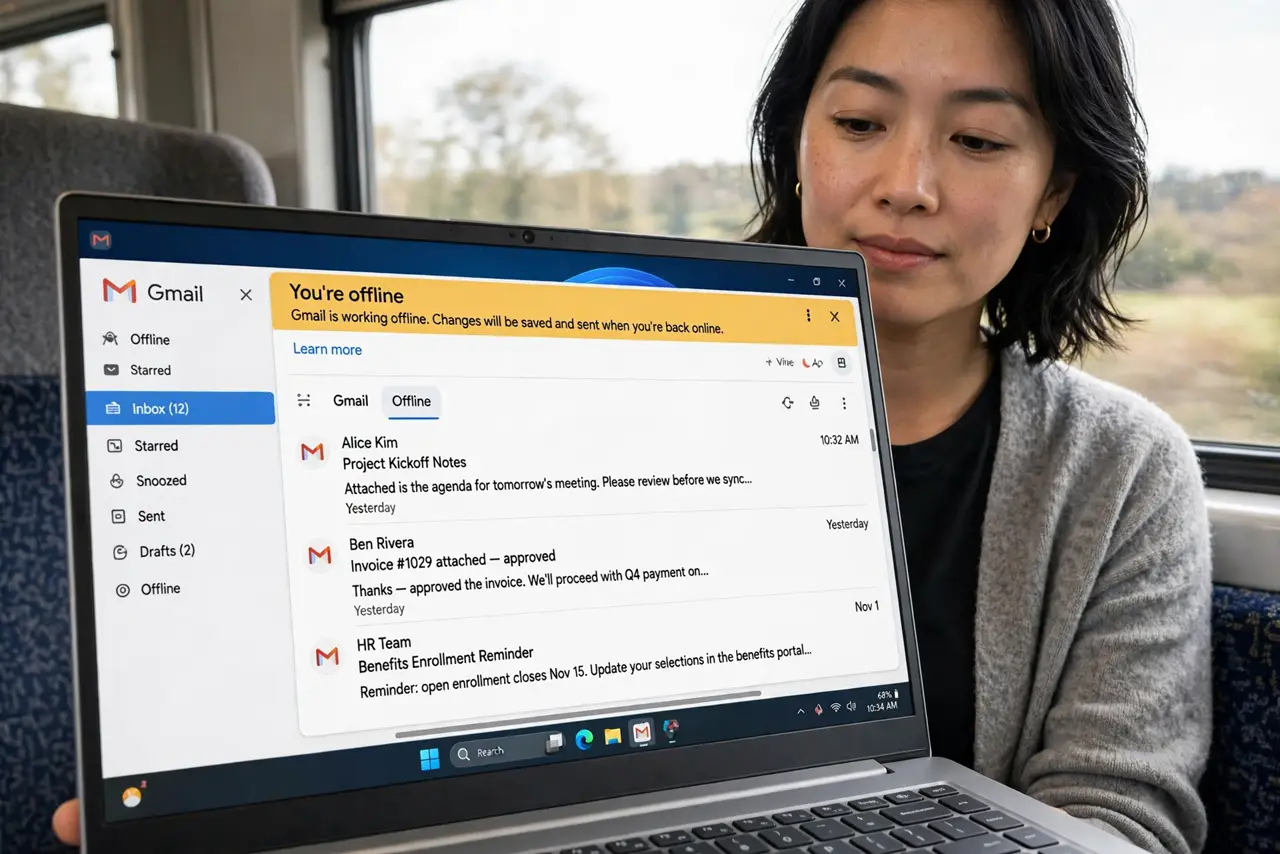
Flights, dead zones, hotel Wi-Fi that demands payment — email shouldn't stop when the connection does. Gmail's offline mode syncs your recent mail to the browser so you can read, search, and even compose without internet; everything sends when you reconnect. Setup takes two minutes while you're still online.
TL;DR / Quick Fix
Quick fix: in Gmail settings, turn on Offline under the Offline tab — choose how many days to sync, then Gmail works without internet in Chrome. It needs setup while online first, and storage space for the synced mail. Sign out of shared computers afterward to protect the offline copy.
Follow these steps
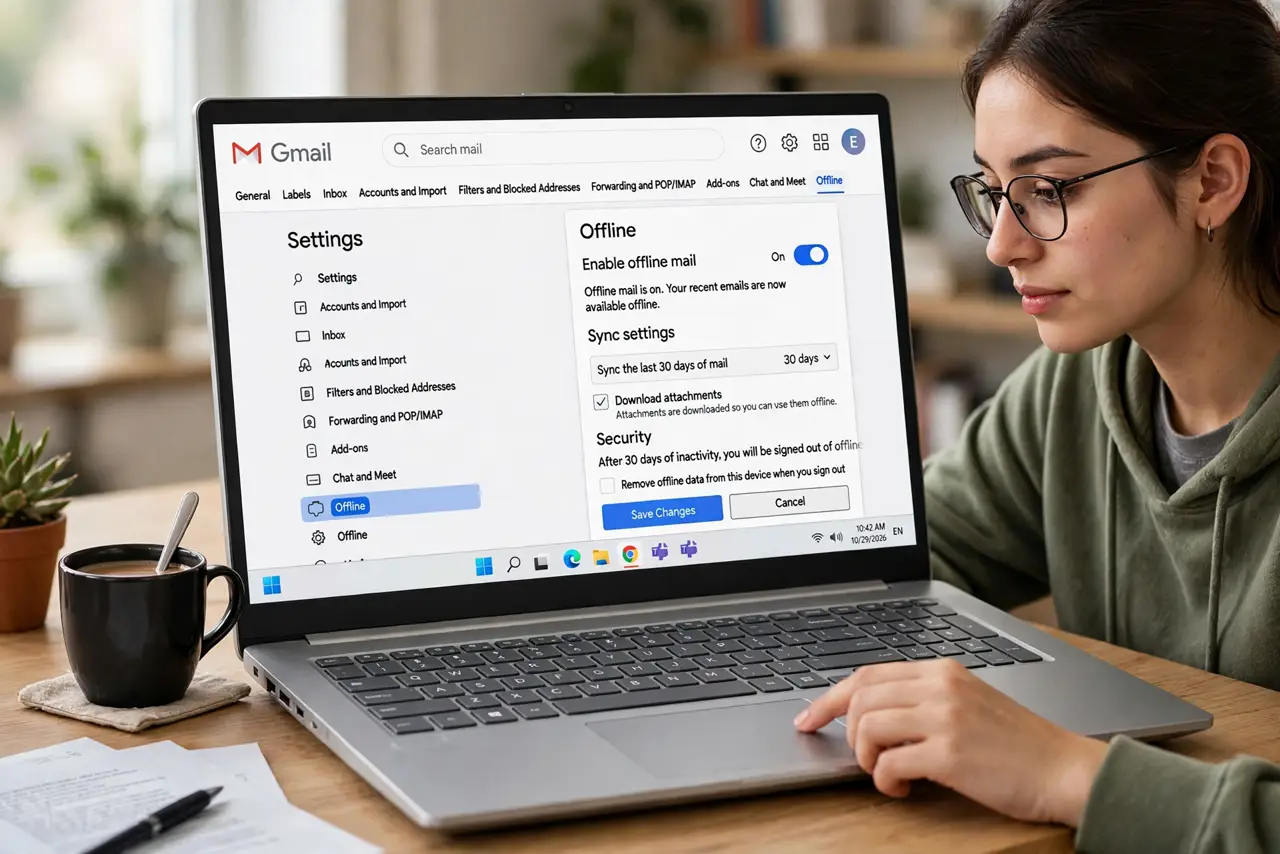
- Open the Offline settings tab. Gear icon, 'See all settings,' then the Offline tab. The whole feature lives here — one toggle, a few options, done.
- Enable offline mail. Check 'Enable offline mail.' Choose how much to sync — 7, 30, or 90 days — and whether to include attachments. More days means more storage used; 30 is the sweet spot for most.
- Understand what works offline. Read, search synced mail, star, label, archive — and compose. Composed mail waits in the Outbox and sends automatically on reconnect. It's genuinely useful, not a read-only tease.
- Use Chrome for the full experience. Offline Gmail is built on Chrome's storage — it works best there. Other Chromium browsers mostly work; the feature's home turf is Chrome itself.
- Mind the storage. Synced mail lives on the device — gigabytes for heavy accounts with attachments. Check the storage estimate shown in settings and trim the day range if the disk is tight.
- Sign out on shared computers. Offline mail persists on the machine. On any shared or public computer, sign out of Chrome afterward — or better, never enable offline there. Your synced mail is only as private as the device.
What NOT to do
- Do not enable offline on a public computer. The synced copy stays on that machine's disk — a privacy disaster waiting for the next user.
- Do not expect setup to work offline. The initial sync needs a connection — enable it at home, not at the airport gate.
- Do not sync 90 days with attachments on a full disk. The sync can swallow gigabytes — match the range to your free space.
- Do not panic when sent mail sits in the Outbox. It's queued, not lost — it sends the moment any connection returns. Also watch for storage-full blocking new mail entirely.
Frequently asked questions
How much space does offline Gmail need?
Depends on volume: light users see hundreds of MB, heavy users with attachments several GB. The settings page shows the estimate before you commit.
Do labels and stars work offline?
Yes — applied locally, synced when you reconnect. The offline copy is a real working Gmail, not a snapshot.
Why isn't offline available in my settings?
Workspace admins can disable it, and it needs a supported browser. If the tab is missing, check with your admin or switch to Chrome.