Preview Pane in Gmail? How To
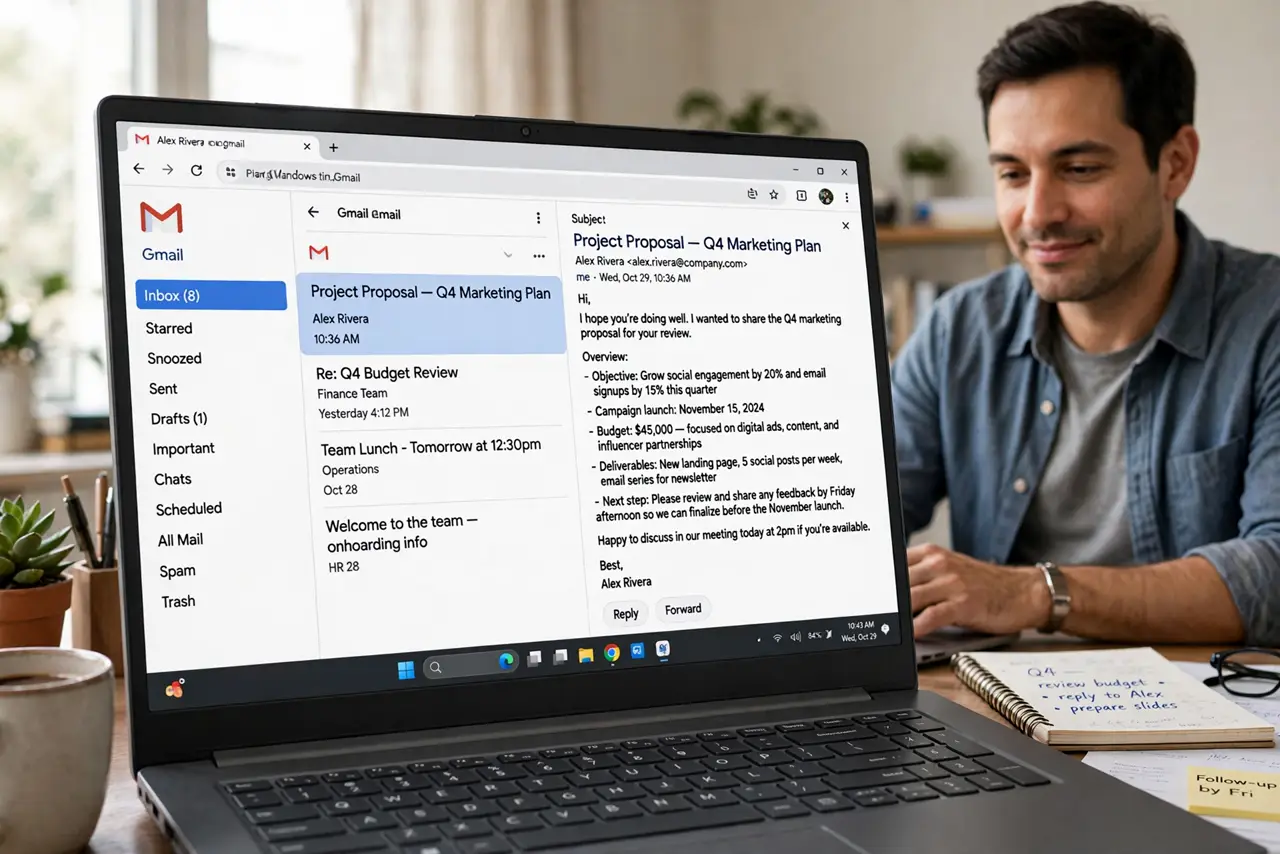
Opening every email to read it is slow — but so is guessing from subject lines. Gmail's Preview Pane splits the inbox: list on one side, the selected message readable on the other. It's the Outlook-style reading layout, hiding in the Advanced settings, and it changes how fast you triage.
TL;DR / Quick Fix
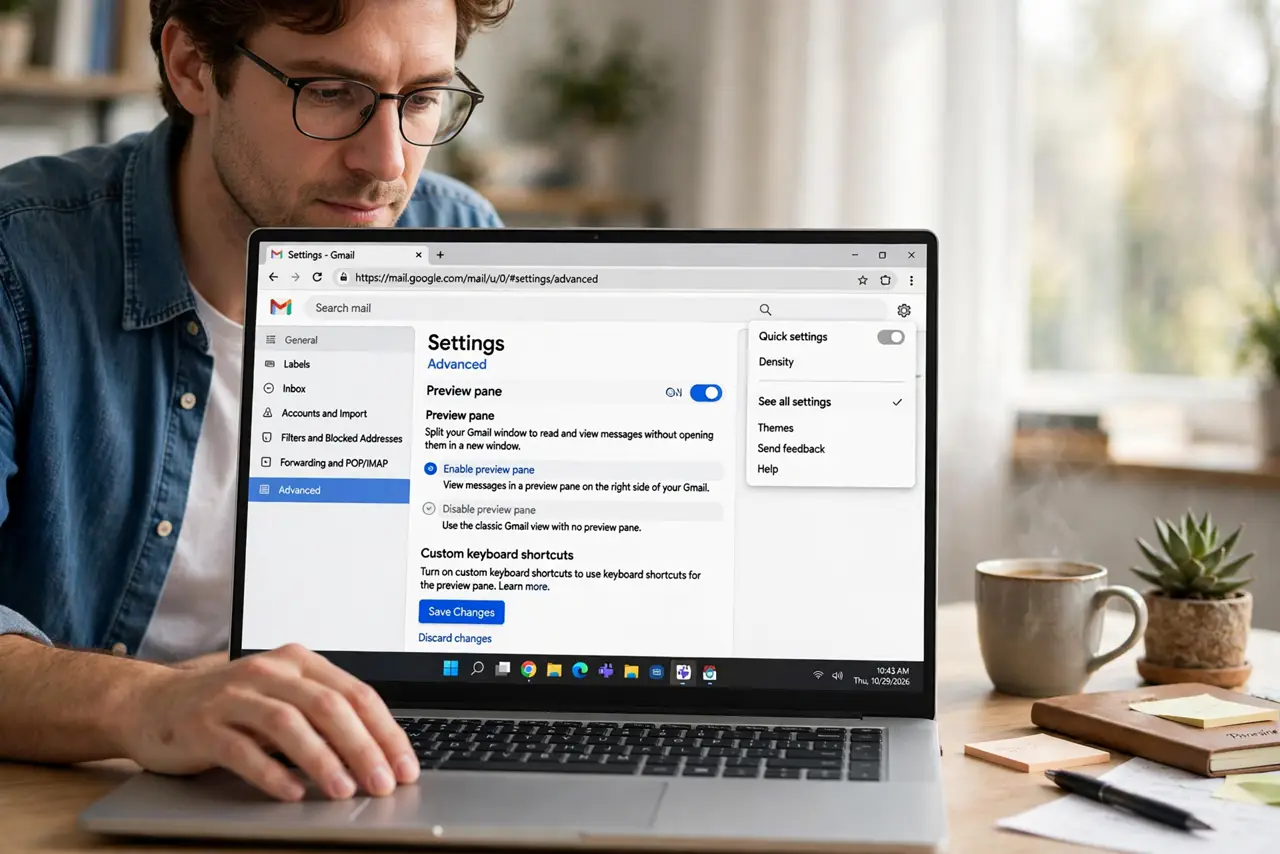
Quick fix: enable Preview Pane under Gmail's Advanced settings, then pick vertical or horizontal split from the inbox view menu. You read messages beside the list without opening each one. Toggle it off from the same menu anytime — it's a view, not a permanent change.
Follow these steps
- Enable it under Advanced. Gear icon, 'See all settings,' Advanced tab — enable Preview Pane and save. A new view-toggle button appears near the inbox's top right.
- Pick vertical or horizontal split. Click the toggle: vertical split puts the reading pane beside the list (great on wide screens); horizontal stacks it below. Try vertical first — it's the classic triage layout.
- Triage with arrow keys. Up/down moves through the list; the preview follows instantly. You can blast through fifty emails in minutes — read, archive, star — without ever 'opening' one.
- Adjust the divider. Drag the split to give the preview more room for long emails. The position sticks — set it once for your screen and forget it.
- Combine with density settings. Preview Pane plus Compact density fits the most list rows beside a readable preview — the maximum-triage combination on a laptop screen.
- Toggle it off anytime. Same toggle button, 'No split.' The inbox returns to normal instantly — it's purely a view, and your mail, stars, and labels are untouched.
What NOT to do
- Do not enable it and never learn the keys. The pane's speed comes from arrow-key triage — mouse-only previewing gains you little.
- Do not use horizontal split on a small laptop. The stacked layout squeezes both list and preview — vertical split suits narrow screens better.
- Do not expect it on mobile. Preview Pane is a web-only view; the phone app keeps its own layout regardless.
- Do not confuse it with Multiple Inboxes. Preview shows one message beside the list; Multiple Inboxes shows several lists — different tools for different brains.
Frequently asked questions
Does the preview mark emails as read?
Yes, after a short delay — opening the preview counts as reading. If you want unread-until-opened behavior, that delay isn't adjustable, so triage deliberately.
Why don't I see the toggle button?
The Advanced setting must be enabled and saved first, then refresh the inbox. The button appears at the top right of the message list.
Can I preview without the split?
Hovering shows a snippet, but true inline reading needs the pane. The split is the feature — there's no hover-preview mode.