Priority Inbox? How It Works
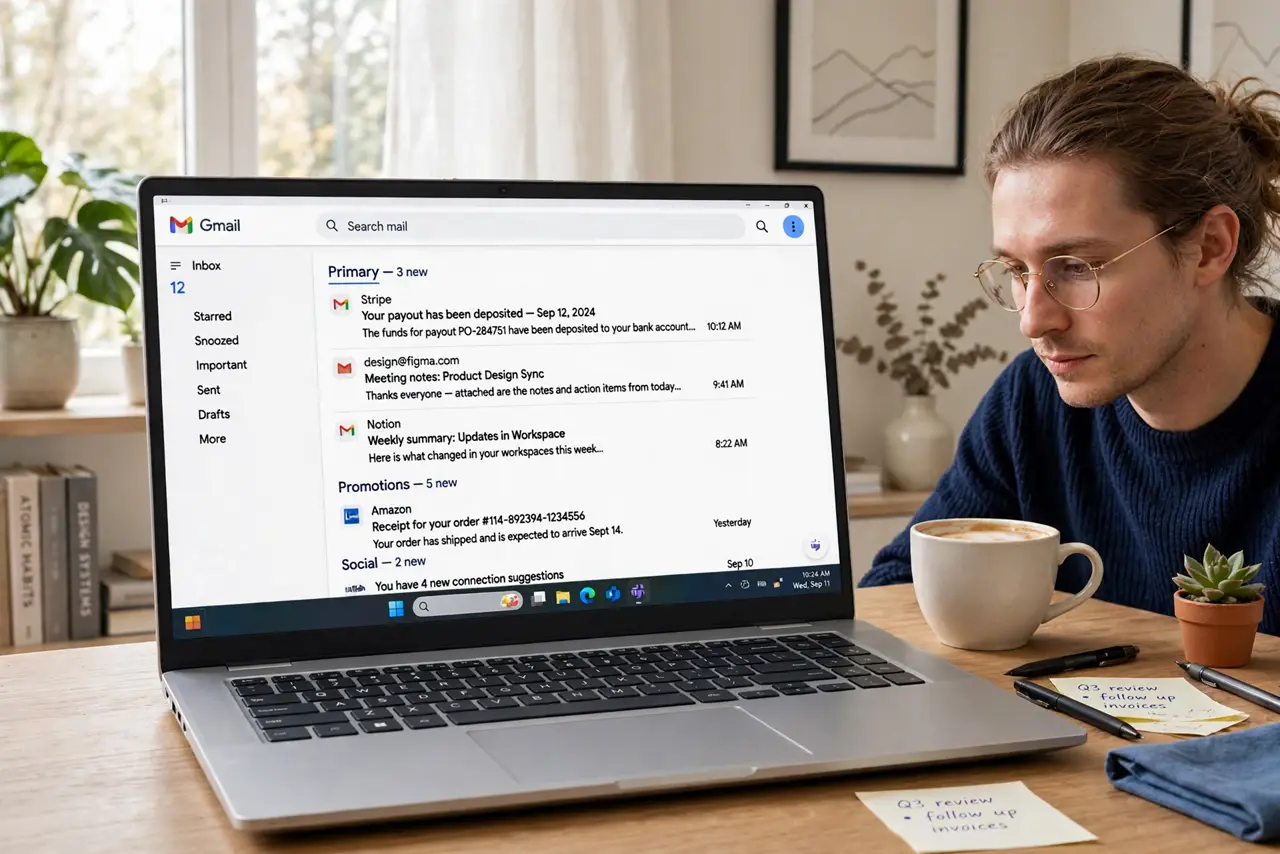
Important mail keeps sinking under newsletters and promos, so you miss things that matter. Priority Inbox is Gmail's answer: it splits your inbox into sections like Important and unread, Starred, and Everything else, guessing what matters from your habits. This guide shows how it works, how to train it, and when to switch it off.
TL;DR / Quick Fix
Quick fix: turn Priority Inbox on from Settings and give it a week to learn your habits. Mark important mail manually to train it faster. If the sections distract you, switch back to the plain inbox — Priority Inbox is a tool, not a requirement.
Follow these steps
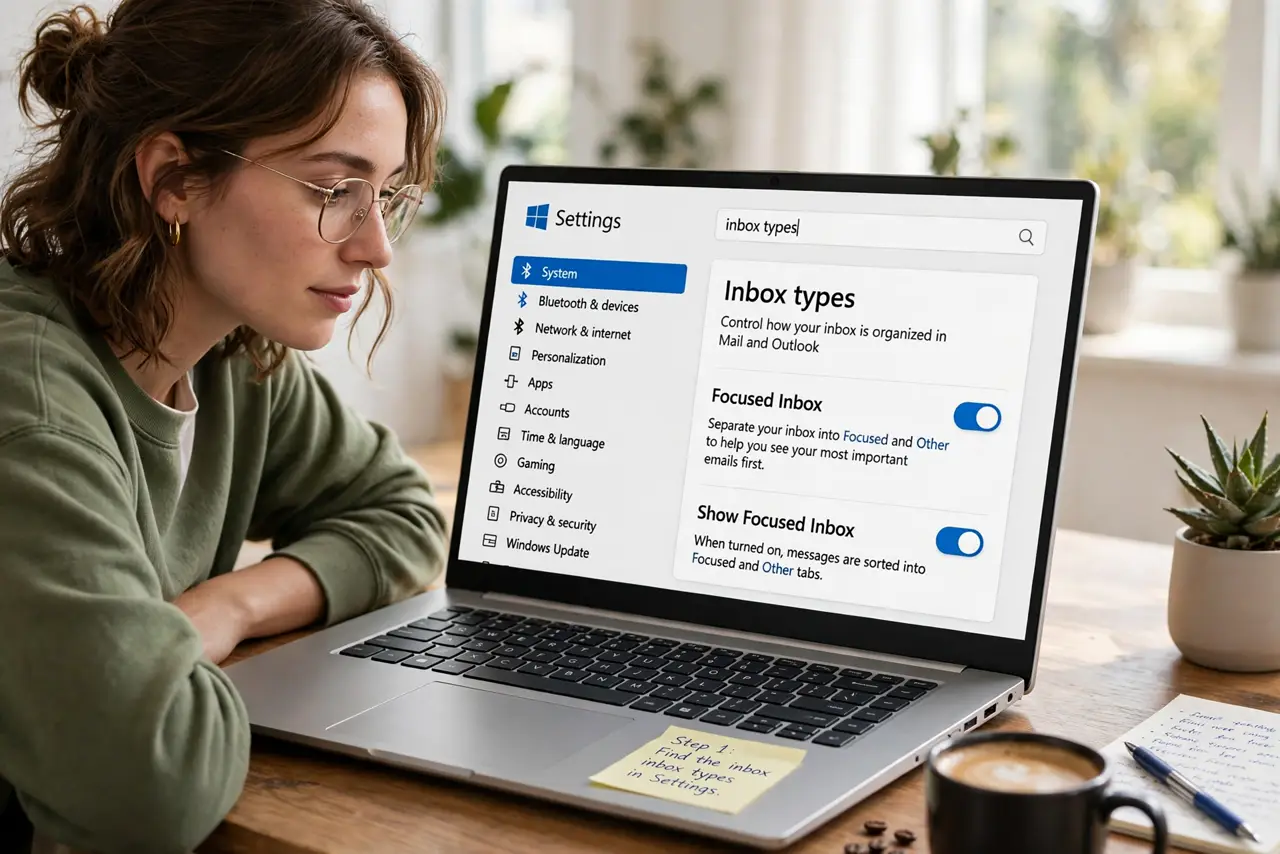
- Find the inbox types in Settings. Open Gmail Settings, go to Inbox, and pick Priority Inbox from the inbox type list. The preview updates instantly so you can see the new sections before saving.
- Learn the default sections. Priority Inbox shows Important and unread, then Starred, then Everything else. These sections are customizable — you can swap Starred for Snoozed or add a labeled section.
- Train it with the importance buttons. Use the marker next to messages to correct Gmail's guesses. A few days of marking teaches it faster than any setting — see how importance markers differ from stars.
- Customize each section's contents. Click the three dots on any section header to choose what it shows: important, starred, unread, or a label. Keep sections few — the point is triage, not filing.
- Compare with the tabbed inbox. If sections feel heavy, the tabbed inbox offers lighter automatic sorting with less setup. Both learn from you; pick the one you will actually check.
- Switch back if it slows you down. Nothing locks you in — change the inbox type back to Default anytime. The best inbox layout is the one that gets mail read and answered, not the cleverest one.
What NOT to do
- Do not expect perfection on day one. Priority Inbox needs about a week of your behavior to calibrate.
- Do not mark everything important. Marking all mail important teaches Gmail nothing.
- Do not add six custom sections. A cluttered Priority Inbox is worse than no sorting at all.
- Do not confuse important with unread. A read message can still be important, and vice versa.
Frequently asked questions
Is Priority Inbox the same as Important markers?
No. Important markers are Gmail's guesses on individual messages; Priority Inbox is a layout that uses those guesses to build sections. You can use the markers with any inbox type.
Can I use Priority Inbox on the phone app?
The Gmail mobile app shows its own layout and does not mirror the Priority Inbox sections exactly. Importance markers still work everywhere.
Why is something unimportant marked important?
Gmail learns from opens, replies, and manual marks. If it misjudges, correct it with the marker — or use multiple inboxes for stricter custom sections.