Set a Recovery Email? Do It Now
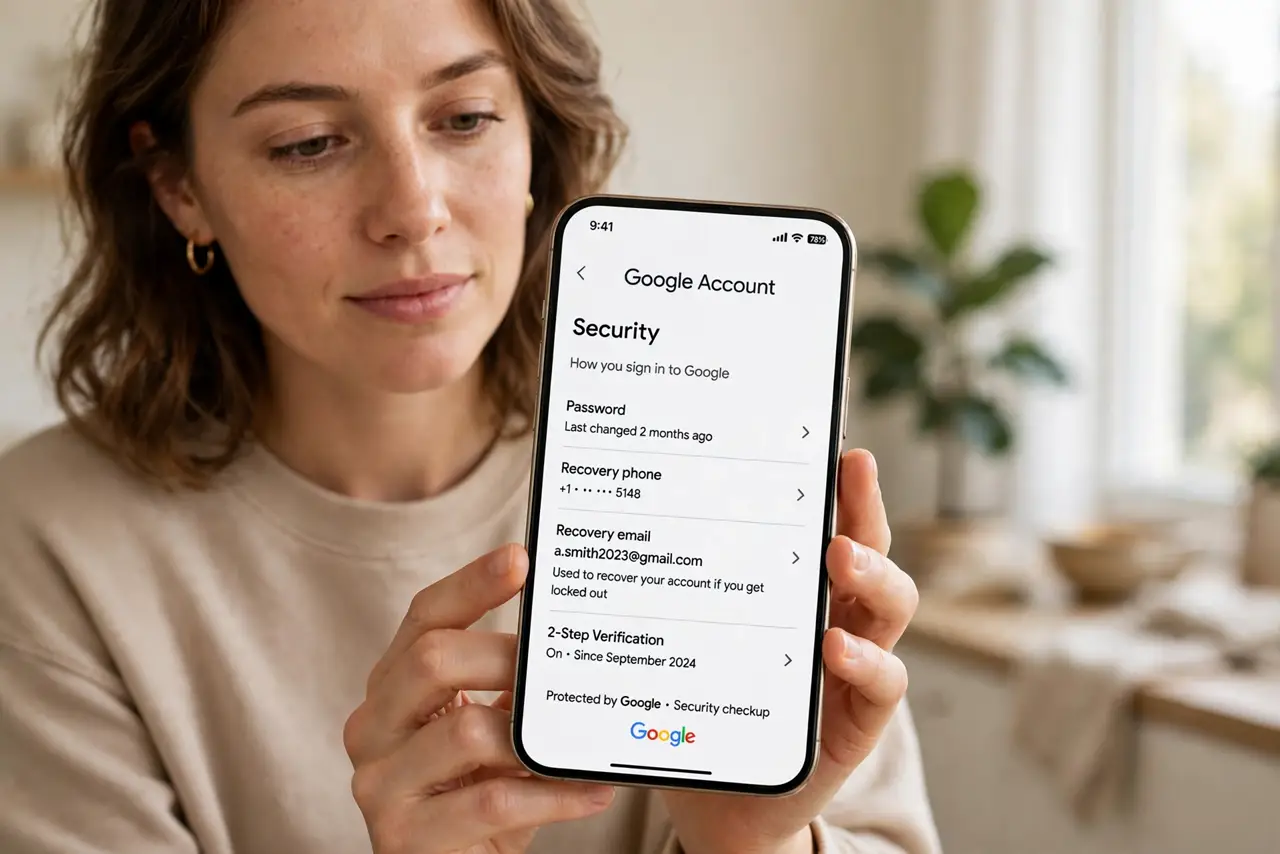
Locked out of Google and the reset link goes to an address you no longer own — that is how accounts get lost for good. A recovery email is the spare key: it receives password resets and security alerts. Setting it takes two minutes and saves real disasters.
TL;DR / Quick Fix
Quick fix: add a recovery email under Google Account security settings — it is where reset links go if you get locked out. Use one you actually check, and keep it updated when you change providers. This one setting is the difference between a five-minute recovery and a lost account.
Follow these steps
- Open Google Account security. Go to your Google Account, then Security. Find the 'Ways we can verify it's you' section.
- Add your recovery email. Enter an address you control and actually check — a second Gmail or any provider works.
- Verify the address. Google sends a confirmation code or link. Complete it, or the recovery email stays unverified and useless.
- Add a recovery phone too. A phone number gives a second recovery path. Belts and suspenders for your most important account.
- Review it yearly. People change providers and lose old addresses. Check the recovery email is still valid every year — tie it to a birthday or the new year.
- Keep it separate from the account. The recovery email should not be the account itself. A spare key kept inside the locked house helps nobody.
What NOT to do
- Do not use a work email you might lose. Job changes have locked people out of personal accounts.
- Do not skip verification. An unverified recovery email is decoration, not protection.
- Do not set it and forget the password to it. You must be able to open the recovery inbox when it matters.
- Do not share recovery details casually. Anyone with that access can reset your Google account.
Frequently asked questions
Can the recovery email be another Gmail?
Yes — any address you control works, including another Gmail. Just make sure you can still sign in to it.
What does the recovery email receive?
Password reset links, security alerts, and inactivity warnings — everything Google sends when something is wrong.
I lost access to my recovery email too — now what?
Use the recovery phone or account recovery form. This is exactly why two recovery methods beat one.