Turn Off Smart Compose
You're typing an email and Gmail keeps finishing your sentences in gray ghost text — sometimes helpfully, sometimes creepily. Smart Compose predicts as you type, and its personalization learns your writing style. If the suggestions distract you more than they help, turning it off takes twenty seconds.

TL;DR / Quick Fix
Quick fix: open Gmail settings, scroll to Smart Compose under General, and switch it off — the gray ghost-text suggestions stop immediately. This is per-account, so repeat it on each Gmail address. Turning off personalization too stops Gmail learning your writing style for suggestions.
Follow these steps
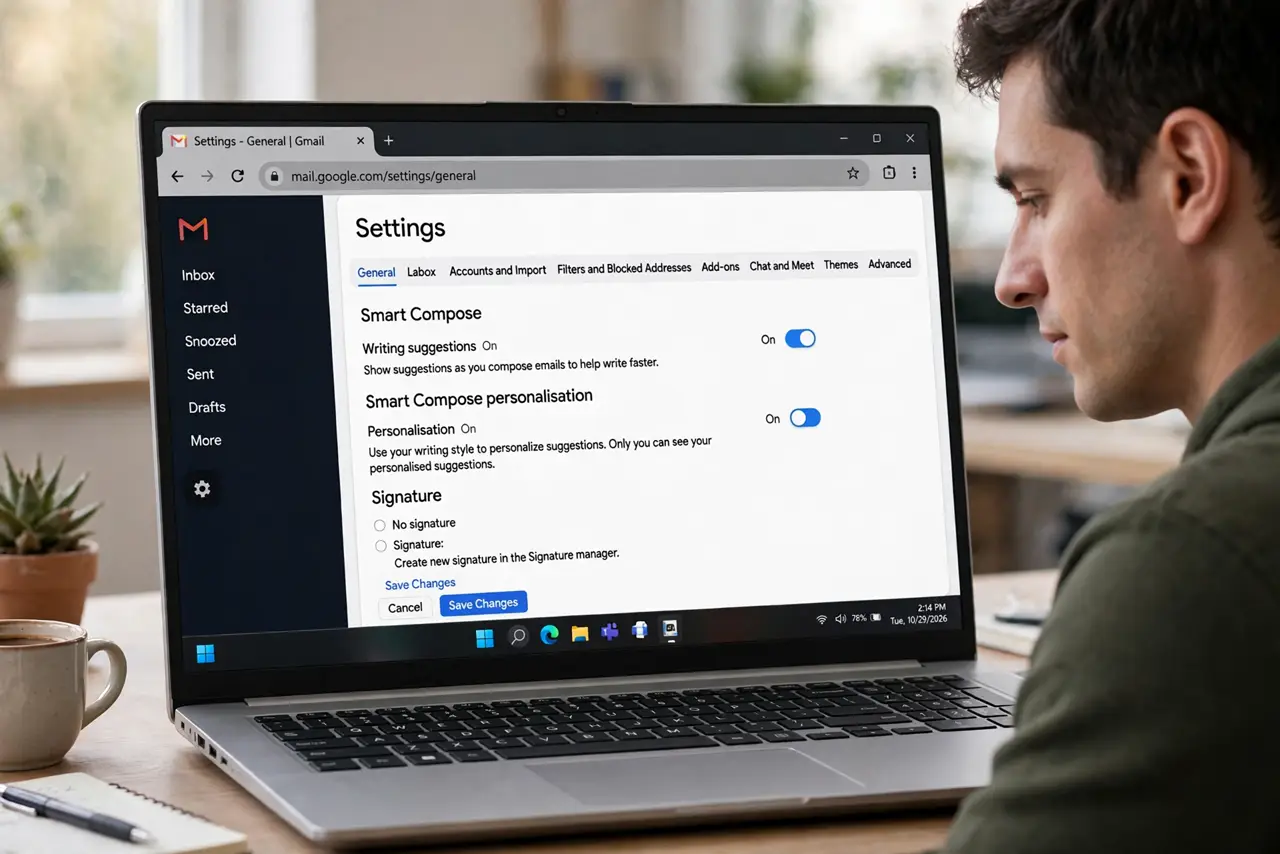
- Open the General settings tab. Click the gear icon, then 'See all settings.' Smart Compose sits under General — scroll until you see it; it's above the signature section.
- Switch Smart Compose off. Choose 'Writing suggestions off.' The gray predictions vanish immediately from the compose window — no save button needed, though scrolling down and saving doesn't hurt.
- Decide on personalization separately. Below it, 'Smart Compose personalization' controls whether Gmail learns your phrasing. Turn this off too if the too-accurate suggestions are what bother you — it's the privacy-relevant half.
- Repeat for each account. The setting is per Gmail address. If you run two accounts in one browser, switch accounts and disable it in both — it doesn't sync the preference.
- Know what stays on. Turning off Smart Compose doesn't disable spellcheck, Smart Reply's one-click responses, or Undo Send — those are separate features with their own toggles.
- Test in a new compose window. Open a fresh compose and type a sentence. No gray ghost text trailing your words means the change took — old drafts may need a refresh to reflect it.
What NOT to do
- Do not confuse Smart Compose with Smart Reply. Compose predicts while you type; Reply suggests one-click responses to received mail — different toggles, different annoyances.
- Do not expect personalization to forget instantly. Disabling it stops new learning; previously learned patterns fade as the model updates — give it a little time.
- Do not turn it off and on repeatedly hoping for better suggestions. The toggle is binary — if the feature's style doesn't suit you, off is the answer.
- Do not blame Smart Compose for autocorrect. Autocorrect changes what you typed; Smart Compose only suggests what you might type — Tab accepts, ignoring dismisses.
Frequently asked questions
Will turning it off delete anything?
No — it only stops future suggestions. Your emails, drafts, and settings are untouched; it's a display preference, not data deletion.
Why are the suggestions sometimes wrong or odd?
The model predicts common phrasings, not your intent — it guesses from patterns. That's exactly why many people prefer it off for personal or sensitive mail.
Does Smart Compose work in the mobile app?
Yes, with its own toggle under the app's settings. Disable it separately on each phone or tablet where it bothers you.