Extend Undo Send
You hit Send and instantly spot the typo — the wrong name, the missing attachment, the reply-all you did not mean. Gmail holds every sent email for a few seconds before it really goes, and you can stretch that window to thirty seconds. Thirty seconds of grace, configured once, saves you for years.
TL;DR / Quick Fix
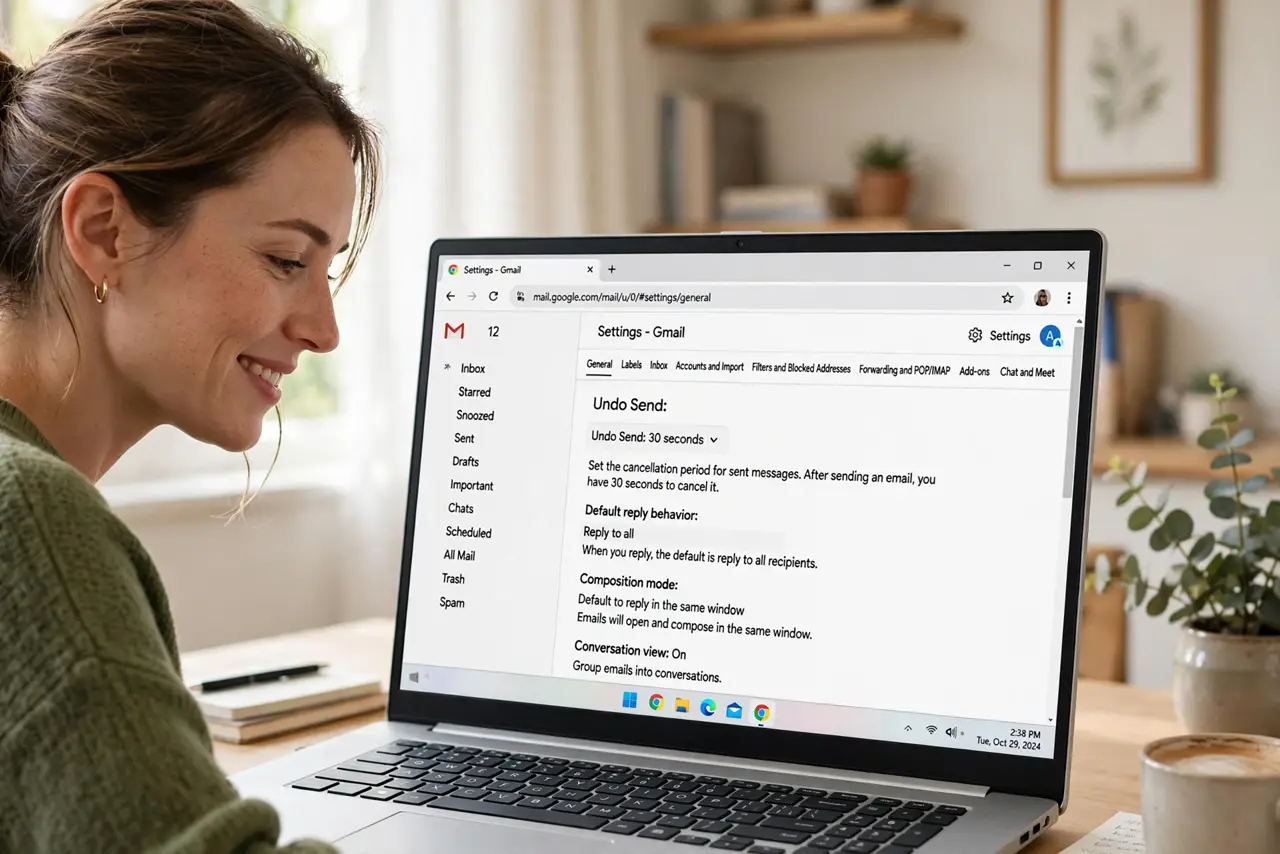
Quick fix: in Gmail settings, under General, set Undo Send to 30 seconds — the maximum. After sending, an Undo option appears at the bottom for the full window. It recalls the email only if you click in time; after thirty seconds it is truly gone.
Follow these steps
- Open Gmail settings. Click the gear icon in Gmail, then See all settings. The General tab holds the send options — Undo Send sits near the top, easy to miss if you have never looked.
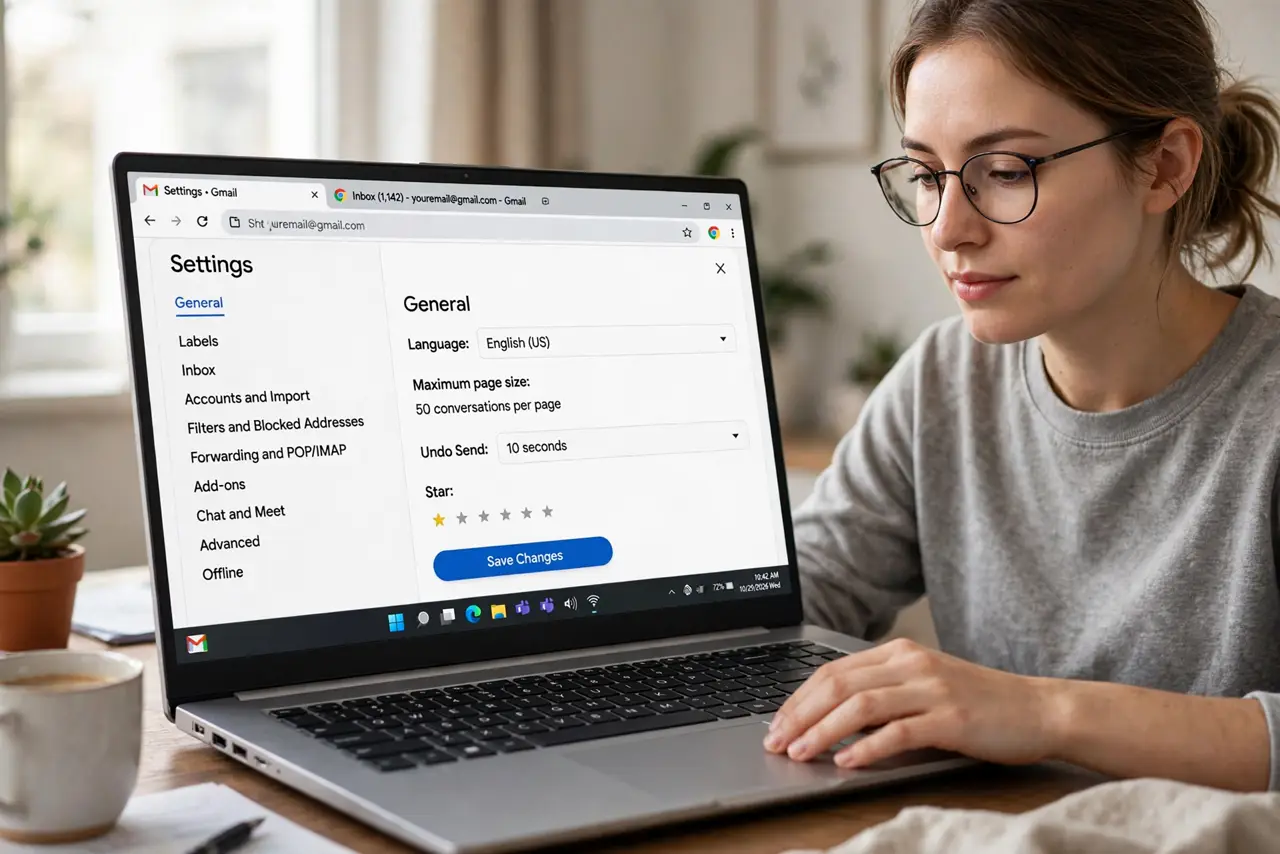
- Set the cancellation period to 30 seconds. Find Undo Send and change it from the 5-second default to 30 seconds. This is the maximum Gmail offers, and there is no downside to taking all of it.
- Save the change. Scroll down and click Save Changes. Gmail reloads; the setting is now active. Skipping the save is the classic reason 'it did not work.'
- Send a test email. Email yourself something trivial and watch the bottom-left corner: the Undo prompt now lingers for the full thirty seconds. Click it once to feel the recall in action.
- Build the glance habit. After every send, glance at the corner for two seconds before moving on. That micro-pause is where you catch the wrong attachment, the missing CC, the typo in the name.
- Know the hard limit. After thirty seconds the email is gone — Gmail cannot retrieve it. Undo Send is a grace window, not a recall feature; for truly sensitive mail, use confidential mode instead.
What NOT to do
- Do not assume Undo works after the window. Thirty seconds is the hard limit — after that, the email is delivered and gone.
- Do not skip saving the setting. Gmail requires the Save Changes click; closing the tab discards your 30-second choice.
- Do not rely on Undo for confidential mail. If it must not be forwarded, confidential mode is the tool — Undo only buys seconds.
- Do not confuse Undo with unsend in chat apps. Email has no true recall; the grace window is Gmail holding the send, not retrieving it.
Frequently asked questions
Can I get more than 30 seconds?
No — 30 seconds is Gmail's maximum. If you need longer, compose in drafts and send later instead.
Does the recipient see anything if I undo?
No. During the window the email never leaves Gmail's servers, so undoing is invisible — no recall notice, no trace.
Does Undo Send work in the Gmail app?
Yes — the Undo bar appears at the bottom of the app after sending, honoring the same 30-second setting.