Auto-Sort Gmail with Filters
Your inbox is a firehose — receipts, newsletters, notifications — and you sort it by hand every morning. Gmail filters do the sorting for you: they watch for matching mail and label it, archive it, or star it automatically. Set up a handful of good filters once, and the daily chaos organizes itself before you even open the inbox.
TL;DR / Quick Fix
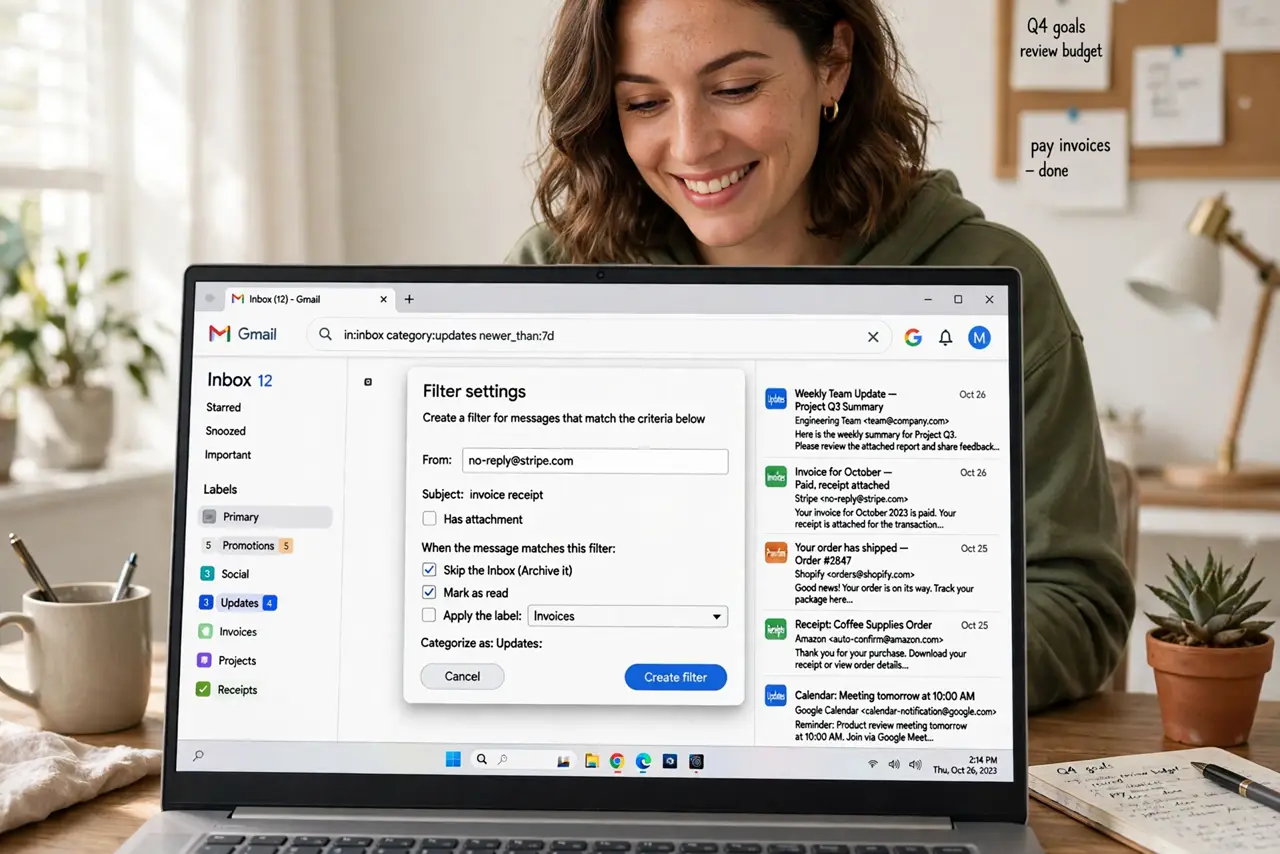
Quick fix: open a representative email, click the three dots, then Filter messages like these. Choose what the filter does — apply a label, skip the inbox, or mark as important. Start with your three noisiest senders. Filters only affect future mail, so nothing already in your inbox moves.
Follow these steps
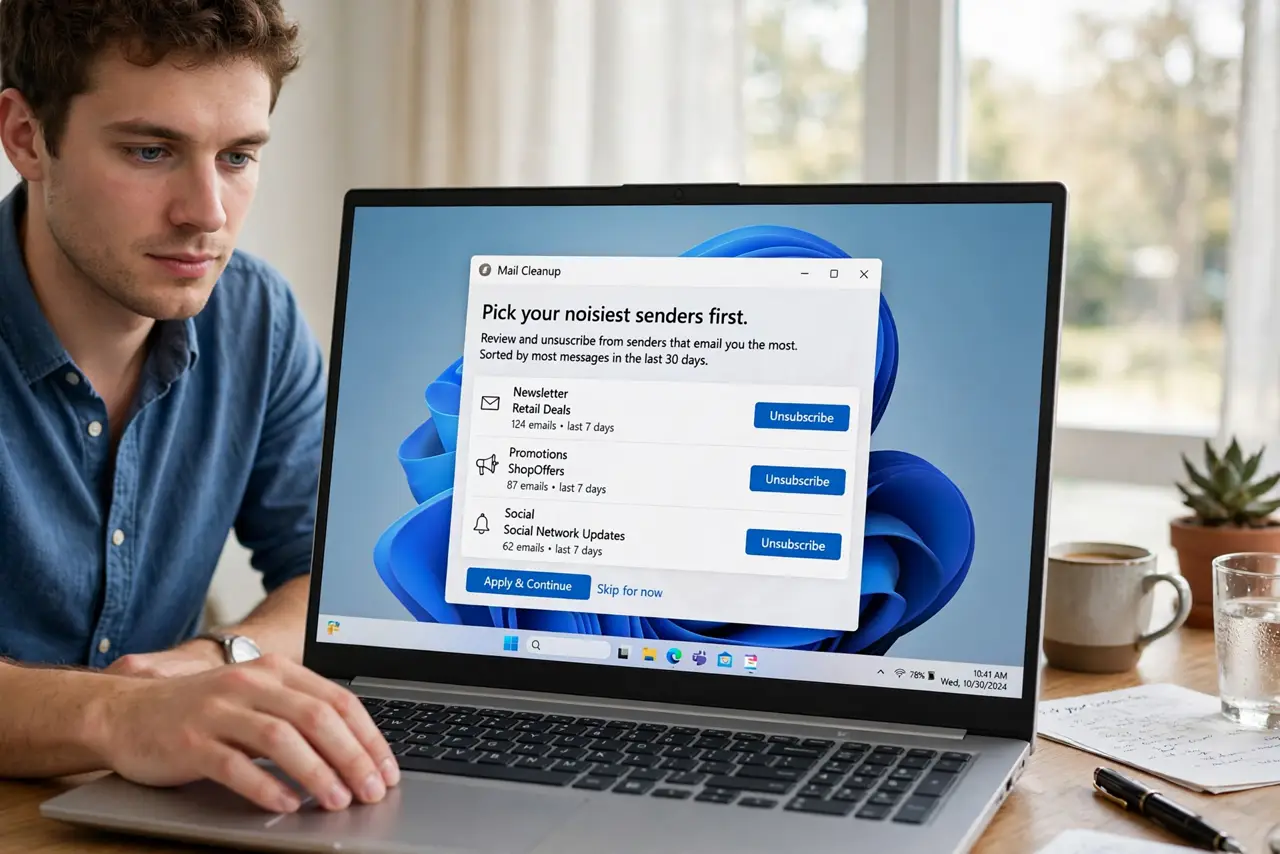
- Pick your noisiest senders first. Look at what clutters your inbox most: newsletters, receipts, social notifications. Open one email from each sender — these become the examples your filters learn from. Three good filters beat twenty fussy ones.
- Create the filter from the email. Open the email, click the three-dot menu, then Filter messages like these. Gmail prefills the sender address. Adjust the match — usually the From field alone is enough — then click Create filter.
- Choose one clear action. Apply a label, skip the inbox, or mark as important — pick the action that matches how you treat this mail. A newsletter gets a label and skips the inbox; a receipt gets a label but stays visible until filed.
- Test before trusting it. After creating the filter, send yourself a test email from a matching address or wait for the next real one. Check that it lands where you intended — a misconfigured filter silently hides mail.
- Combine filters with labels. Filters do the routing; labels do the organizing. Pair each filter with a clear label name so filtered mail is findable later, not just hidden.
- Review filters twice a year. Open Settings, then Filters and Blocked Addresses, and delete filters for senders you no longer get mail from. Stale filters are harmless but they make the list confusing.
What NOT to do
- Do not create a filter that deletes mail automatically. One typo in the match rule and real mail vanishes silently.
- Do not skip the inbox for anything important. Bills and bank alerts should stay visible; only low-value mail earns the archive treatment.
- Do not make twenty filters on day one. Start with three, live with them a week, then add more only where the noise remains.
- Do not filter by subject keywords alone. Subjects change; sender addresses are the stable thing to match on.
Frequently asked questions
Will filters organize my existing emails?
No — filters only act on new incoming mail. To tidy the backlog, search for the sender and apply the label manually in bulk, then let the filter handle the future.
Can a filter mark mail as read?
Yes, but think twice. Marking newsletters as read is fine; doing it for receipts hides things you might need to notice.
Why did my filter stop working?
Check Settings, then Filters and Blocked Addresses — the sender may have changed addresses, or the filter got edited. Re-create it from a fresh example email.