Vacation Responder? Set It Up
You are heading out for two weeks and your inbox will fill with people expecting answers. Gmail's vacation responder sends a polite automatic reply to anyone who emails you — with dates, so people know when you will actually respond. Set it before you leave, and set the end date so it stops itself.
TL;DR / Quick Fix
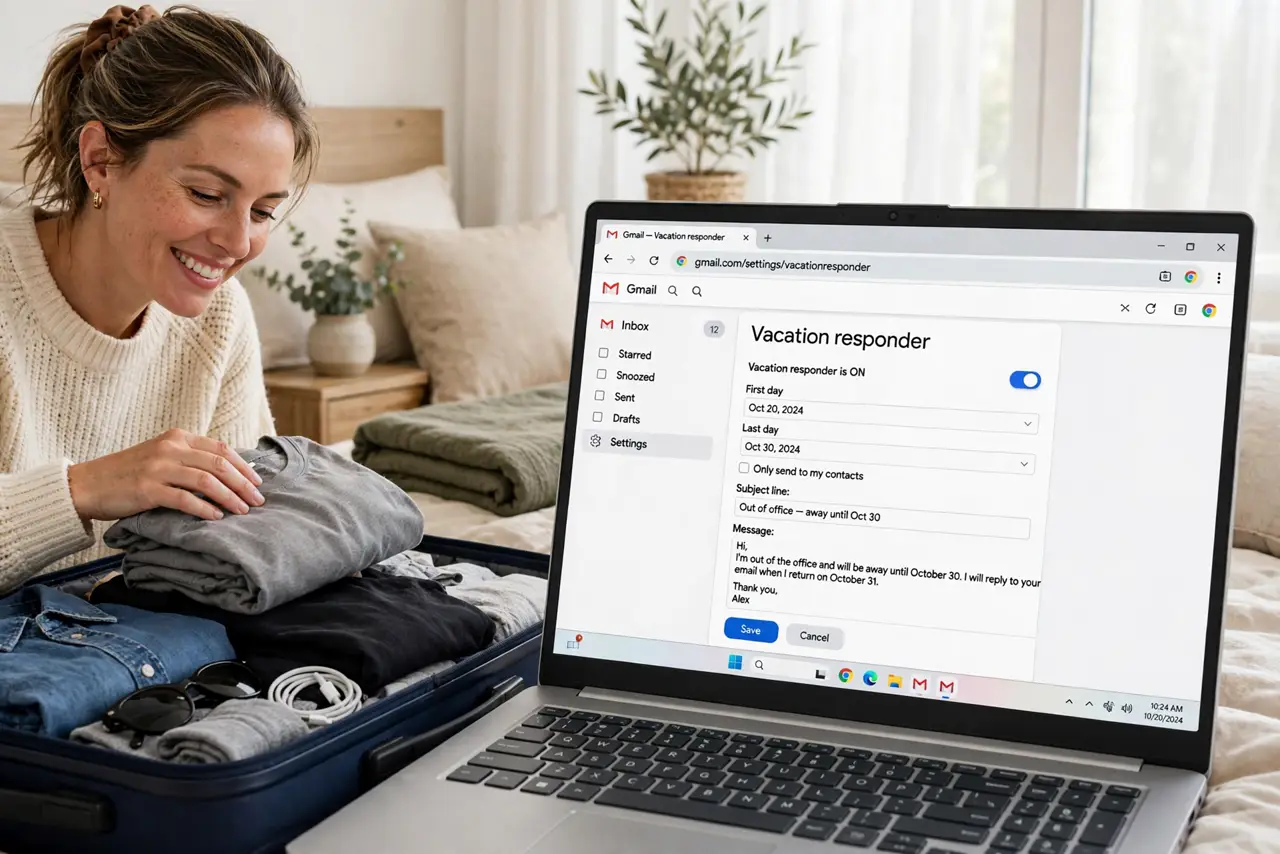
Quick fix: in Gmail settings under General, scroll to Vacation responder, turn it on, set your start and end dates, and write a short message with when you'll respond. Only send to people in your contacts to avoid replying to spam. It stops automatically on the end date.
Follow these steps
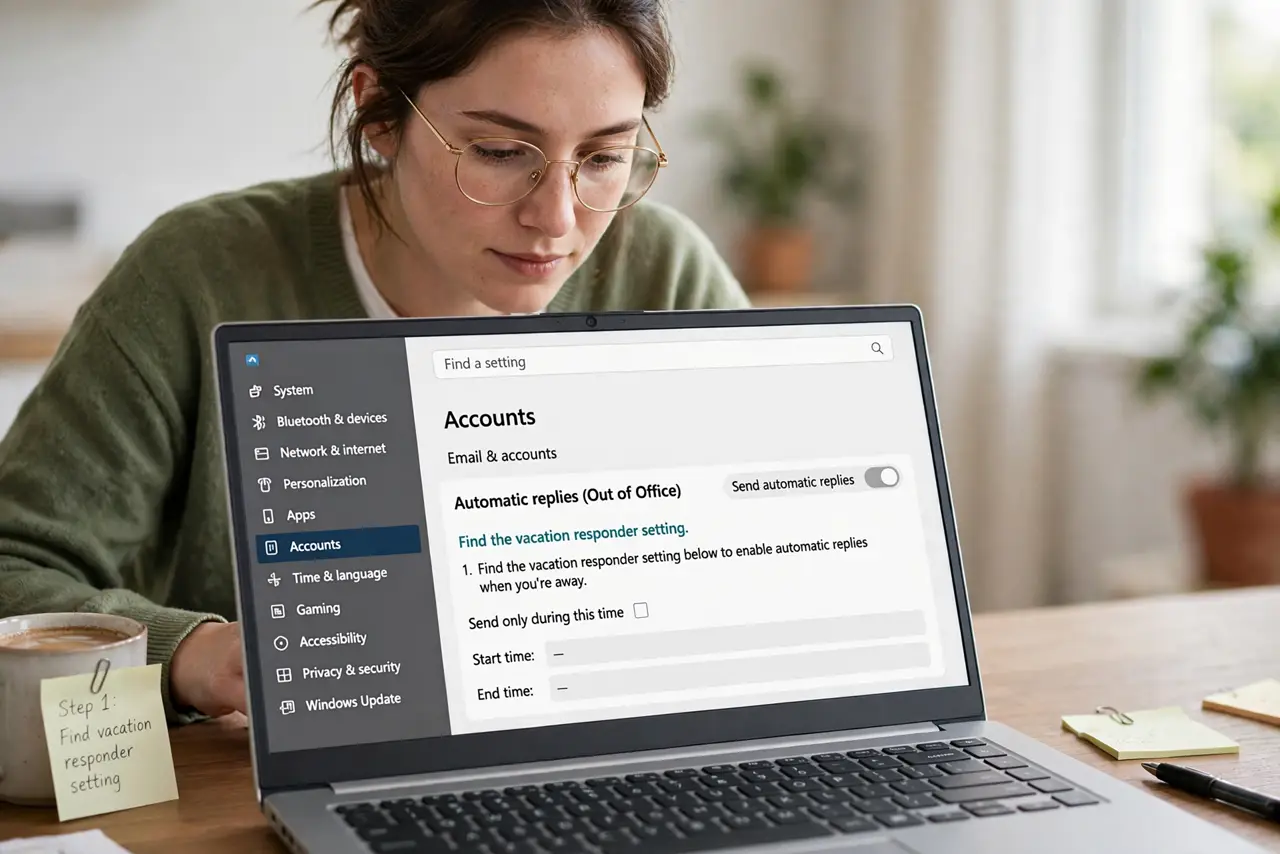
- Find the vacation responder setting. Gear icon, See all settings, General tab — scroll to the bottom. The vacation responder section is the last block on the page.
- Set start and end dates. The end date is the important one — it stops the replies automatically so you do not return to an inbox still auto-replying in October.
- Write a short, useful message. Say you are away, give the return date, and name an alternate contact for urgent matters. Three sentences is plenty — nobody reads a paragraph.
- Limit replies to your contacts. The 'only send a response to people in my Contacts' option stops the responder from answering spam and mailing lists — always turn this on.
- Test it before you leave. Send yourself an email from another address and confirm the auto-reply arrives and reads correctly.
- Turn it off early if you return early. Back on Thursday instead of Monday? Disable it manually — the end date will not know you came home early.
What NOT to do
- Do not include detailed travel plans. 'On vacation until the 12th' is fine; 'in Bali, house empty' is a burglary invitation.
- Do not reply to everyone including spam. Unrestricted responders confirm your address to spammers — use the contacts-only option.
- Do not write a novel. Long auto-replies get skimmed; dates and an alternate contact are all anyone needs.
- Do not forget to actually set the end date. A responder with no end date keeps replying until you remember — usually months later.
Frequently asked questions
Will people get the reply more than once?
No — Gmail sends it once per sender every few days, not on every email. Repeat senders are not spammed with it.
Does it reply to mailing lists?
With contacts-only enabled, no. Without it, yes — which is why the contacts-only option matters.
Can I set different messages for work and personal?
Not in one Gmail account — one responder, one message. Keep it neutral enough for both audiences.