'Out of Office' Auto-Declines? Set It Right
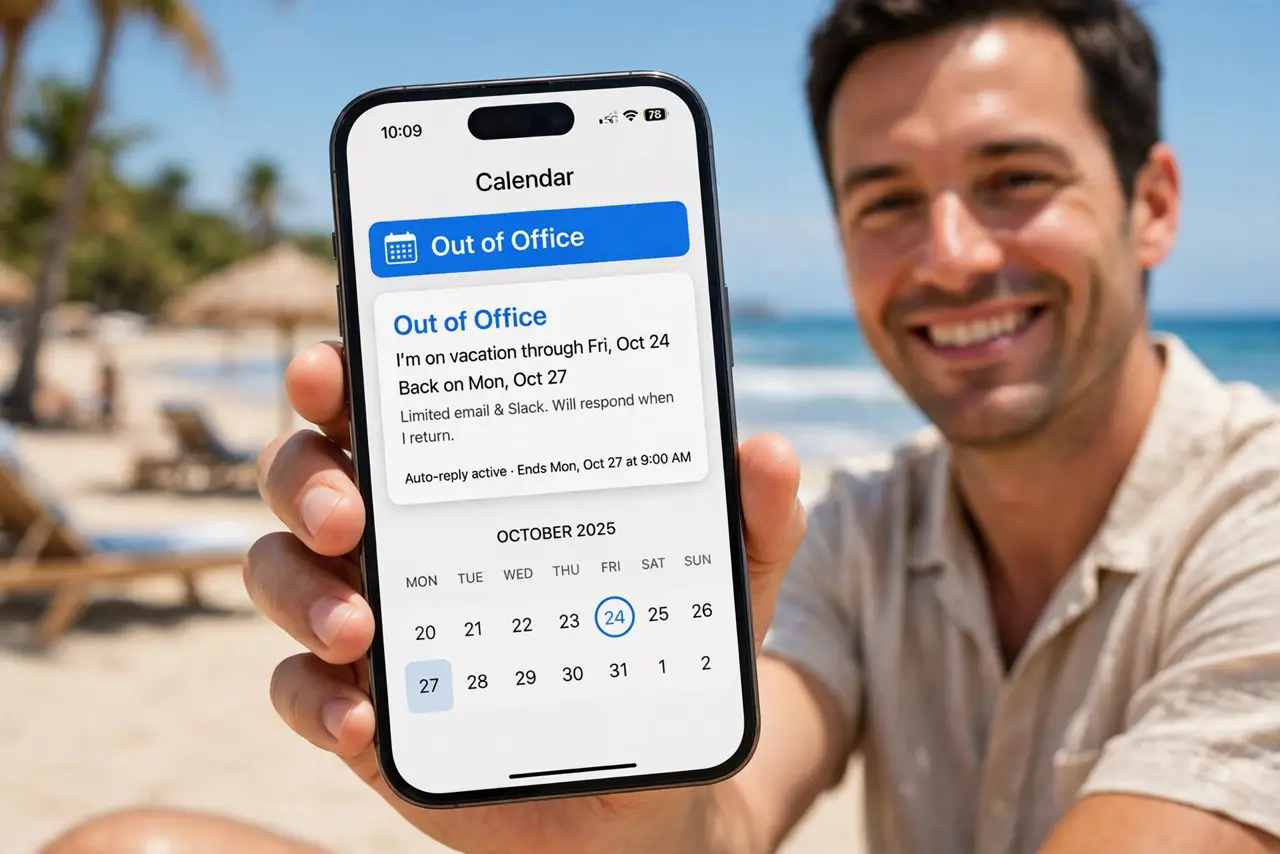
Google Calendar's Out of Office can automatically decline new meetings while you are away — powerful, but terrifying if it declines something important. Set the message, the visibility, and the decline behavior deliberately, and your vacation stays interruption-free without career damage.
TL;DR / Quick Fix
Quick fix: create the Out of Office event, set it to automatically decline new meetings, and write a clear message naming your backup contact. Handle existing recurring meetings manually, and pair it with [[working hours|calendar-working-hours-block-others-out]] so normal boundaries hold year-round.
Follow these steps
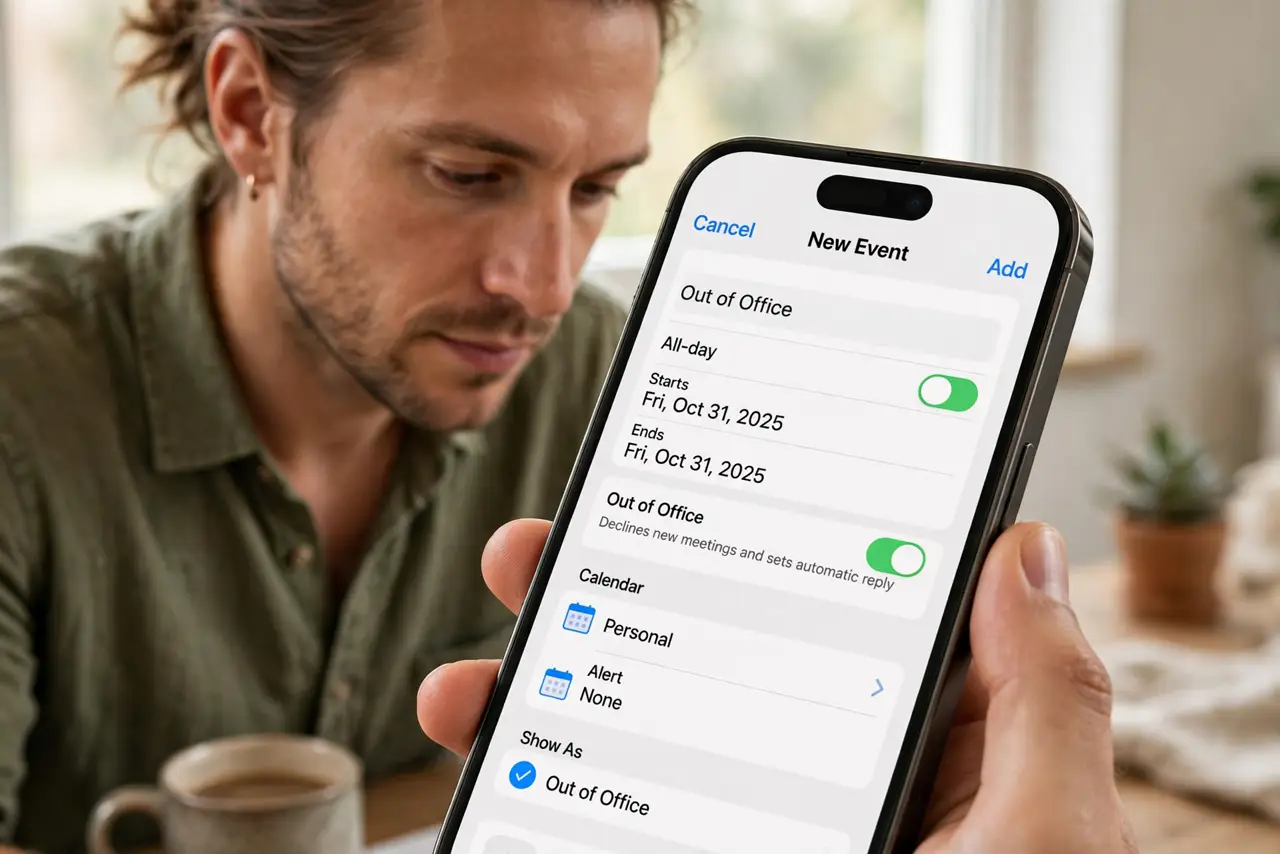
- Create an Out of Office event. In Google Calendar, create an event and change its type to 'Out of office'. This unlocks the auto-decline powers regular events lack.
- Turn on auto-decline deliberately. Choose whether new meetings are automatically declined. For real vacations, on; for light remote days, consider leaving it off.
- Write a useful decline message. Name your backup person and how to reach them. 'Contact Priya for urgent issues' beats a bare 'I am away'.
- Set visibility to public or private wisely. Public shows 'Out of office' to everyone; private hides details. Either way the time stays blocked.
- Double-check recurring meetings. Auto-decline hits new invites; existing recurring meetings need manual declining or they linger on everyone's calendar.
- Remove it the day you return. Delete or shorten the event when back early. A stale out-of-office block confuses colleagues for weeks.
What NOT to do
- Do not enable auto-decline without a message. A bare decline with no explanation reads as rude — the message is the courtesy.
- Do not out-of-office your entire calendar by accident. One multi-week block can decline things you forgot you cared about — review before saving.
- Do not rely on it for same-day emergencies. People already in meetings with you need a direct message, not a calendar event.
- Do not forget shared calendars. Your out-of-office does not update team on-call rotations or shared inboxes — notify those humans directly.
Frequently asked questions
Does out of office decline existing meetings?
No — only new invites during the period. Existing meetings, including recurring ones, need manual handling.
Will people see why I'm away?
They see the decline message you wrote and the blocked time. Keep the message professional and brief.
Can I allow some meetings through?
Yes — organizers you add as exceptions, or simply turn auto-decline off and decline manually for finer control.