Google Tasks? Plain Basics
Google Tasks is the to-do list hiding inside Gmail and Google Calendar — simple, free, and already on your account. No projects, no priorities, no learning curve: just lists with due dates that show up in your calendar. If Todoist feels like overkill, Tasks is the minimalist answer. Here is the plain basics.
TL;DR / Quick Fix
Quick fix: Google Tasks lives in Gmail's sidebar and Google Calendar — make lists, add due dates, and check things off. Tasks with dates appear on your calendar automatically. It is deliberately minimal: perfect for simple personal lists, not for complex projects.
Follow these steps
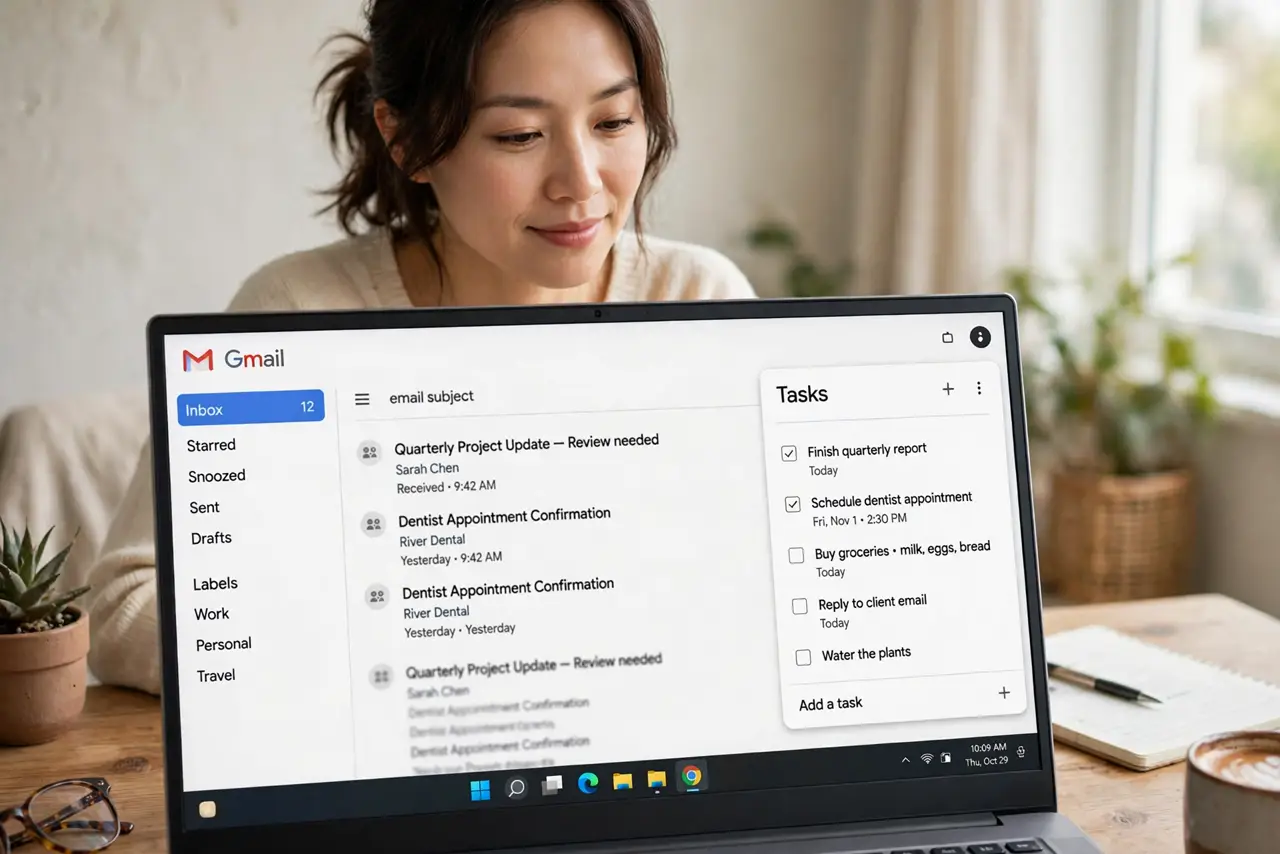
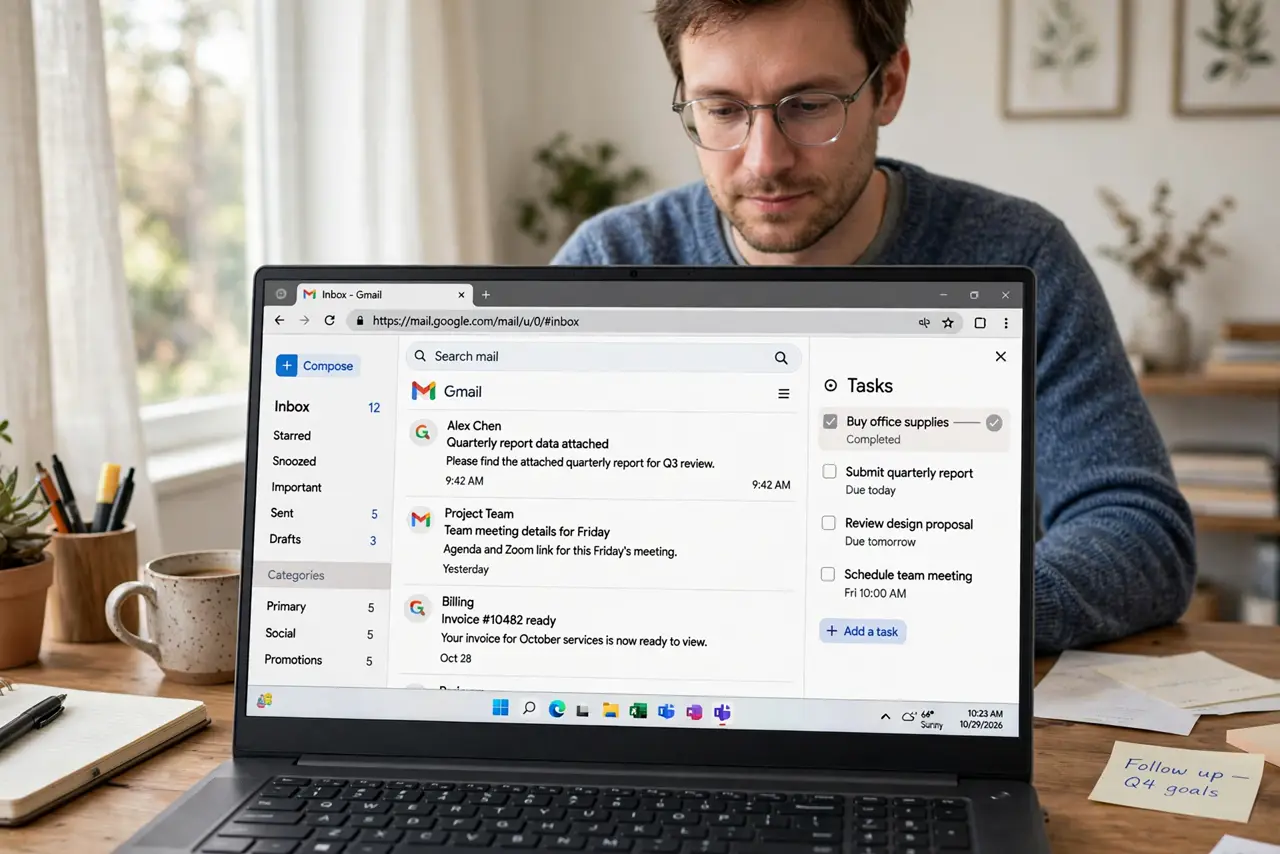
- Find it in Gmail. Open Gmail on the web and look at the right sidebar — the blue checkmark icon is Google Tasks. It is also in the Google Calendar sidebar and as a mobile app. You have had it for years; most people never notice.
- Make your first list. Create lists for your real categories — Personal, Shopping, Work. Keep the count small; Tasks has no projects or tags, so lists are the entire organization system.
- Add due dates. Every task can carry a date and time — dated tasks appear in Google Calendar automatically. This integration is the whole reason to use Tasks over a paper list.
- Break tasks into subtasks. Tasks support one level of subtasks — enough for 'plan trip' with its steps underneath. Do not try to build project plans here; one level is the honest limit.
- Use it with Calendar. The Tasks-Calendar pairing is the workflow: tasks with dates on the calendar, checked off as done. See how calendar reminders compare if you are deciding between the two.
- Know when to graduate. When you need priorities, recurring tasks with natural language, or projects, you have outgrown Tasks — Todoist or Microsoft To Do are the natural next steps. No shame in starting simple.
What NOT to do
- Do not build complex projects in Tasks. No priorities, no tags, one subtask level — it is a simple list, respect its limits.
- Do not ignore the mobile app. The phone app plus the Gmail sidebar is the full experience — one without the other is half a system.
- Do not use it without due dates. Undated tasks in Tasks are invisible — the Calendar integration is what makes it work.
- Do not expect reminders to be smart. Tasks reminders are basic — for location or complex recurrence, you need a bigger app.
Frequently asked questions
Google Tasks vs Todoist?
Tasks is minimal and built into Google's apps — free and frictionless. Todoist adds priorities, natural-language dates, and projects. Simple life: Tasks. Busy life: Todoist.
Why do my tasks not show in Calendar?
Only tasks with due dates appear, and only in the calendar of the list's account. Check the date and the account.
Is there a desktop app?
No standalone app — it lives in Gmail/Calendar sidebars on the web and as a mobile app. That is the whole footprint, by design.